
This manual covers the Linux beta, Josi 1.2.8-beta.39, with Josi's own model. Every screenshot comes from a real install on Ubuntu 26.04 with an NVIDIA GPU. The account, names and addresses in them are made-up demo data, so yours will differ. Josi is beta software: read the beta warning before you rely on it.
Before you start
Josi runs on a Linux computer you own: a spare PC, a mini PC, a home server or a virtual machine. Everyone in your household or team then uses Josi from a browser, or from the iPhone app, by the server's address.
| You need | Details |
|---|---|
| Linux with systemd | Ubuntu or Debian (apt), or Arch (pacman). The installer stops on any other system. |
| A 64-bit Intel or AMD processor | x86_64. This beta has no ARM packages yet. |
| Disk space | About 6 GB free on /var/lib for Josi. Add about 12 GB for Josi's own model. |
| Memory | Josi's own model wants 16 GB. With less than 15 GB, the installer suggests no, and you use a cloud model instead. |
| A graphics card (optional) | An NVIDIA card with 8 GB or more makes Josi's own model answer in seconds instead of minutes. Install its driver first, for example sudo ubuntu-drivers install, then reboot. Check it with nvidia-smi. |
| An admin account | The install runs as root, through sudo or from a root shell. |
| Internet access | To download Josi (about 650 MB) and, if you want it, the model (5.8 GB). |
You don't need Docker. Josi installs as a normal system package with its own services.
Install Josi
Open a terminal on the server, or connect to it with SSH, and run this one command:
curl -fsSL https://github.com/vaxman14/josi-ce/releases/download/v1.2.8-beta.39/linux | sudo bashThe installer asks a few questions first and installs nothing until you say yes. Each question shows its answer in brackets: press Enter to keep it, or type a different one. Ctrl+C stops the installer at any point before it starts installing.
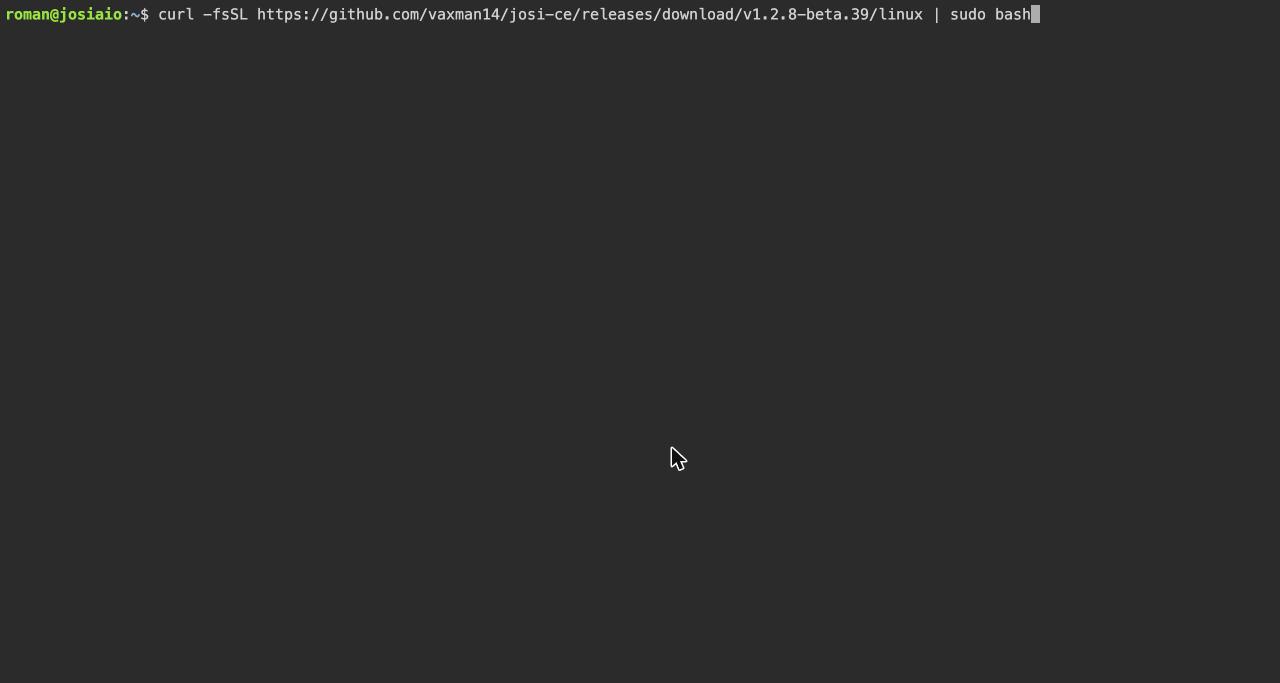
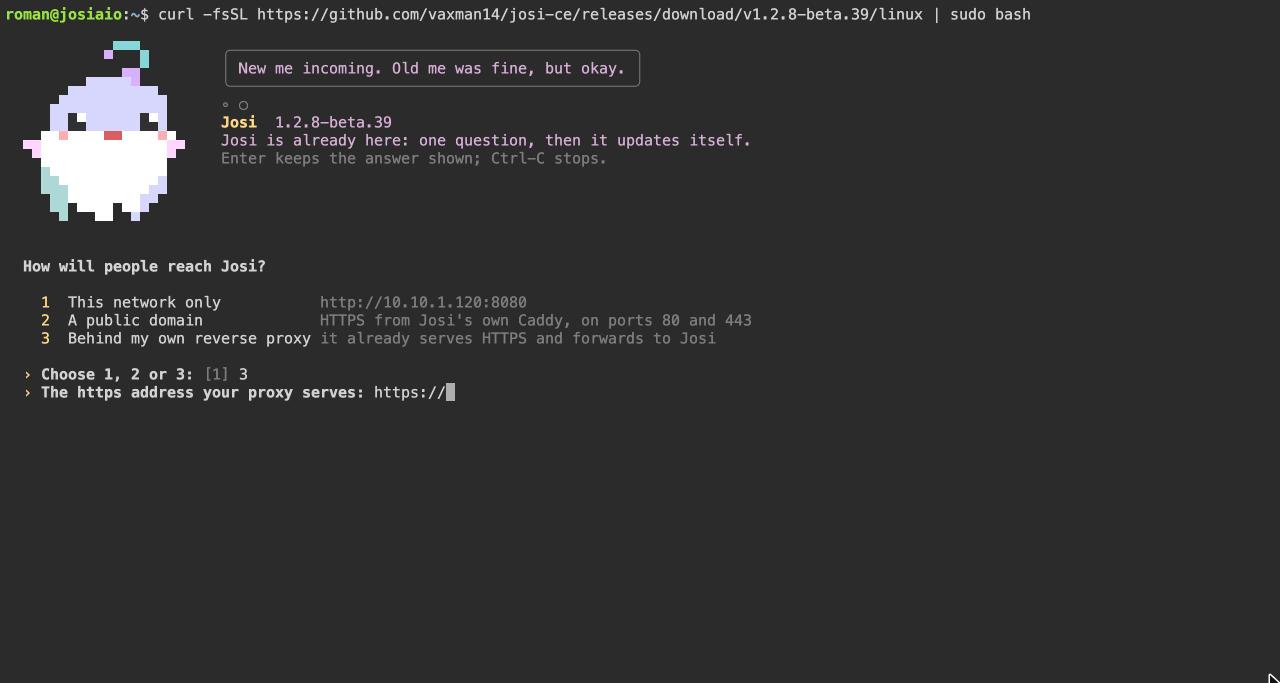
How will people reach Josi?
The first question decides the address everyone uses to open Josi.
- 1 — This network only. Josi answers at
http://the server's address on your network, for examplehttp://192.168.1.20:8080. Choose this to try Josi at home or in the office. Phones and laptops have to be on the same network, or on a VPN into it. - 2 — A public domain. Josi gets its own HTTPS certificate from Let's Encrypt through its built-in Caddy web server. You need a domain name whose DNS points at this server, and ports 80 and 443 open to the internet and free on the server. Choose this to reach Josi from anywhere.
- 3 — Behind my own reverse proxy. For when something else already serves HTTPS and forwards to Josi: nginx, Traefik, Caddy, or a tunnel such as Cloudflare Tunnel or Tailscale Funnel.
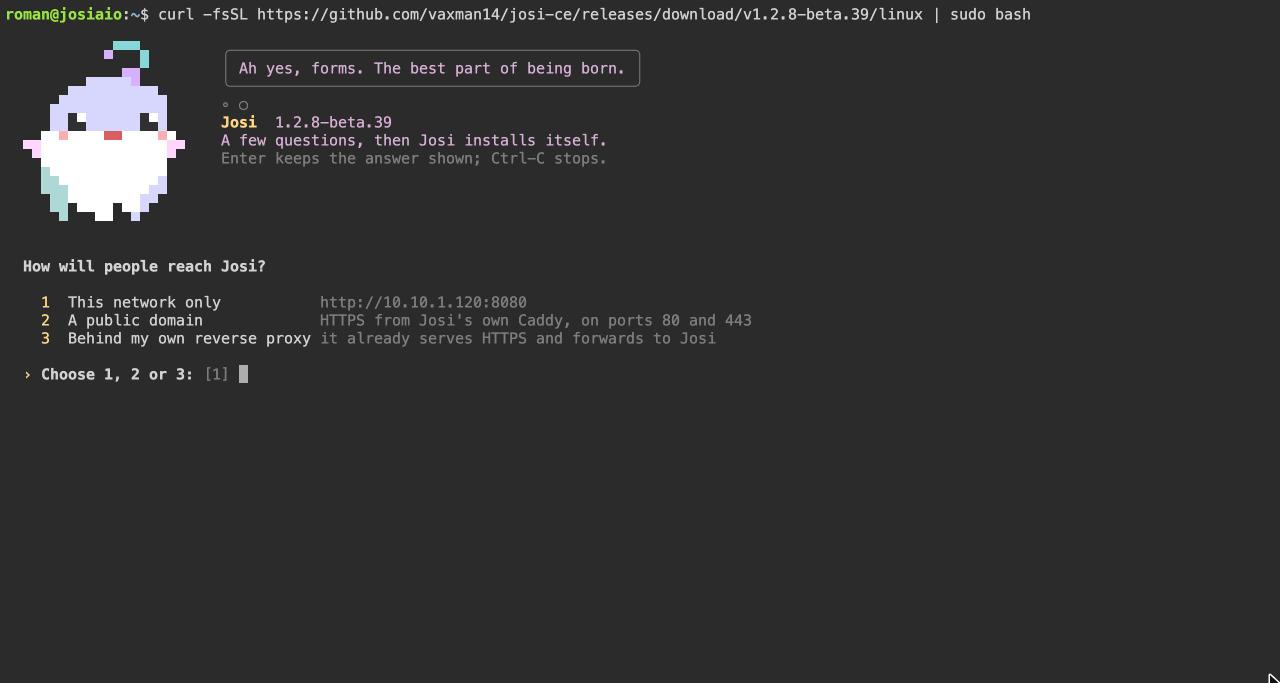
Then it asks for the one detail that choice needs:
| Choice | Question | What to enter |
|---|---|---|
| 1 | This server's address on your network: | Filled in with the address the installer found. Keep it, or type a fixed IP or a host name such as josi.local. |
| 2 | Domain name (its DNS points at this server): | The domain, for example josi.example.com. If port 80 or 443 is taken, the installer says so: choose 3 instead. |
| 2 | Email for certificate notices (empty for none): | Let's Encrypt writes here if a certificate is about to expire. You can leave it empty. |
| 3 | The https address your proxy serves: | The full address with https:// and no path, for example https://josi.example.com. |
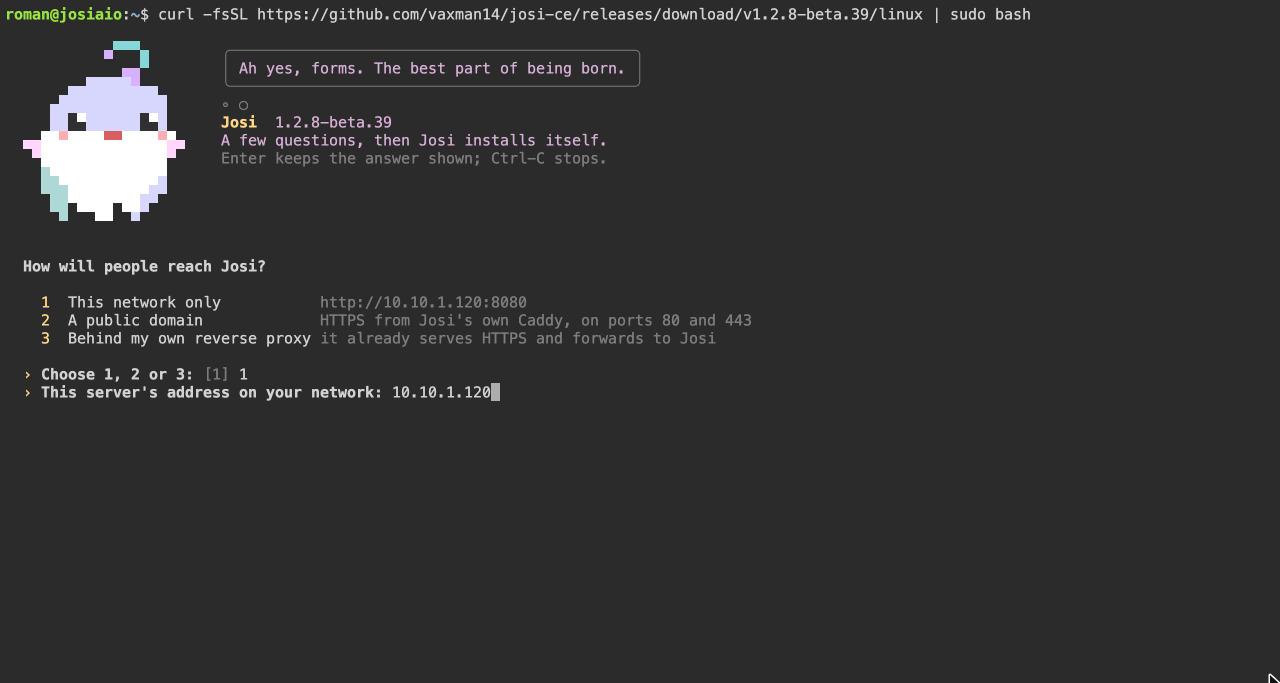
Which port should Josi answer on?
The port browsers use on your network. The default is 8080. Choose
another one from 1024 to 65535 if 8080 is taken; the installer tells you when a port
is busy and offers the next free one. With a public domain, HTTPS uses 80 and 443 and
this port serves plain HTTP on your network only. Behind your own proxy, point the
proxy at http://server-address:port.
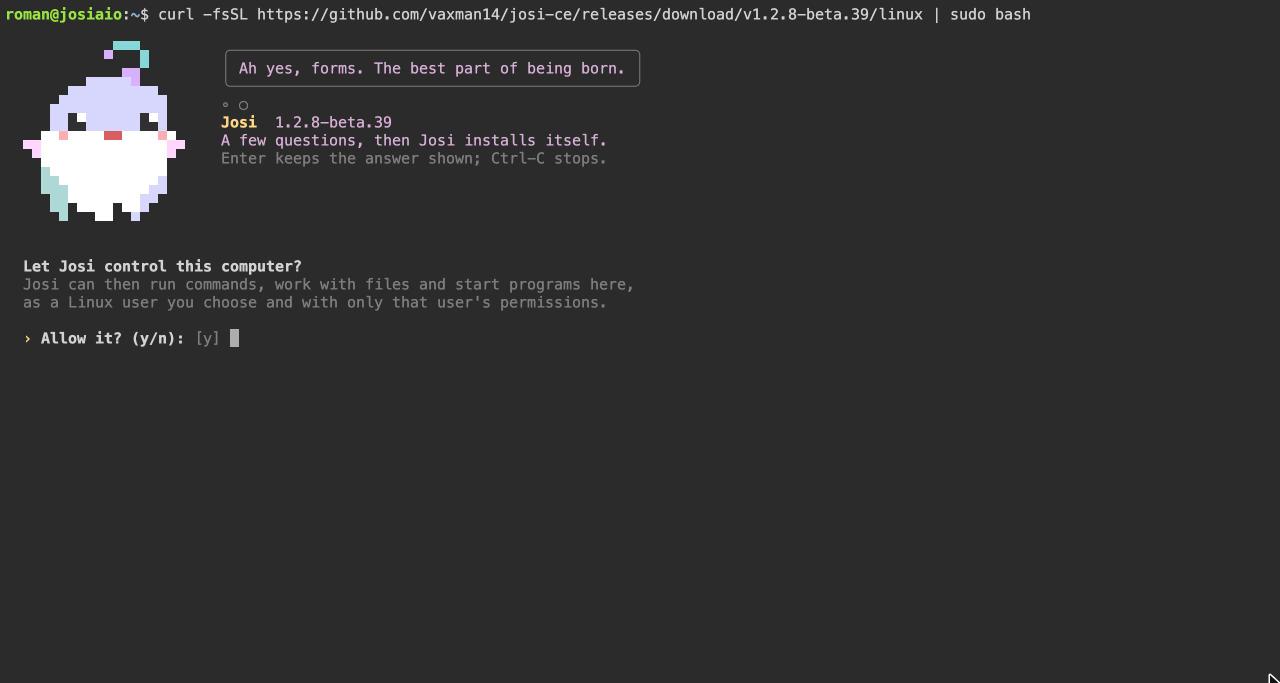
Let Josi control this computer?
With y, Josi can run commands, work with files and start programs on this server when you ask her to. She does it as the Linux user you name next, with only that user's permissions, never as root. Commands, deleting, installing and anything high-risk still ask you in chat first. Answer n if this server is shared or holds anything Josi shouldn't touch. You can change your mind later by running the install command again.
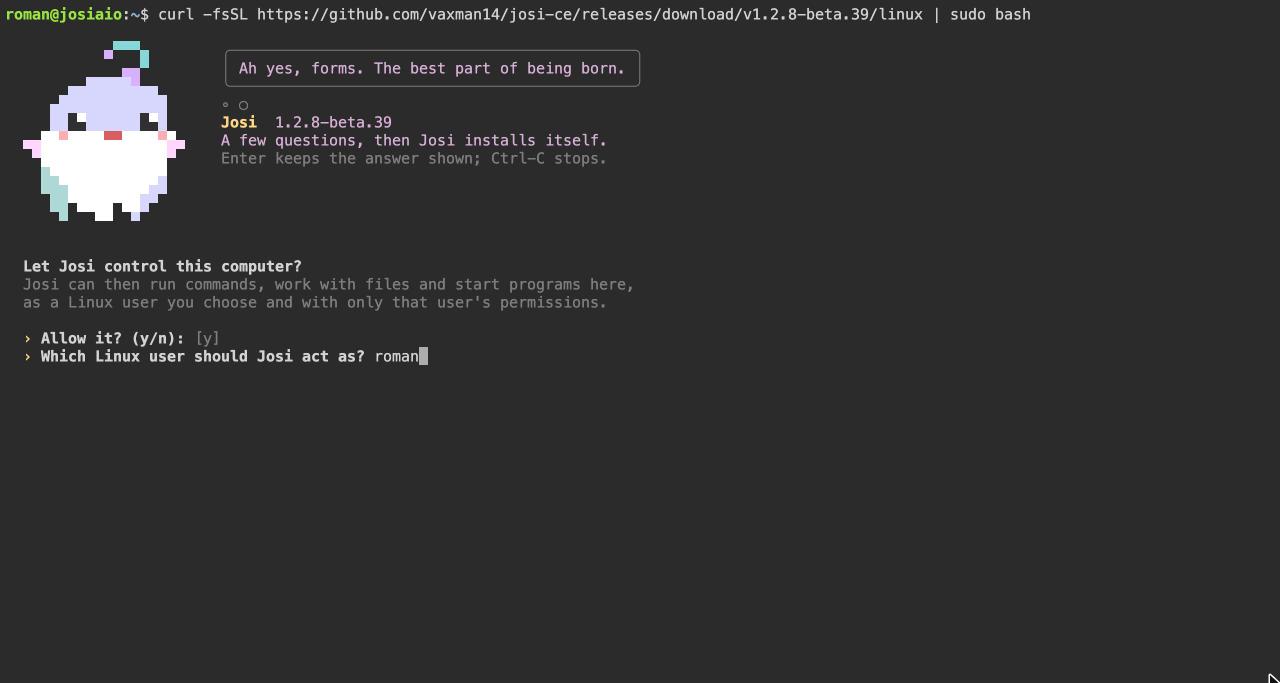
Which Linux user should Josi act as? The account that ran
sudo is filled in. It has to be a normal login account on this machine.
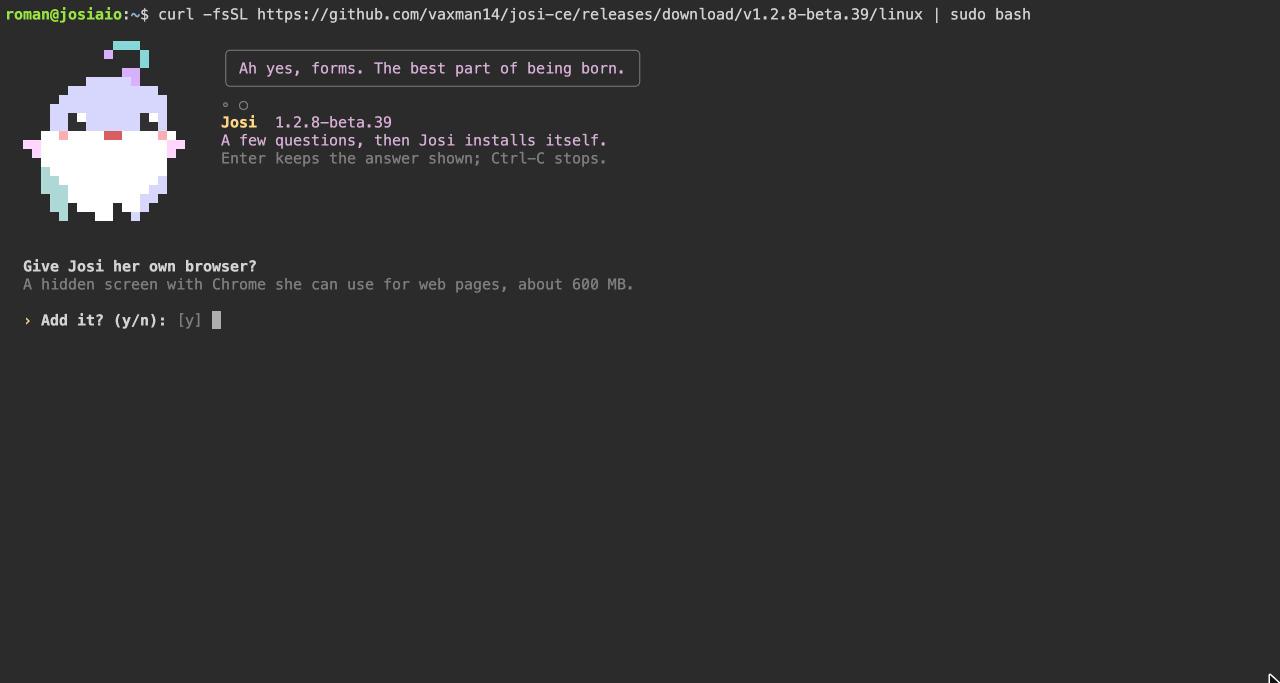
Give Josi her own browser?
Asked only when you allow PC control. With y, the installer adds Chrome on a hidden screen (about 600 MB), so Josi can open and read web pages, fill in forms and take screenshots for you. Nothing shows on the server's own screen. On Ubuntu 23.10 and later it also adds a small AppArmor rule so that this Chrome keeps its sandbox.
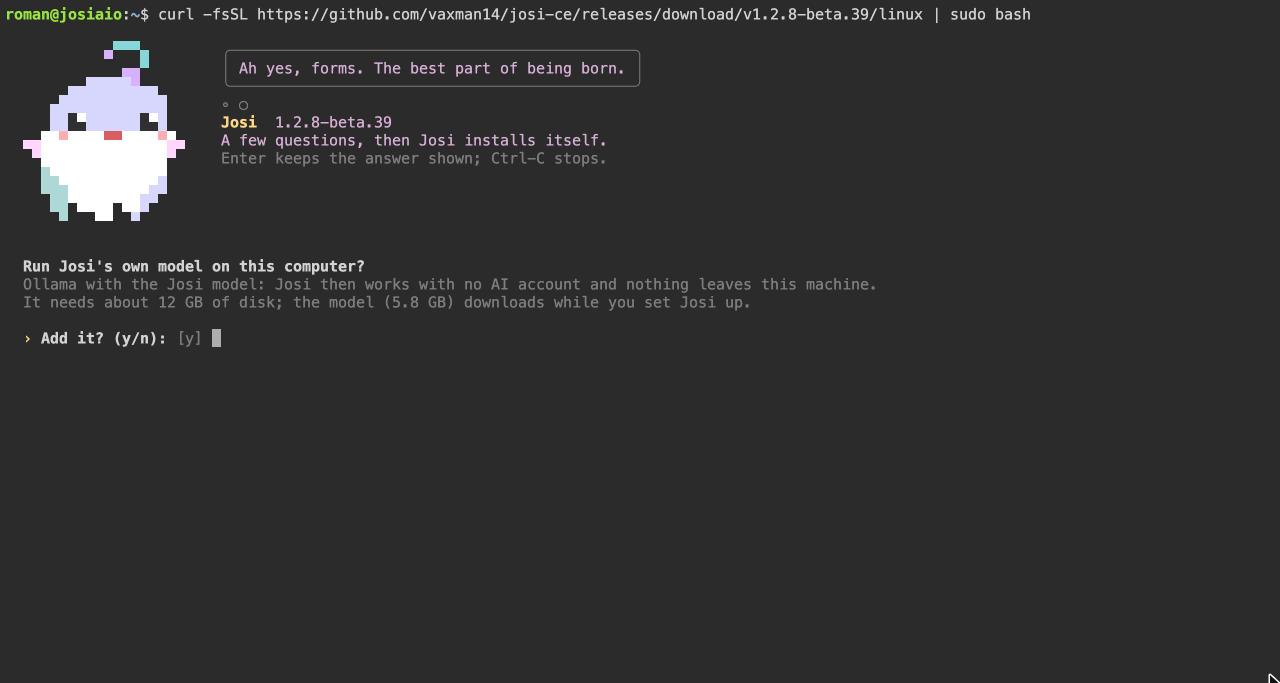
Run Josi's own model on this computer?
With y, Josi installs Ollama as the service
josi-ollama and downloads the Josi model (5.8 GB). Josi then works with no
AI account, and nothing you say leaves this machine. Ollama only listens on this
server itself, not on your network. The download runs in the background while you
finish setup in the browser. It needs about 12 GB of disk and 16 GB of memory; with an
NVIDIA card, the model runs on the card.
With n, you pick a cloud model, such as OpenAI, Anthropic or Google
Gemini, with your own key during setup. You can add the local model later by running the
install command again with --local-model.
Check the summary and install
The installer shows every answer together. Type y or press Enter to install. Type n to go through the questions again with your answers filled in.
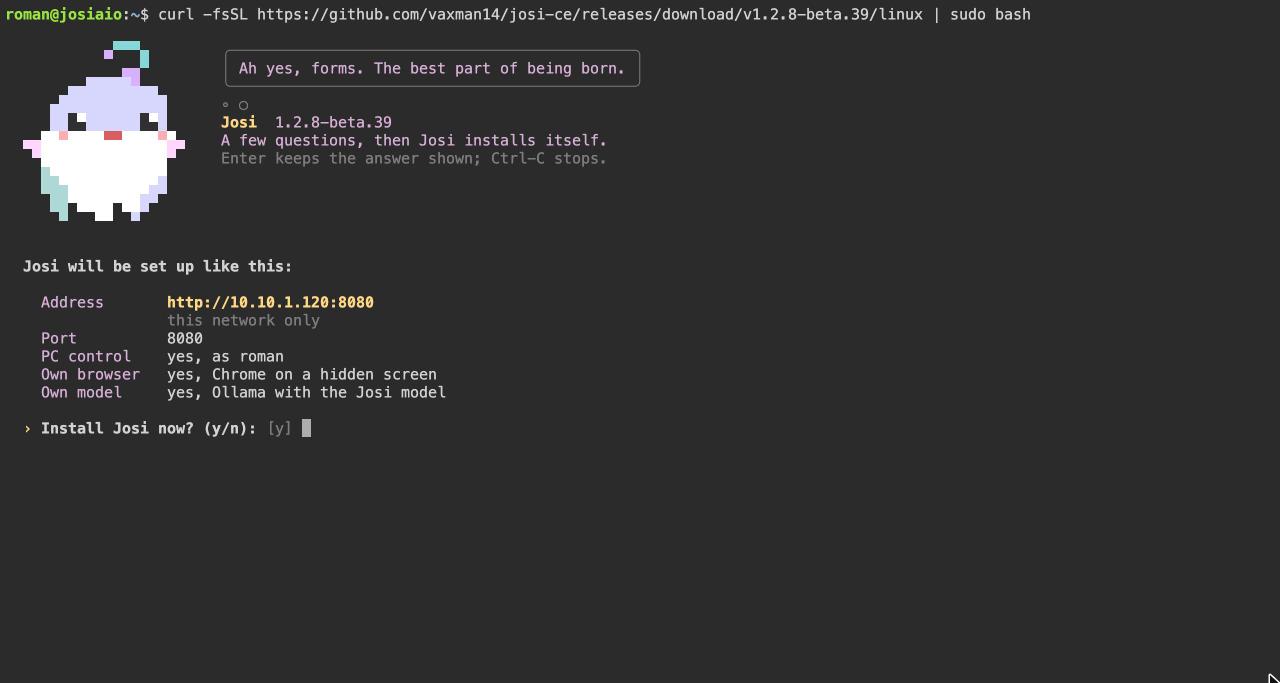
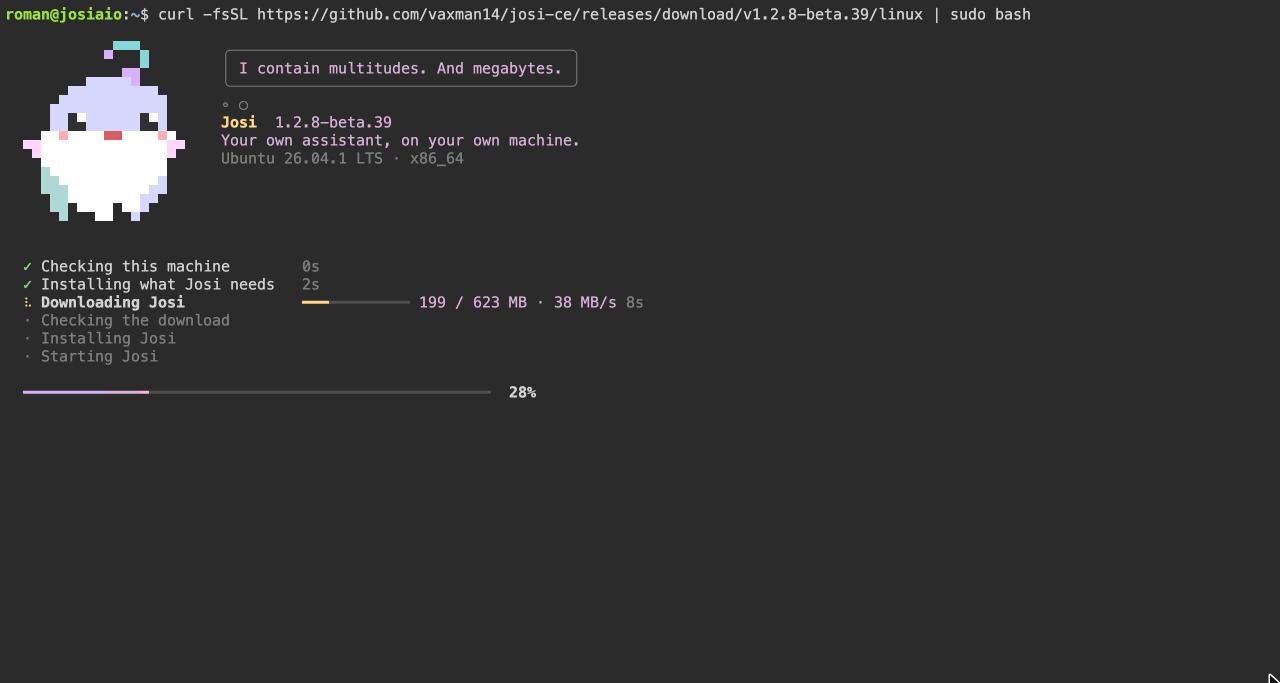
Then it works through six stages, with a progress bar:
- Checking this machine: the system, the processor, the memory and the free disk space.
- Installing what Josi needs: the system packages it depends on.
- Downloading Josi: the package for your system, about 650 MB.
- Checking the download: its SHA-256 checksum, against the one built into the installer. A package that doesn't match is never installed.
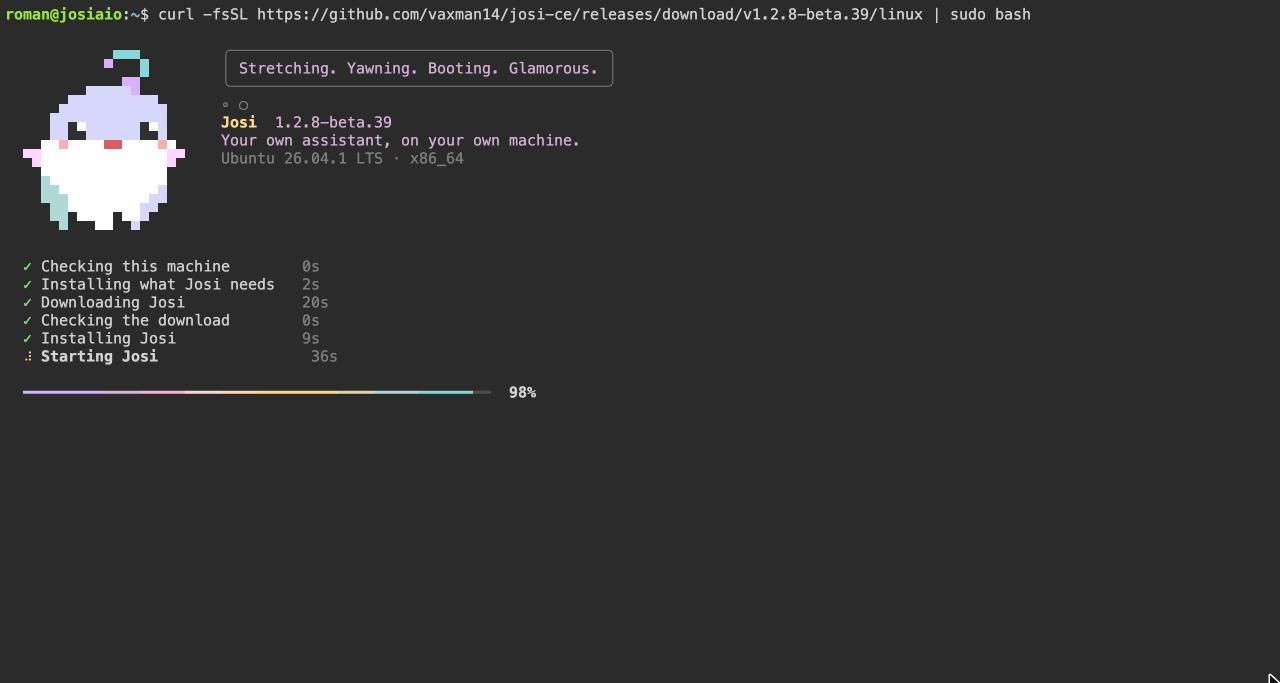
- Installing Josi: the package, its services and its accounts.
- Starting Josi: the first start prepares the database and takes a minute or two.
Open the setup link
When it's done, the installer prints a setup link. Open it in a browser on any computer on the same network to finish setup.
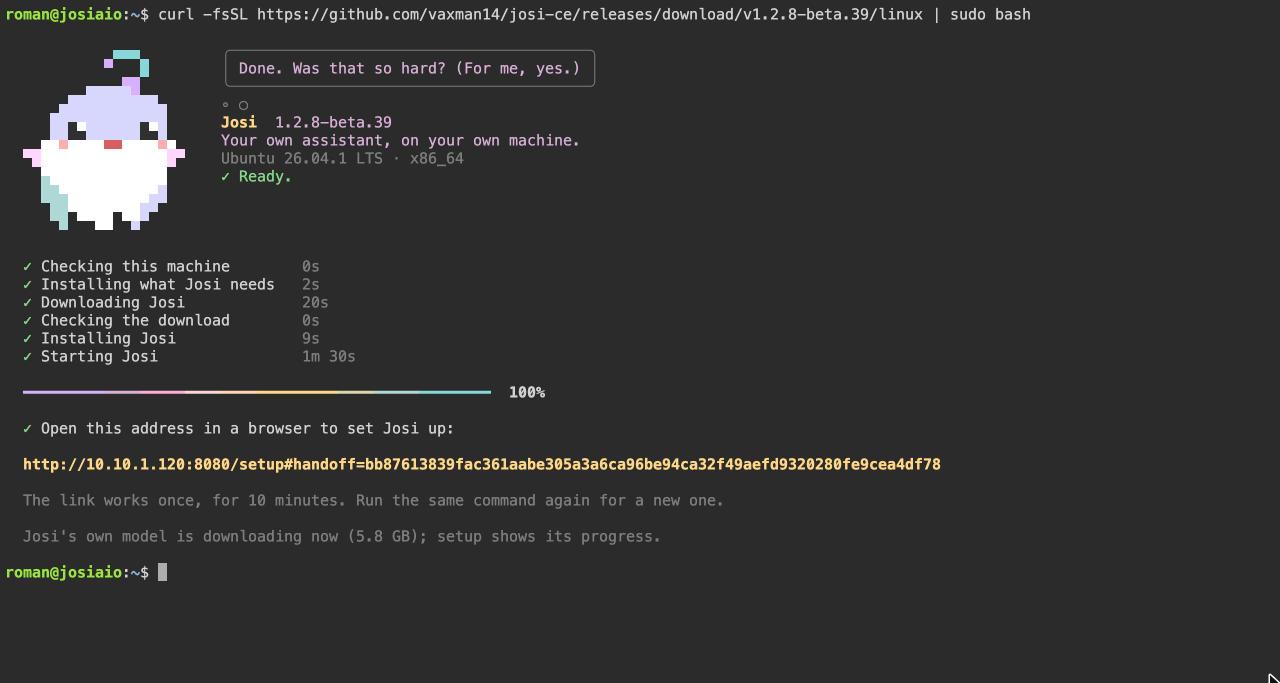
- The link works once, for 10 minutes. If it expires, or you close
the browser before you finish, run
sudo josi-ce-server-installon the server. It prints a new link and keeps all your answers. - If you chose Josi's own model, it keeps downloading after the installer ends. Setup shows the progress.
- Nobody can use Josi until setup is finished. Without the link, the setup page only says to run the installer.
Finish setup in your browser
Setup has nine steps. A bar at the top fills in as you go, and every screen ends with links to the Terms, Privacy, Cookie and Licence notices. Finishing setup means you agree to them. If something can't be saved, a red note appears at the top of the card.
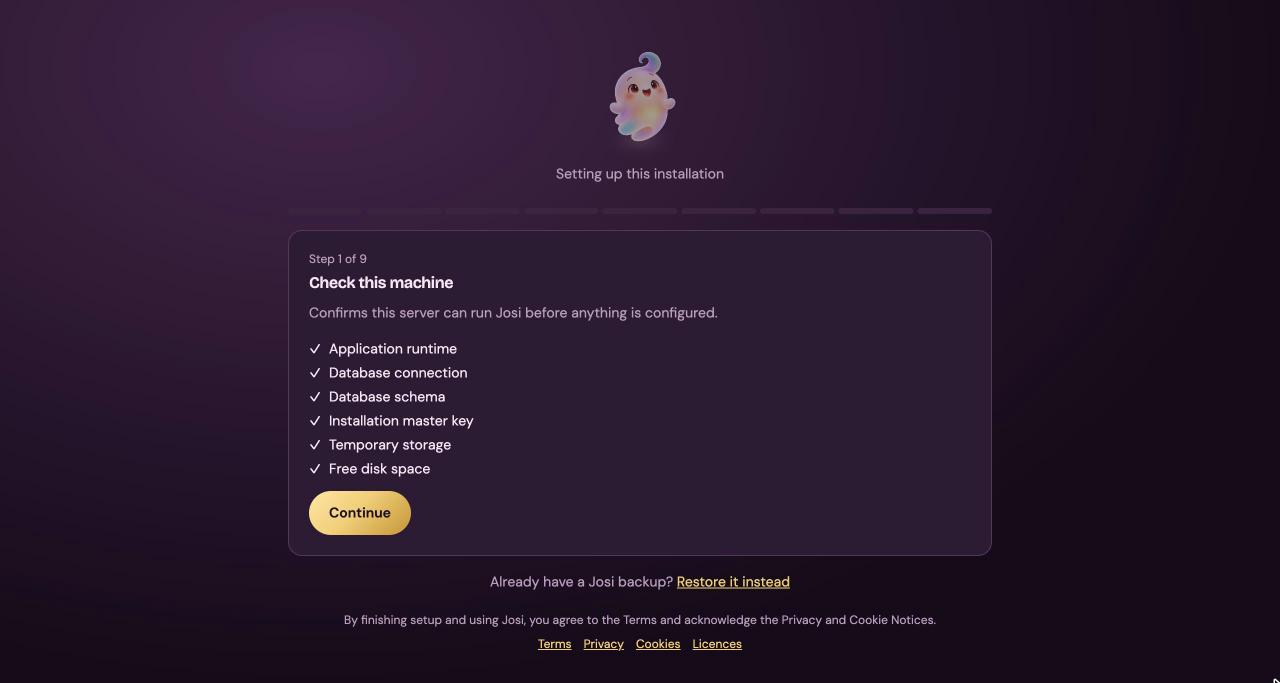
Step 1: Check this machine
Josi checks that it can run before anything is configured: Application runtime, Database connection, Database schema, Installation master key, Temporary storage and Free disk space. A ✓ means the check passed. Free disk space only warns, below 2 GB; the others have to pass. Select Continue.
Already have a Josi backup? Restore it instead appears on this first screen only. It brings back people, conversations and settings from an earlier Josi. Choose the backup file, type its Backup password if it has one, and select Restore this backup. On Linux, connected accounts and saved logins don't come back with a restore onto a new server: people connect them again.
Step 2: Your account
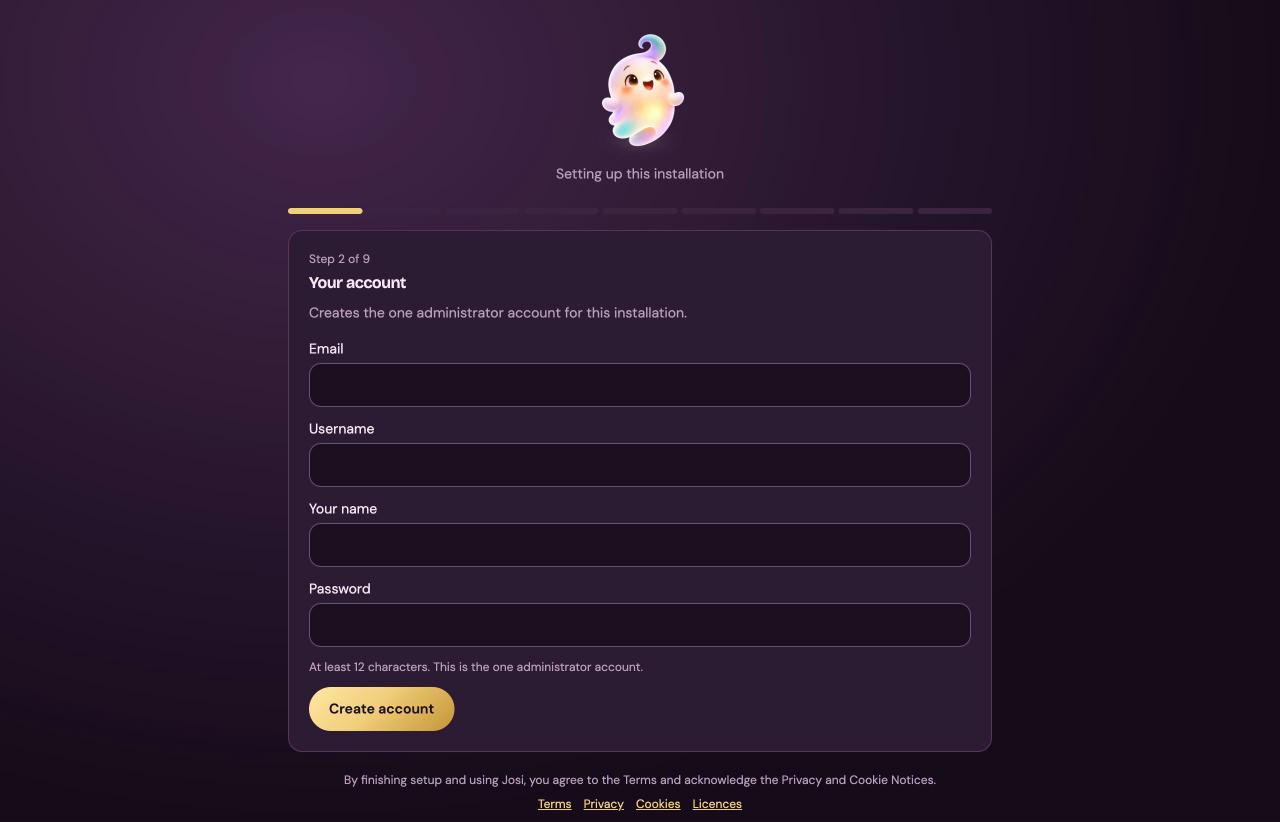
Creates the one administrator account, the owner of this Josi.
| Field | What to enter |
|---|---|
| Your email address. Josi sends password resets and notices here once email is set up. | |
| Username | What you sign in with, for example alex. |
| Your name | Optional. Josi greets you with it, and it names the workspace. |
| Password | At least 12 characters. There is no command to reset it on the server, so keep it in a password manager. |
Select Create account. Setup doesn't sign you in: you sign in with this account after the last step.
Save your Vault recovery key
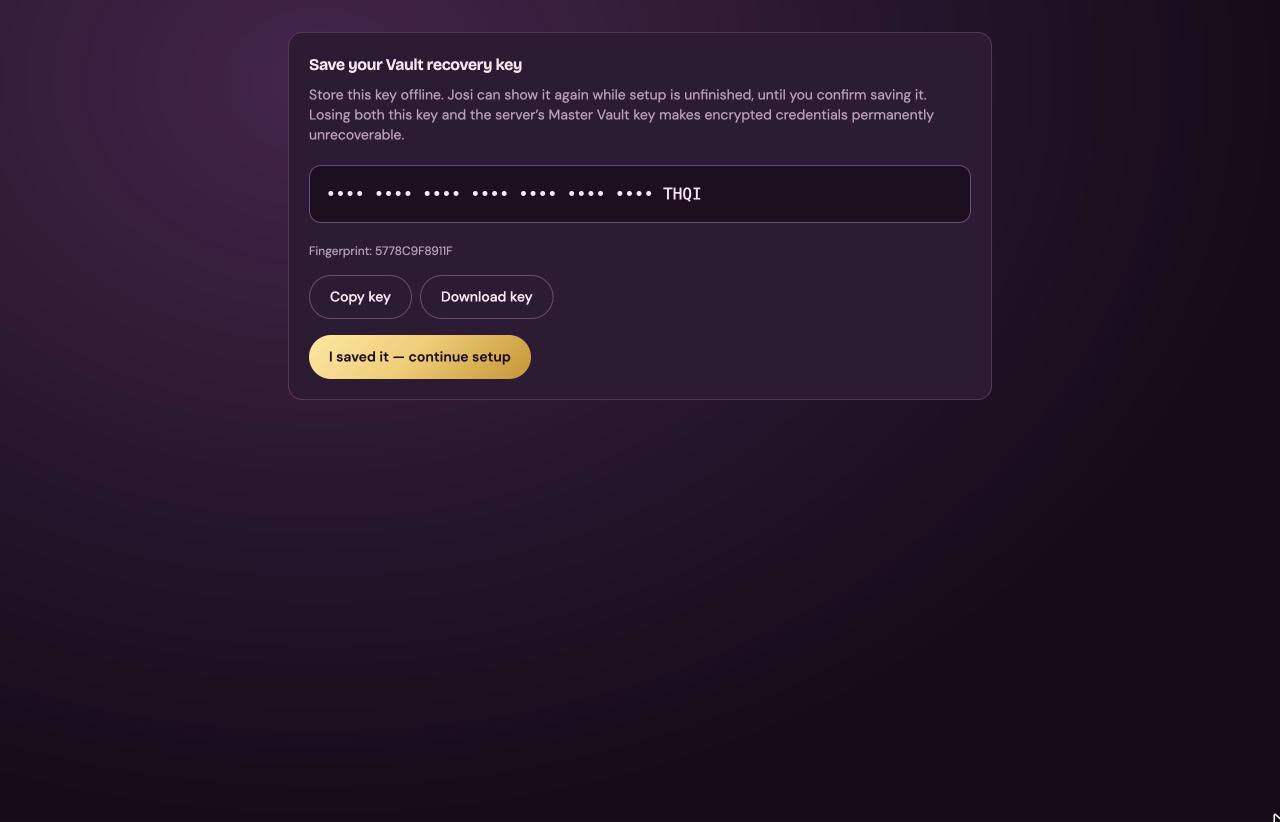
Right after your account, Josi creates its Vault, where every password, token and key people give Josi is stored encrypted, and shows its recovery key. Only the last four characters are visible on screen.
- Copy key puts it on your clipboard. Download key saves it as a text file named after its fingerprint.
- Store it somewhere other than this server: a password manager, or on paper.
- Fingerprint identifies the key without showing it. Admin → Master Vault shows the same fingerprint later, so you can tell which saved key belongs to this server.
- Select I saved it — continue setup. After that, Josi can never show the key again.
If you lose both this key and the server's own master key, every saved credential is gone for good. Your chats and settings are not affected.
Step 3: Address and HTTPS
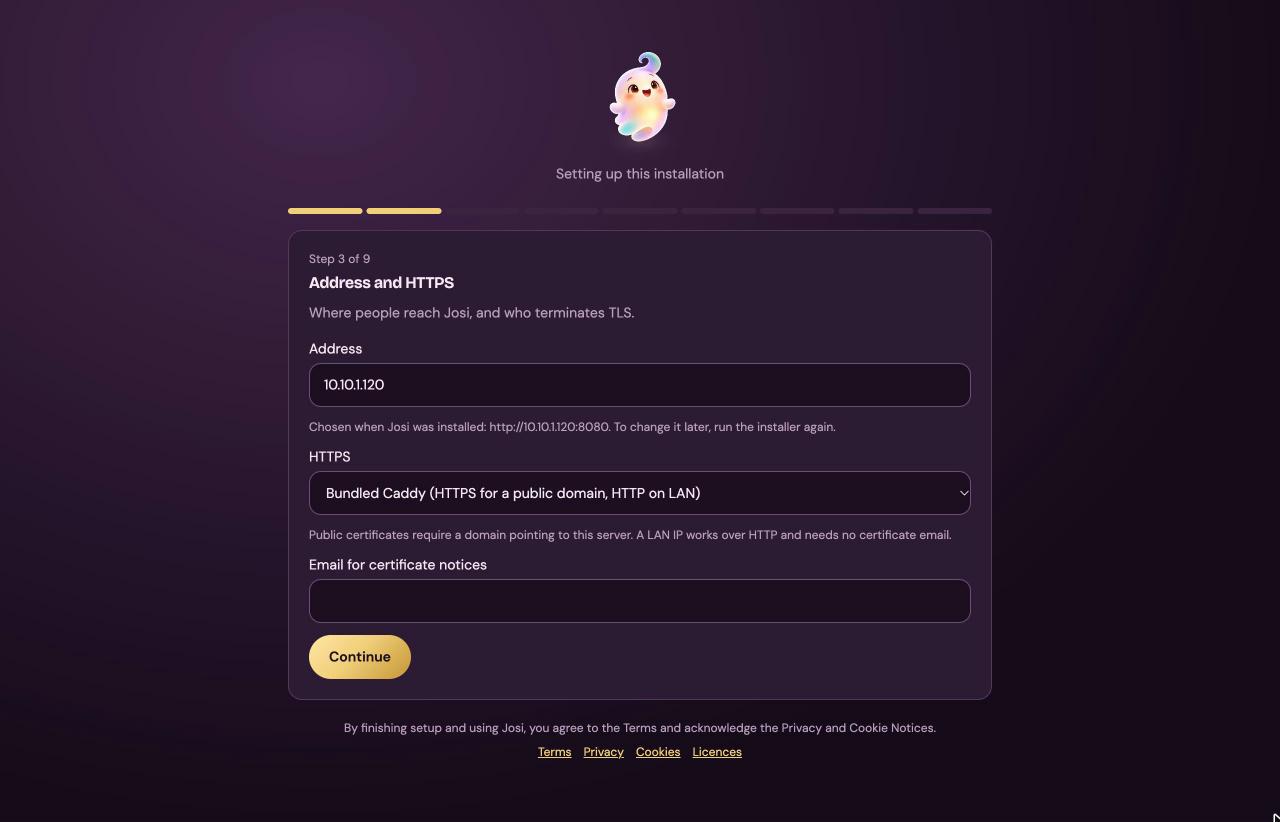
This step shows the address the installer chose, under Chosen when Josi was installed. Leave it as it is and select Continue. To really change the address, run the install command again (see Change settings later); editing it here doesn't change where Josi answers.
- Address: the host name or IP address, without
http://. - HTTPS: Bundled Caddy (HTTPS for a public domain, HTTP on LAN) for install choices 1 and 2, or I run my own reverse proxy for choice 3.
- Email for certificate notices: only used with a public domain.
Step 4: Language model
This is the model Josi thinks with. It's the one step that has to pass a real test before setup can finish.
With Josi's own model
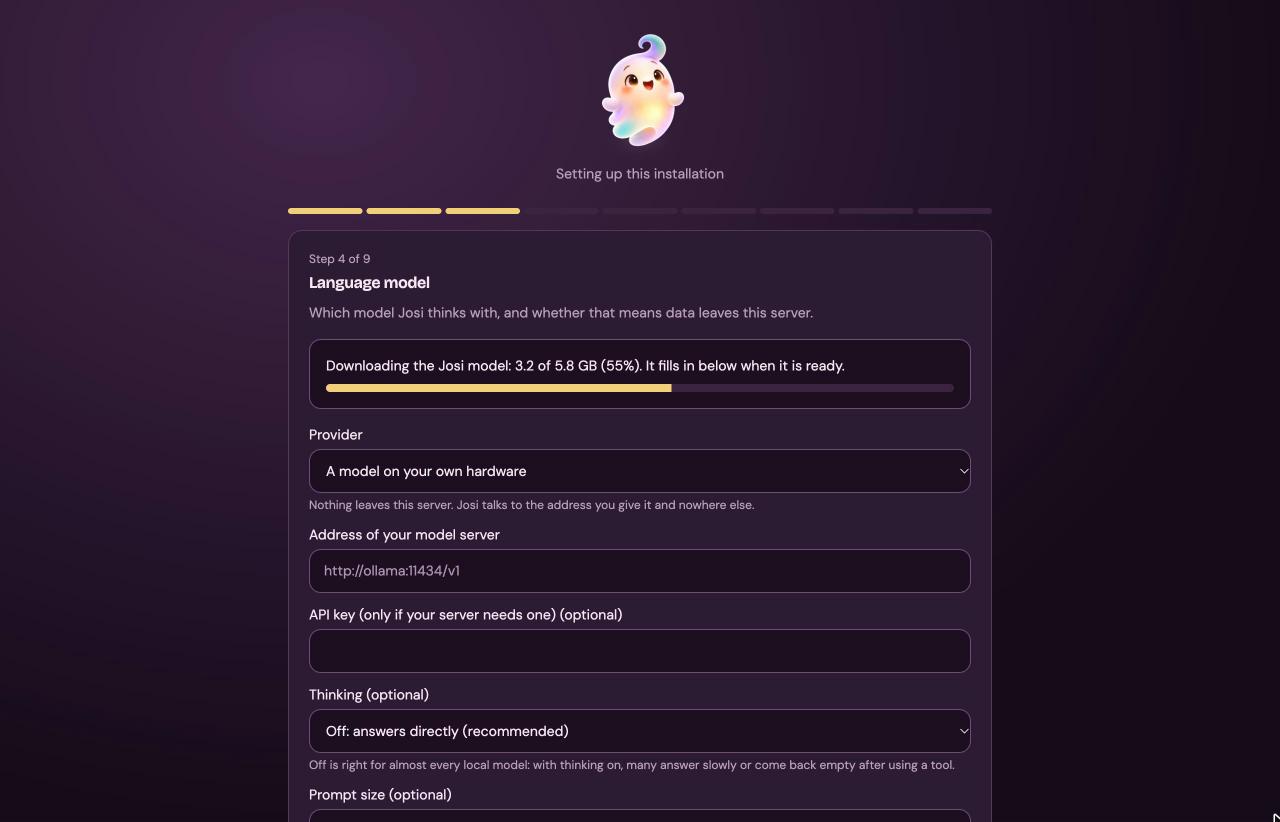
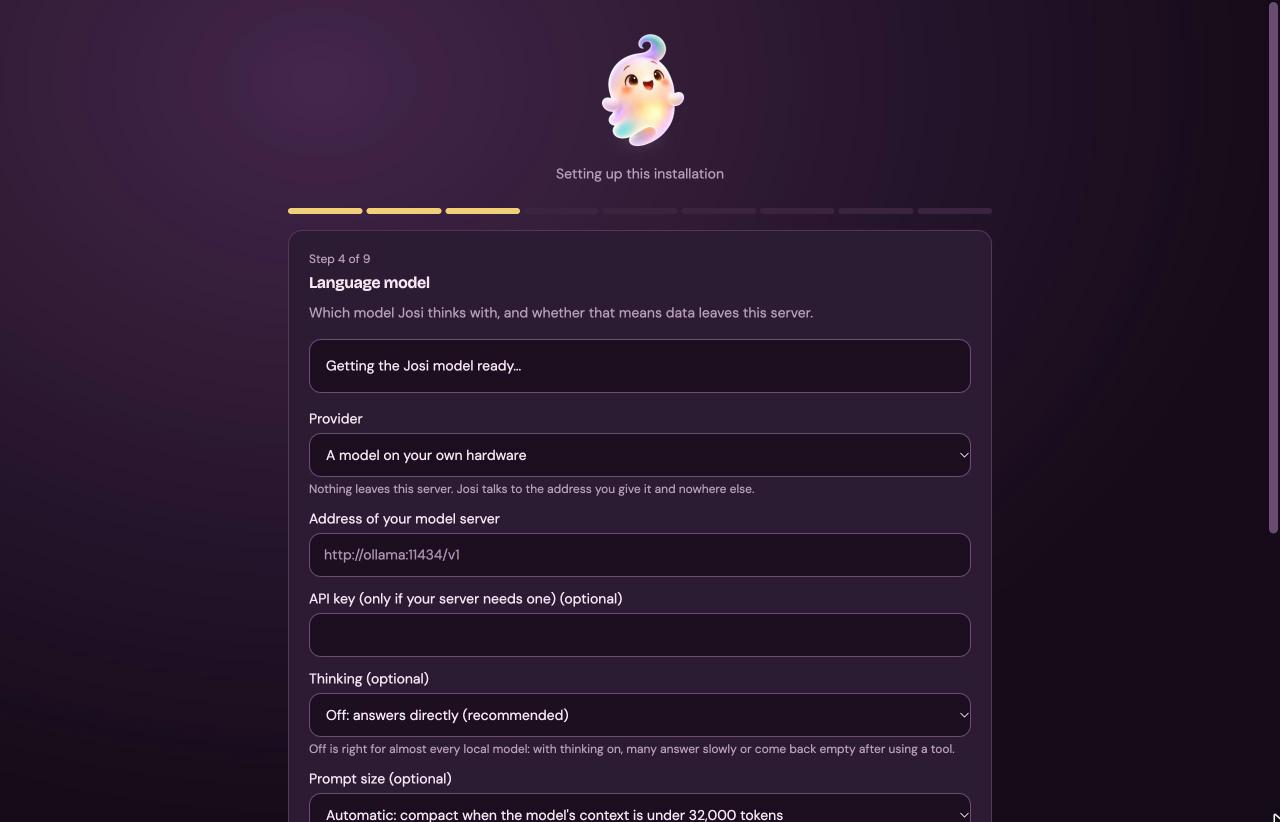
If you said yes to Josi's own model, the step opens with the download's progress:
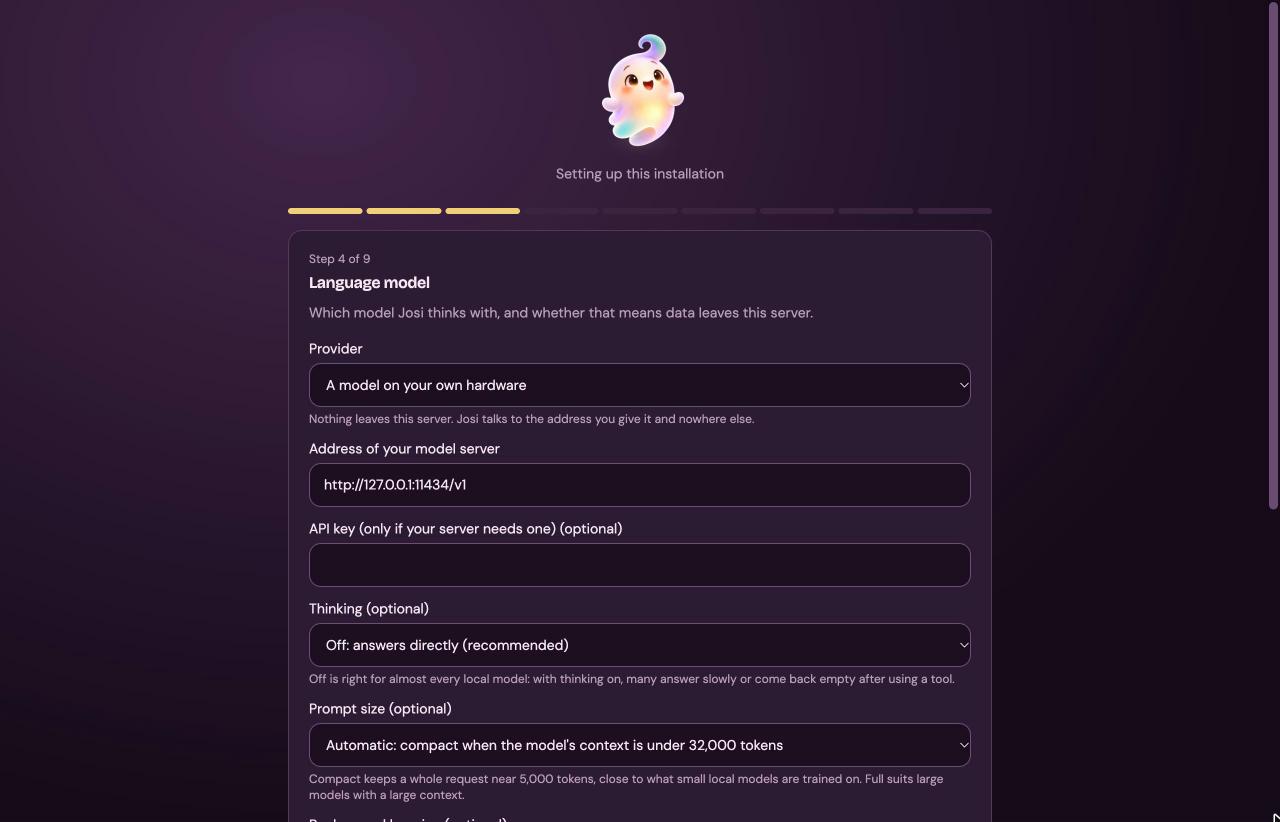
Downloading the Josi model: 3.2 of 5.8 GB. You can wait here. When the
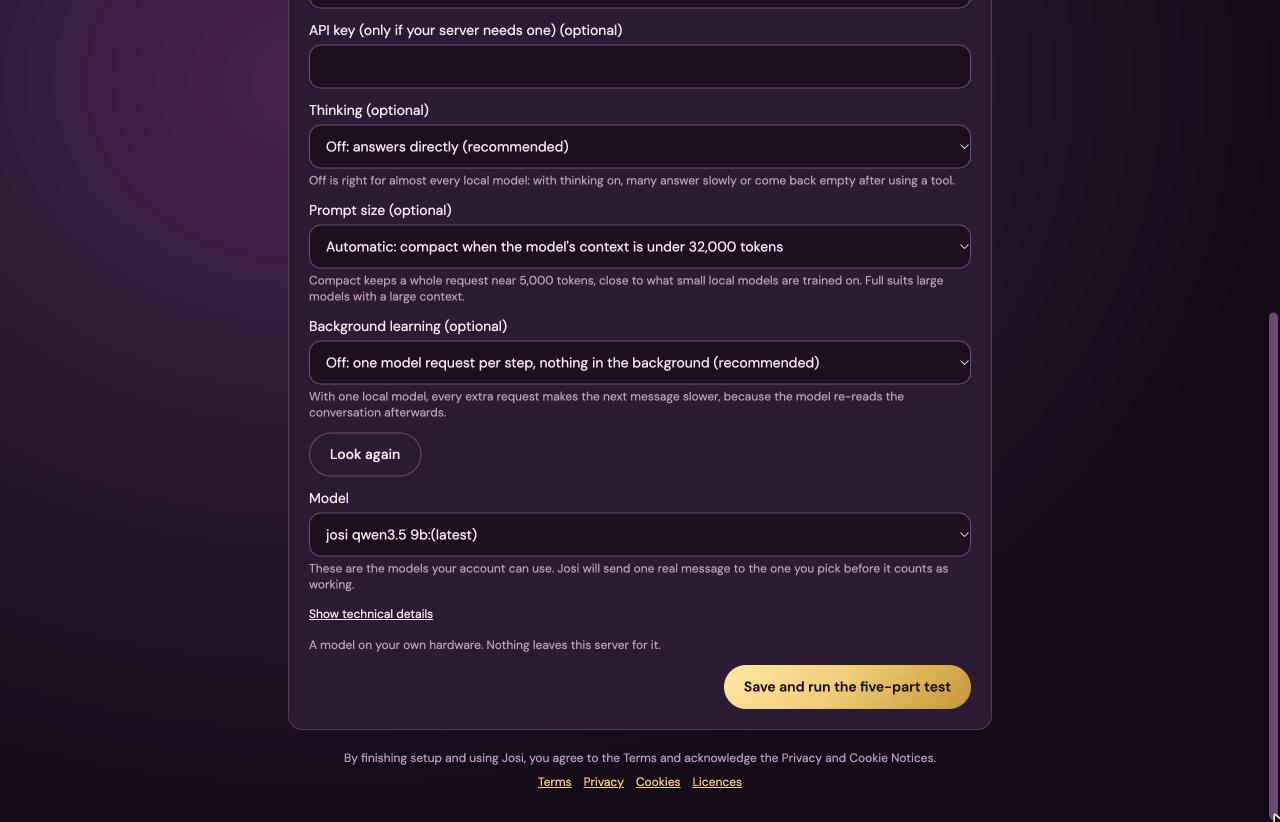
download is checked and ready, the form fills itself in: A model on your own
hardware, address http://127.0.0.1:11434/v1 and model
josi-qwen3.5-9b. Select Save and run the five-part test.
If the download fails, the step says so and tries again by itself every minute. You can also pick another model in the meantime.
The fields
| Field | What it means |
|---|---|
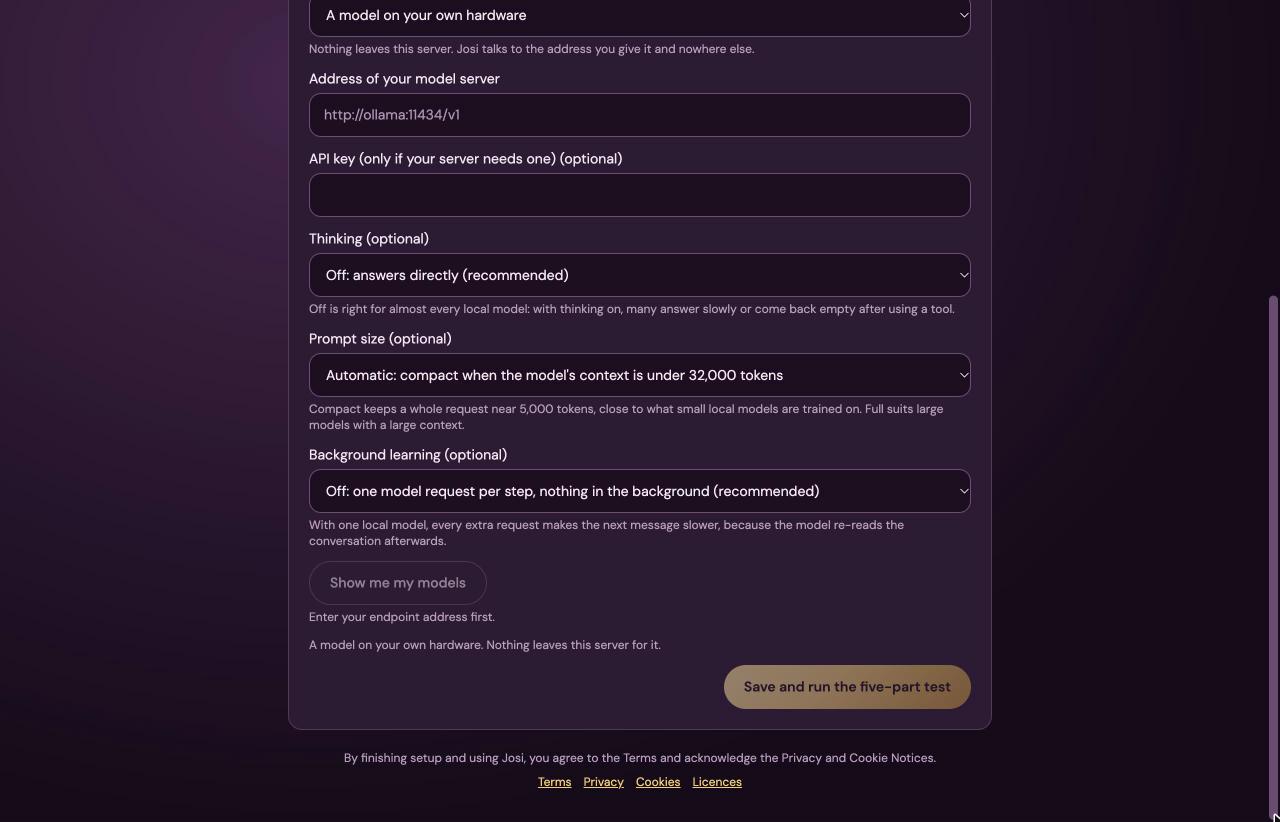
| Provider | Who runs the model. A model on your own hardware is any server that speaks the OpenAI API: Josi's own Ollama, your own Ollama, LM Studio, vLLM or llama.cpp. The rest are cloud providers, listed below. |
| Address of your model server | For your own hardware: the model server's address, ending in /v1. For cloud providers this field is optional and usually left empty. |
| API key | The key the provider gave you. For your own hardware, only if your model server asks for one. |
| Thinking | Own hardware only. Off: answers directly (recommended). With thinking on, many local models answer slowly or come back empty after using a tool. |
| Prompt size | Own hardware only. Automatic keeps requests short (about 5,000 tokens) when the model's context is under 32,000 tokens. Compact always keeps them short. Full sends everything, for large models. |
| Background learning | Own hardware only. Off (recommended): one model request per step. On: Josi also learns facts and reviews mistakes with extra requests, which makes the next message slower on a single local model. |
| Show me my models / Look again | Asks the provider which models your key or server can use. |
| Model | The model to use. Show technical details shows its exact identifier. |
| Data checkbox | For every cloud provider: I understand that the data needed for each request leaves this server. Setup won't save a cloud model without it. With your own hardware, nothing leaves the server. |
Cloud providers
Instead of Josi's own model you can use a cloud model with your own key. Pick the provider, paste the key from your account with that provider, select Show me my models, choose one, tick the data checkbox and save. The providers in this beta:
| Provider | What Josi asks for |
|---|---|
| OpenAI, Anthropic, xAI, DeepSeek, Alibaba Qwen, Mistral, Moonshot (Kimi), Zhipu GLM, OpenRouter, MiniMax, Cohere | An API key. Each one shows under the provider which company processes your requests, and where. |
| Google Gemini | An API key from Google AI Studio, not a Google Cloud service account. |
| AWS Bedrock | Region, Access key ID, Secret access key, and a Session token for temporary credentials only. |
| Azure AI | Your resource's Endpoint address, its Key, and optionally an API version. You pick a deployment instead of a model. |
| Google Vertex AI | Project ID, Location and the whole Service account key (JSON) of an account with the Vertex AI User role. |
| Baidu ERNIE | The API key and Secret key of a Qianfan application. |
| Tencent Hunyuan | Secret ID, Secret key and, optionally, a Region. |
| My ChatGPT plan (no API key) | No key. Select Sign in with ChatGPT, open the link it shows, sign in to OpenAI in your own browser and enter the one-time code. Josi then uses your ChatGPT plan through OpenAI's Codex tool on the server. |
| My Claude plan (no API key) | No key. On any computer, run claude setup-token with Anthropic's Claude Code, sign in, and paste the token it prints into Subscription setup token. Select Save token in Vault. |
Hey Josi AI also appears in the list. It isn't available in this beta; don't choose it.
The five-part test
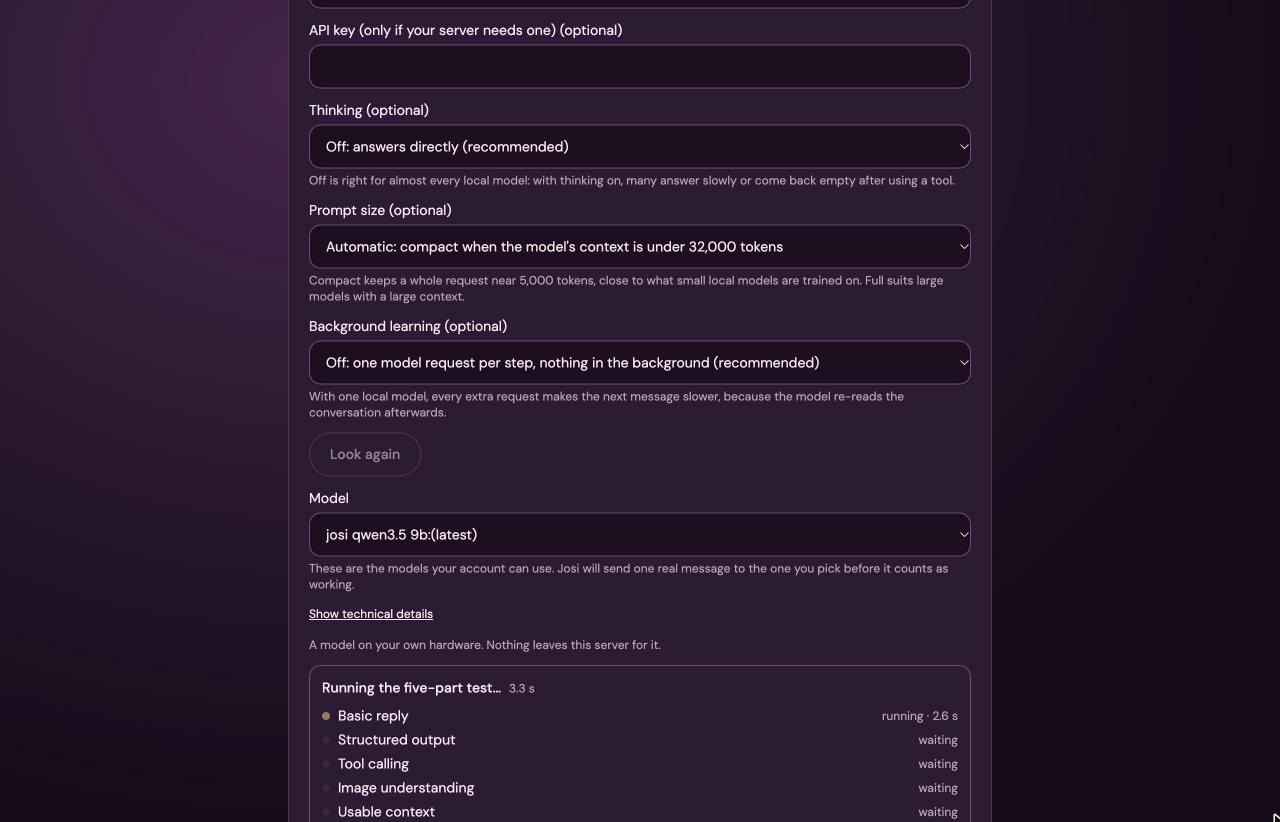
Saving sends five real requests to the model and shows each result as it runs:
| Check | What it proves | If it fails |
|---|---|---|
| Basic reply | The model answers at all. | Setup can't continue. The message says why, for example that the server couldn't reach the model. |
| Structured output | It can answer in JSON when asked. | Features that need structured answers stay off. |
| Tool calling | It can use a tool it's offered. | Calendar, email and document features stay off. |
| Image understanding | It can see pictures. | Not a fault. Josi reads the text in pictures and scanned pages on the server (OCR) instead, and says so each time. |
| Usable context | It handles a prompt of about 8,000 tokens. | Long conversations will fail. |
Josi's own model passes 4 of 5: it reads text only, so image understanding uses OCR. Only the basic reply has to pass for setup to continue. You can change the model and run the test again at any time under Admin → Model.
Step 5: Email sending
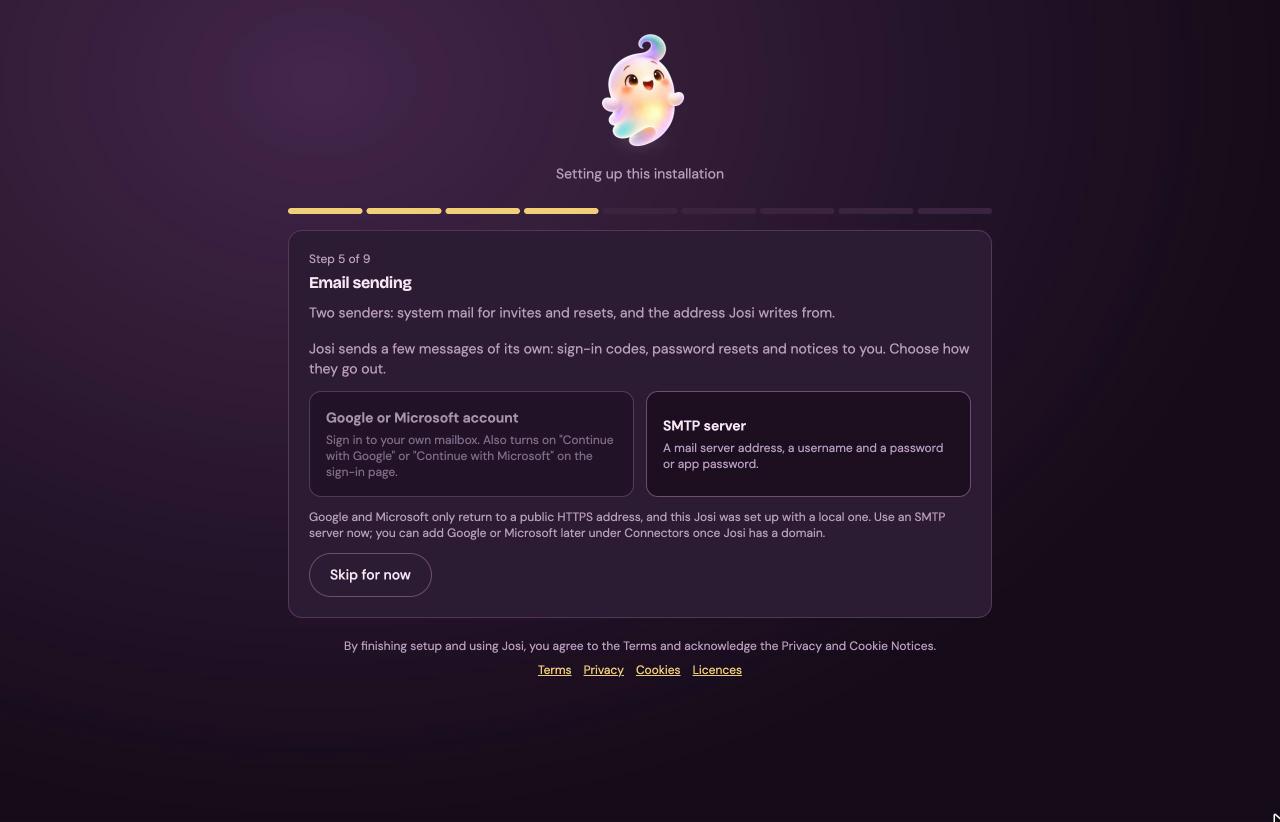
Josi sends a few messages of its own: sign-in codes, password resets, invitations and notices to you. This step is optional. With Skip for now, Josi can't send any of them until you set email up later.
- Google or Microsoft account sends through your own Gmail or Outlook mailbox, and adds Continue with Google or Continue with Microsoft to the sign-in page. It needs a public HTTPS address, so it's greyed out on a server that's on your network only. See Connect Google and Microsoft for registering Josi with them.
- SMTP server works on any install, with any mail provider.
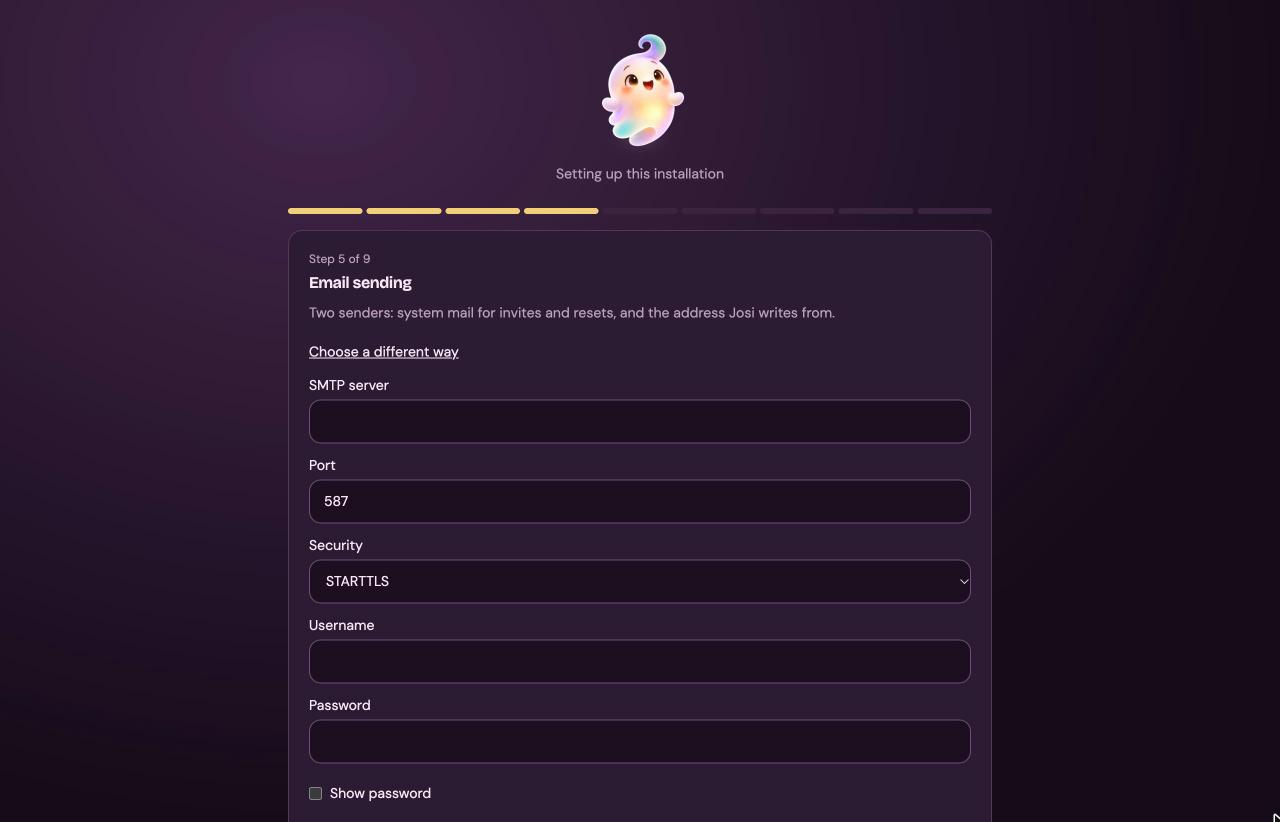
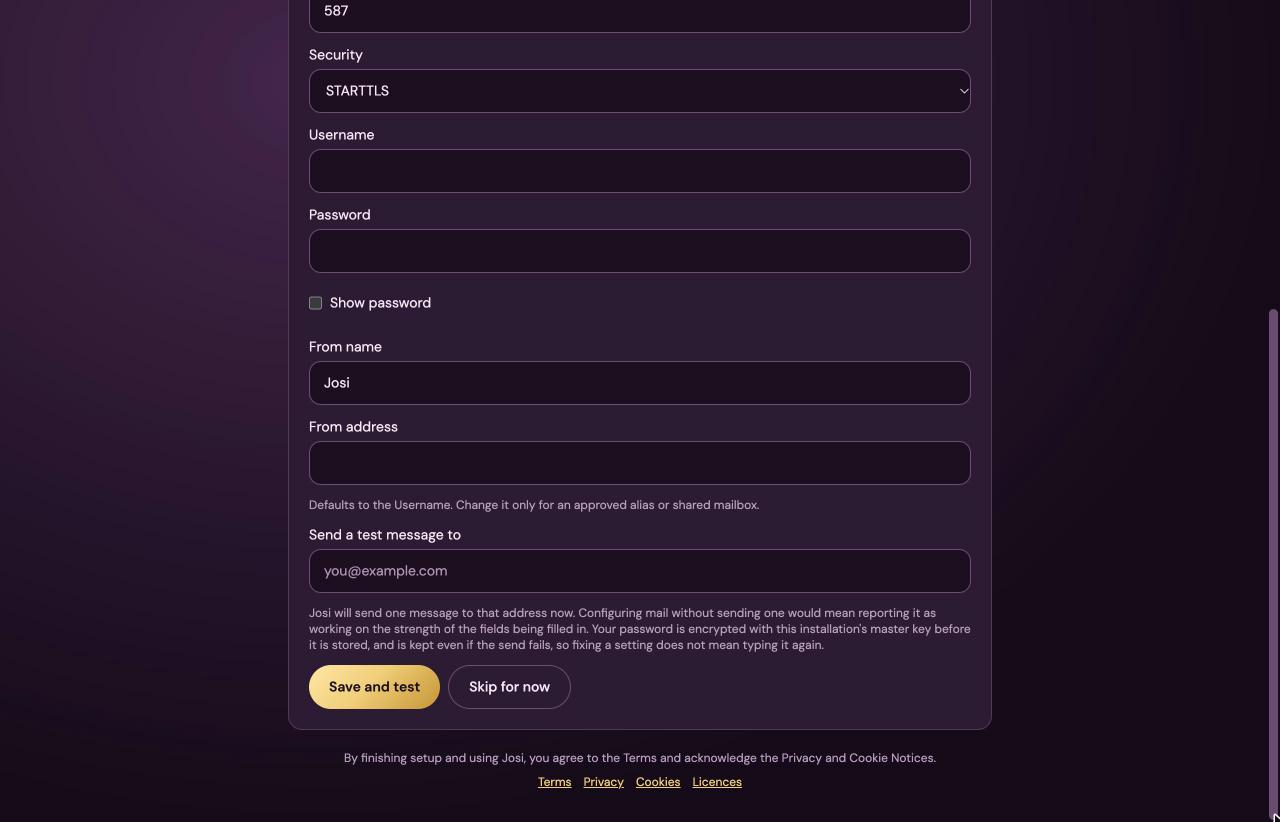
The SMTP form:
| Field | What to enter |
|---|---|
| SMTP server | Your provider's outgoing mail server, for example smtp.gmail.com or smtp.fastmail.com. |
| Port | 587 for STARTTLS (the default), 465 for TLS. |
| Security | STARTTLS, TLS or None. Use what your provider says; None only for a mail relay on your own network. |
| Username | Usually your full email address. |
| Password | Your mail password or, for Gmail and most others, an app password made in your account's security settings. Show password shows what you typed. |
| From name | The sender name people see. Default: Josi. |
| From address | Filled in from the username. Change it only for an alias or shared mailbox your provider allows. |
| Send a test message to | Where the test goes. Josi sends one real message when you select Save and test. |
The password is encrypted before it's stored, and it's kept even if the test fails, so you only fix the field that was wrong. A test that the server accepts isn't proof of delivery: check that the message arrived.
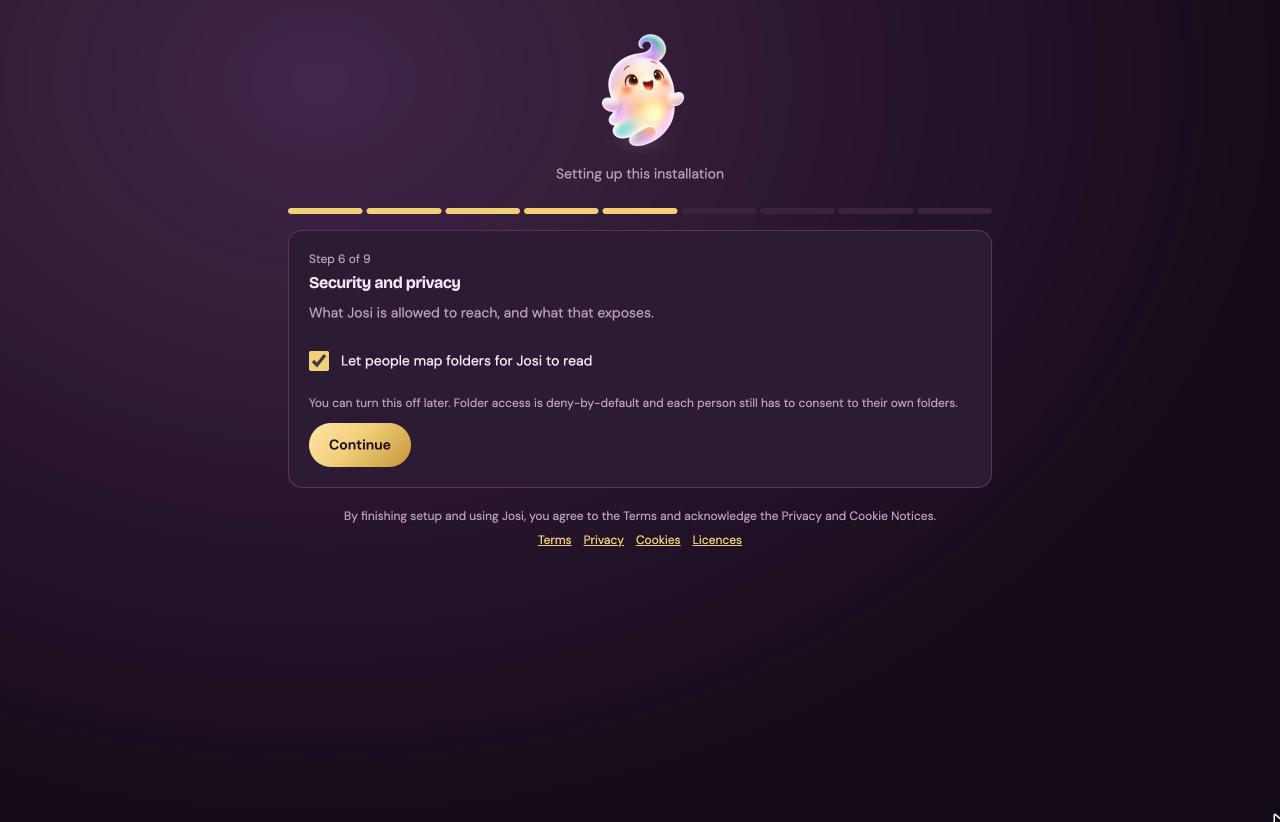
Step 6: Security and privacy
Let people map folders for Josi to read is ticked by default. It lets each person choose folders that Josi may read. Nothing is shared until that person picks a folder and agrees. Untick it if nobody should map folders. You can change this later.
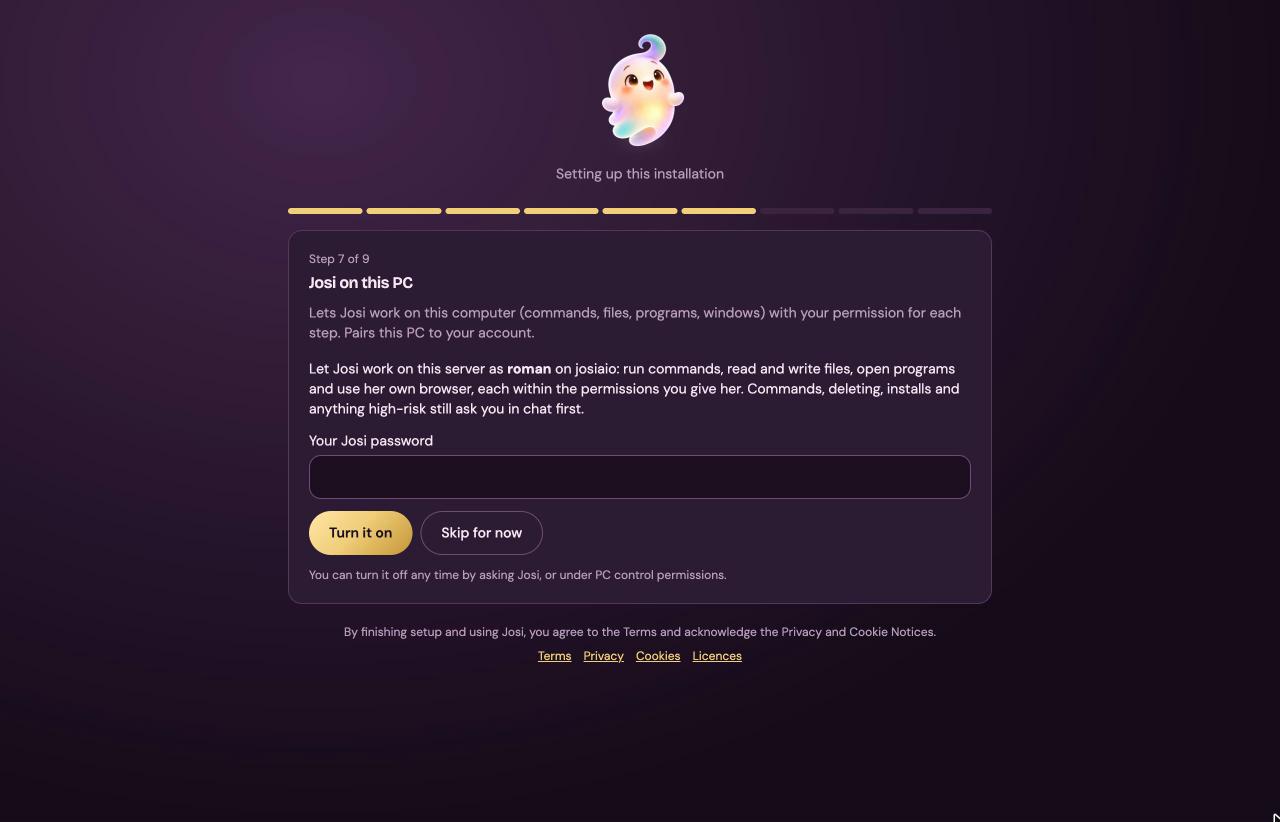
Step 7: Josi on this PC
Shown when you allowed PC control in the installer. It pairs the server's PC service with your account, so Josi can run commands, work with files, open programs and use her own browser as the Linux user you chose. Commands, deleting, installing and anything high-risk still ask you in chat first.
Type Your Josi password (the one from step 2) and select Turn it on, or Skip for now. You can turn it off later by asking Josi, or under Admin → PC control permissions.
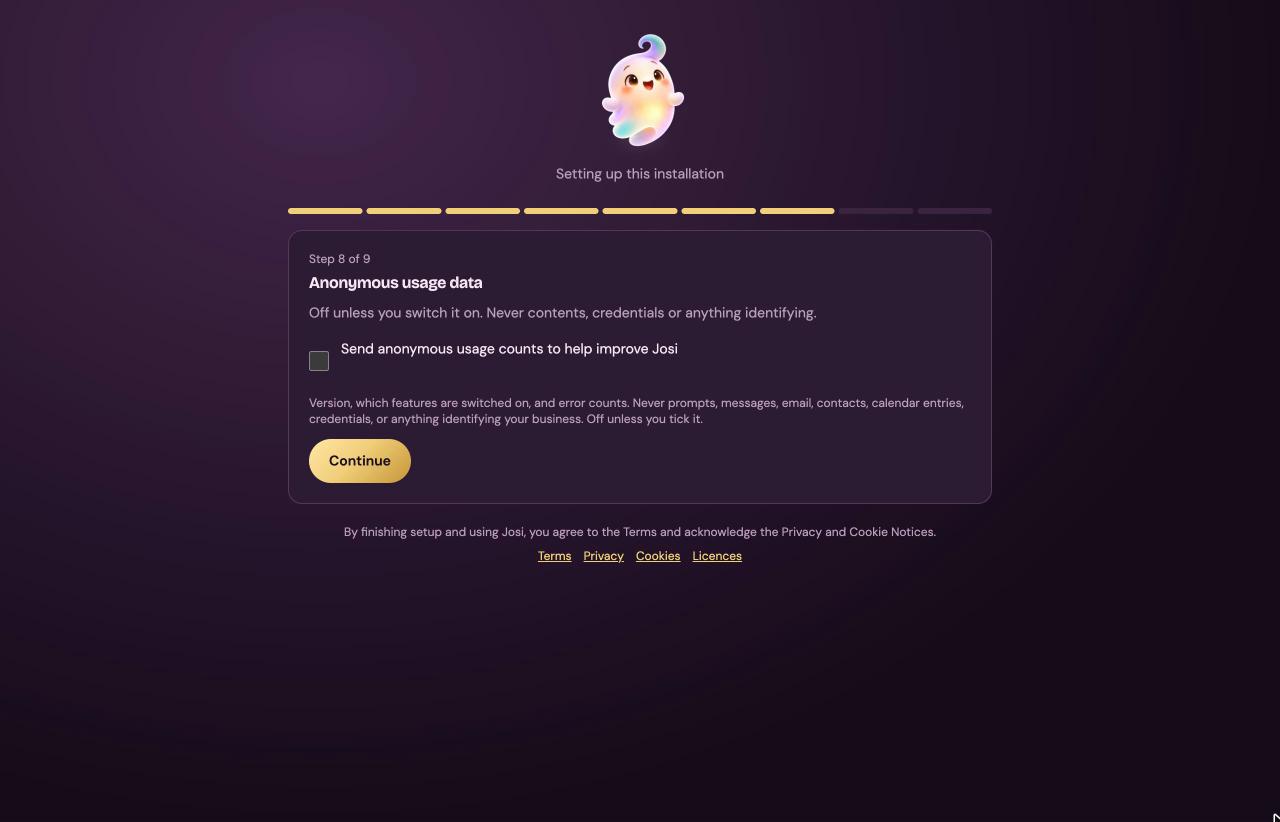
Step 8: Anonymous usage data
Send anonymous usage counts to help improve Josi is off unless you tick it. It would send the version, which features are on, and error counts. It never sends prompts, messages, email, contacts, calendar entries, credentials or anything that identifies you. In this beta nothing is sent either way.
Step 9: Review and finish
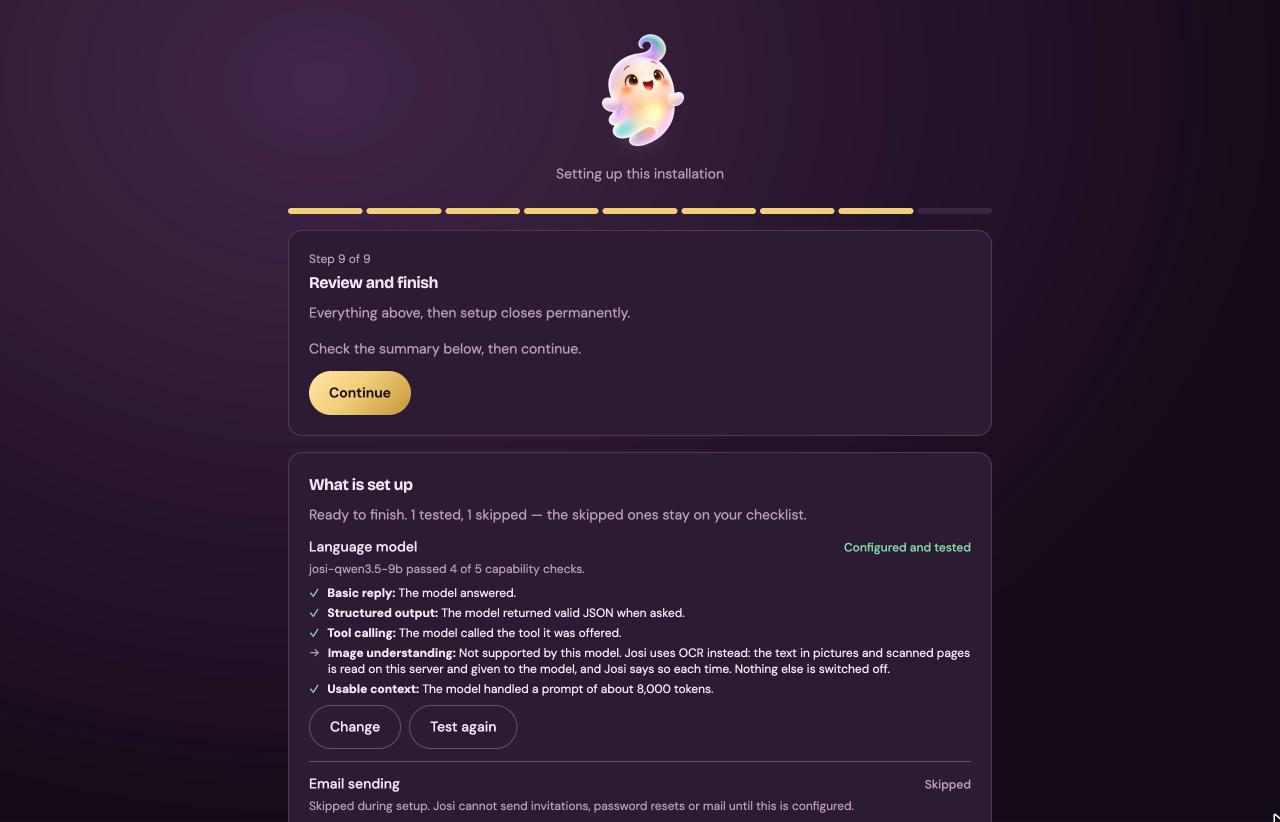
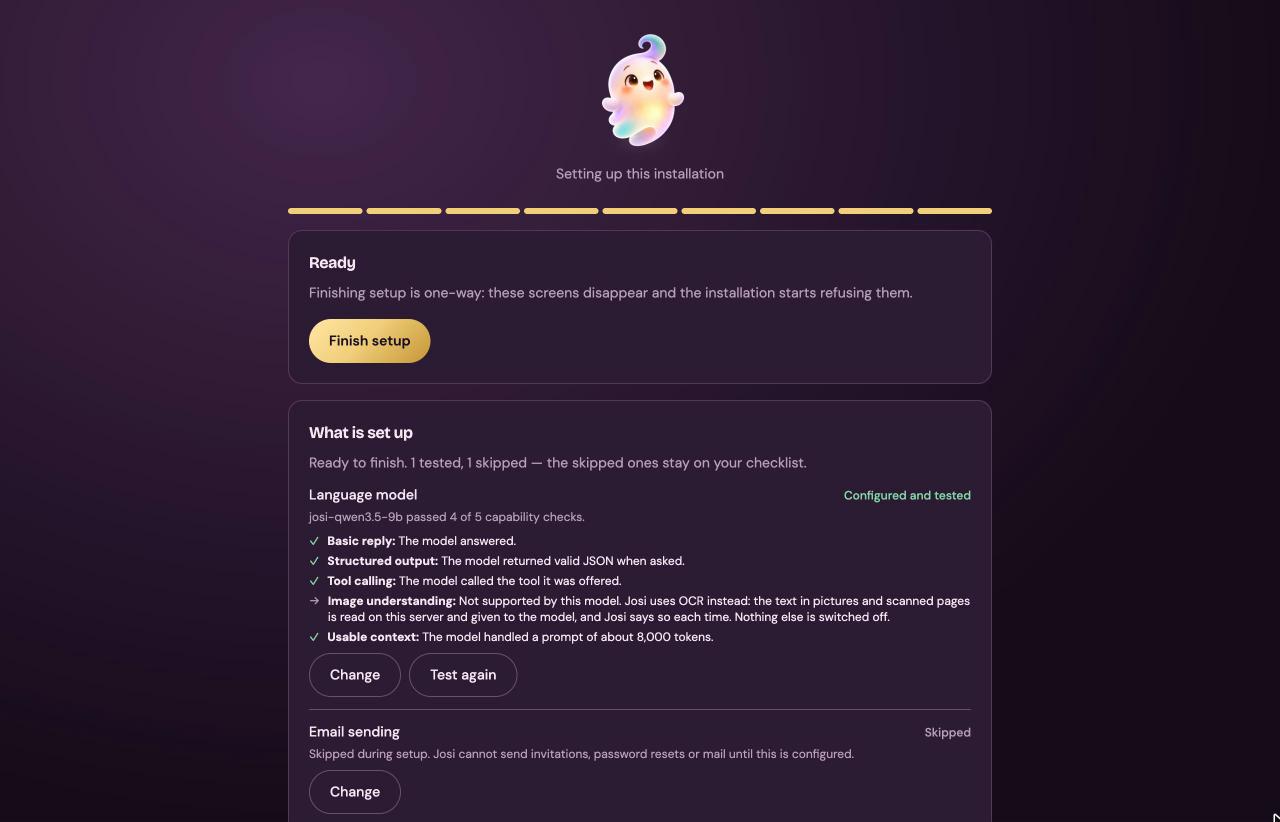
What is set up lists the model, with each of its five checks, and email. Each one has Change, to go back to that form, and Test again. Select Continue, then Finish setup.
Finishing is one-way: the setup screens disappear for good, and Josi opens the sign-in page with Josi setup is complete. Sign in with the username or email and password from step 2.
Sign in and the chat
Sign in
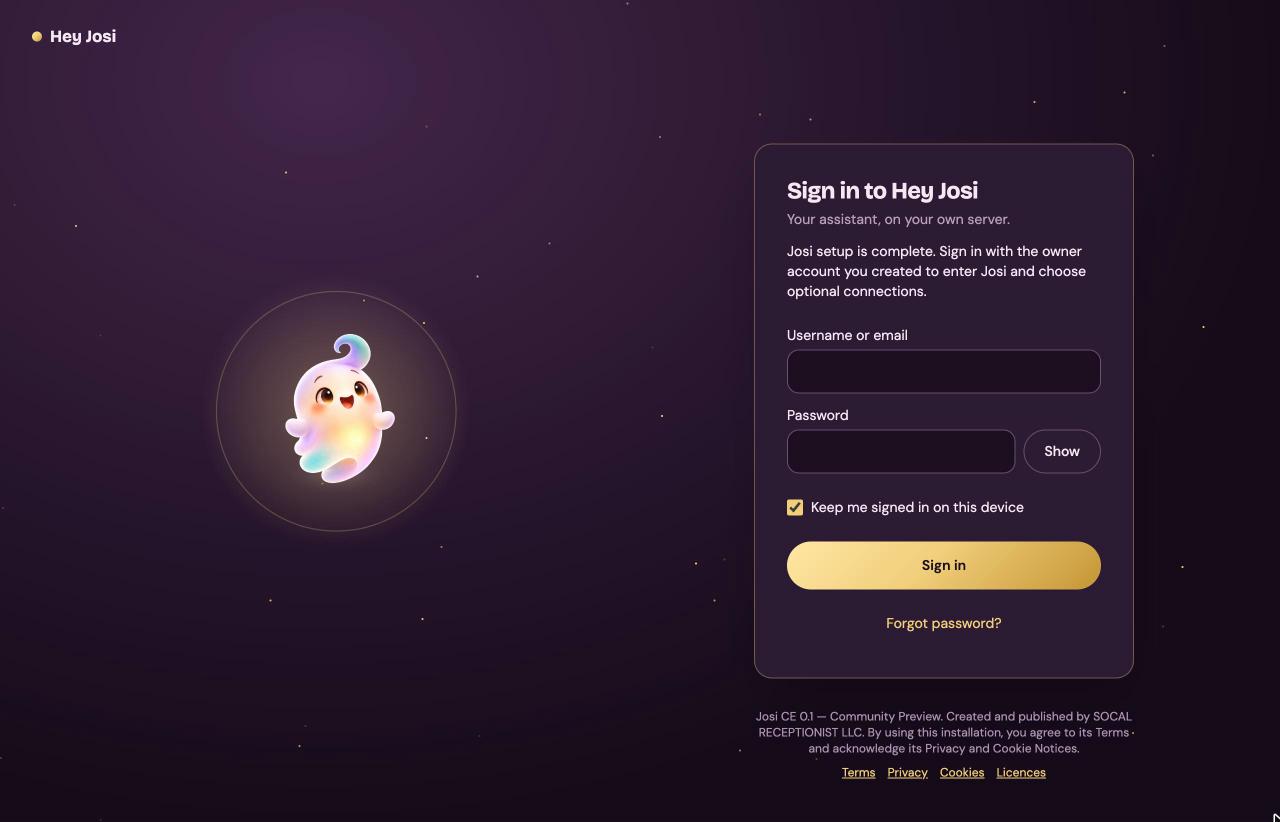
Open your server's address in a browser. Right after setup, the sign-in page says Josi setup is complete. Sign in with the owner account you created to enter Josi and choose optional connections.
| Field or button | What it does |
|---|---|
| Username or email | Either one works. |
| Password | Show shows what you typed. Hide hides it again. |
| Keep me signed in on this device | Ticked by default. Ticked, you stay signed in for 14 days. Unticked, for 12 hours. |
| Sign in | Opens the chat. |
| Forgot password? | Opens Reset password. Type your username or email and select Send reset link. The emailed link works for one hour. Back to sign in returns here. |
A password reset only works once Josi can send email (setup step 5, or Josi's own email). Without email, the page still says a link is on its way, but nothing is sent. There is no command on the server to reset a password.
More ways to sign in appear when the server supports them:
- Email me a sign-in code: when Josi can send email. A 6-digit code arrives, and it works once, for 10 minutes. The password form then folds away behind Use username and password.
- Continue with Google and Continue with Microsoft: when the owner has registered Josi with them. See Connect Google, Microsoft, Dropbox and Box.
- Sign in with passkey: only on an HTTPS address with a host name, not on an IP address.
If you turned on an authenticator app in Settings, a second screen, One more step, asks for its 6-digit code. Use a recovery code takes one of your recovery codes instead.
The heading and the footer of this page still use older names. See Known issues.
The chat screen
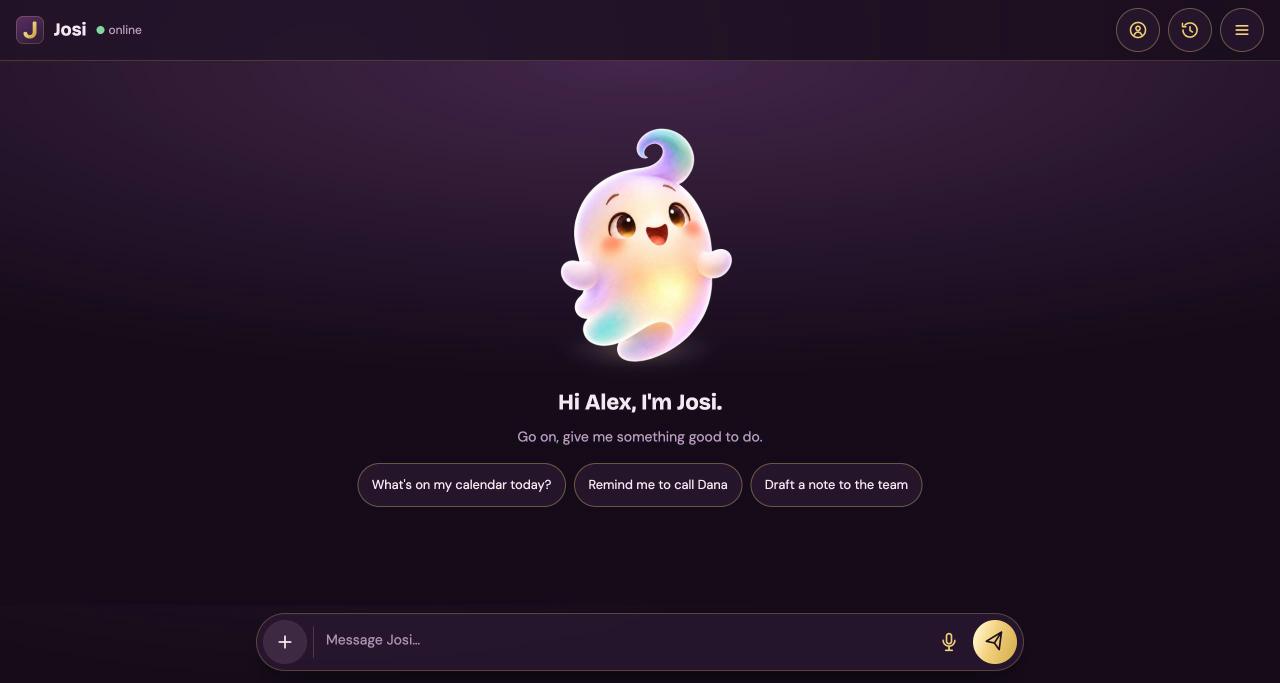
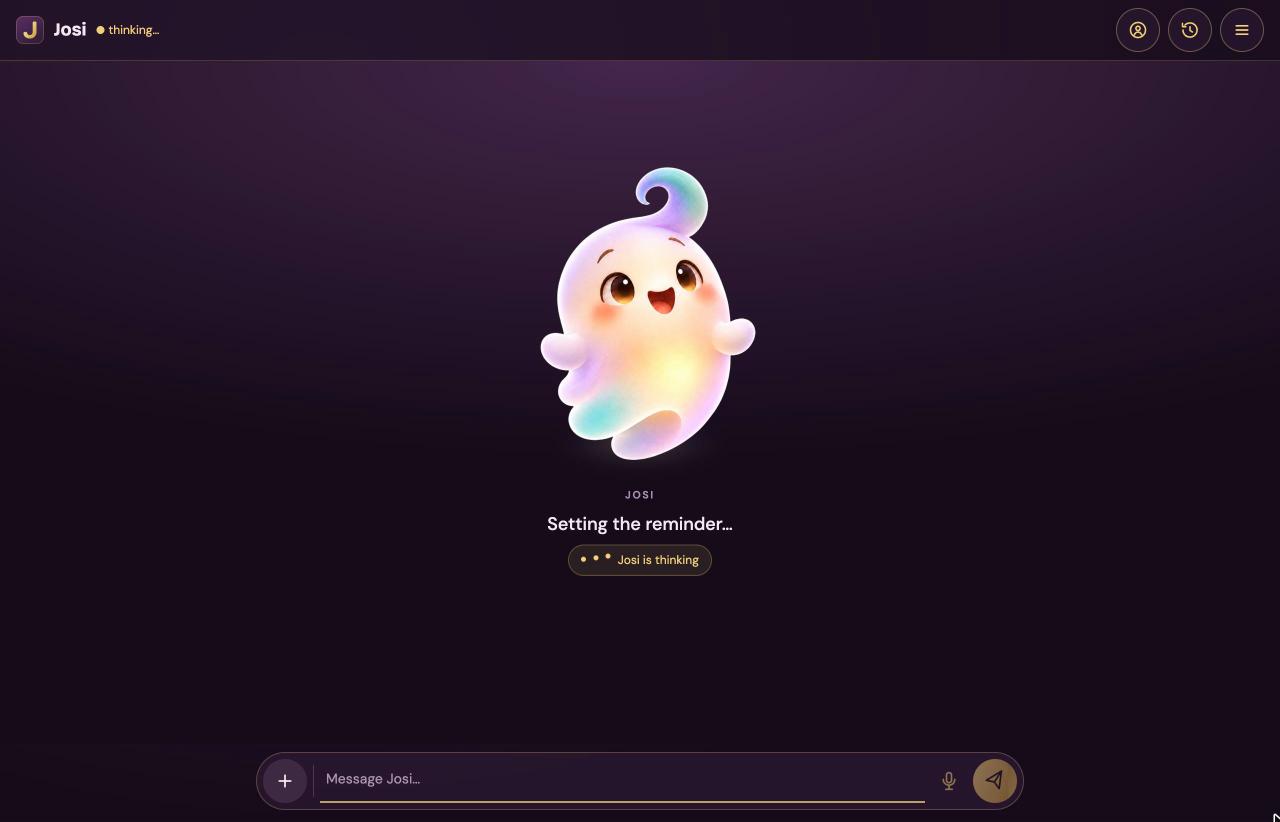
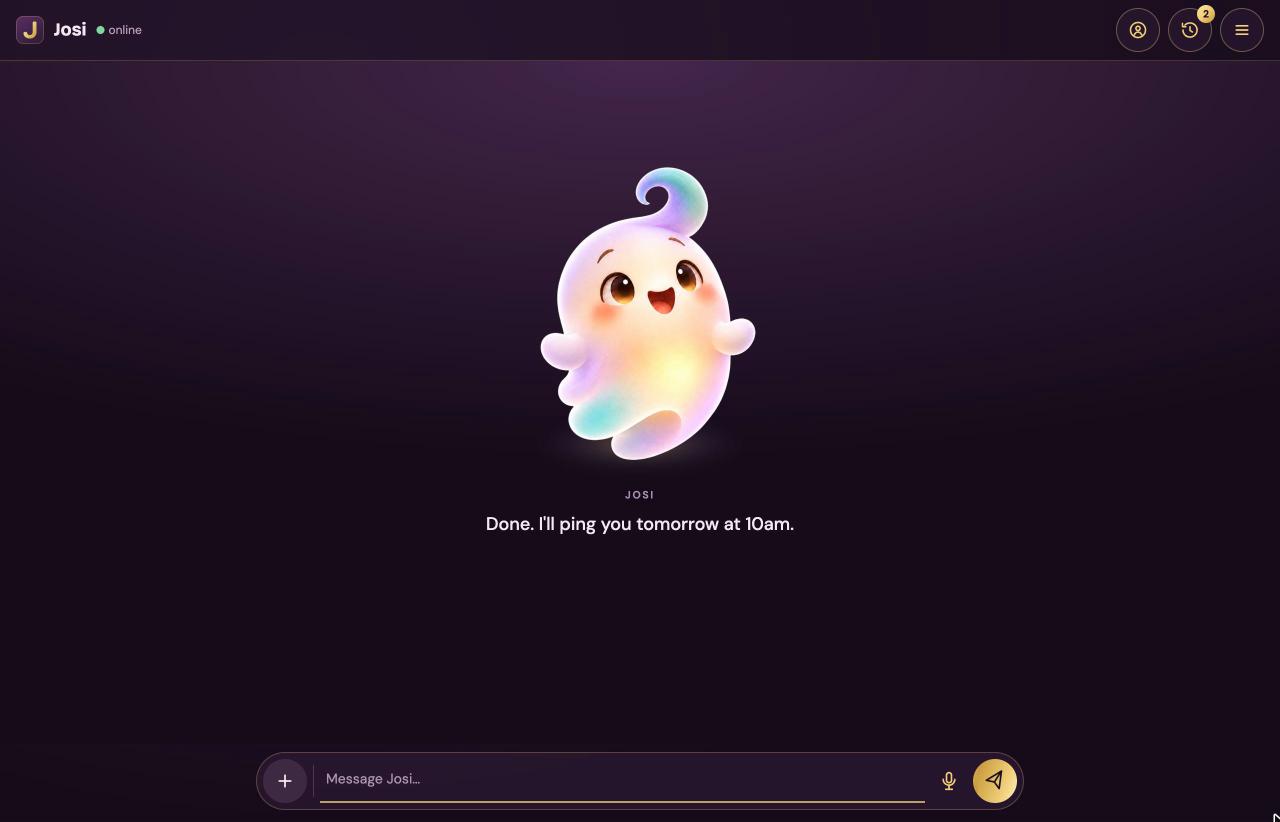
After you sign in, Josi opens the chat: the Ghost Stage. Josi stands large in the middle, and only her latest reply shows under her. The whole conversation is in the history panel.
In a new conversation she says Hi Alex, I'm Josi. with your first name, and Go on, give me something good to do. Three suggestions sit under it: What's on my calendar today?, Remind me to call Dana and Draft a note to the team. Selecting one sends it straight away.
The top bar, from left to right:
- Josi and a status dot. Green online means she's ready. Gold thinking… means she's working on your message.
- A tasks pill, only while work you started in this conversation is running. It opens the history.
- The person button opens My World.
- The clock button opens the chat history. From two messages on, a gold badge shows how many messages the conversation has.
- The menu button (three lines) opens the menu. Its badge counts open tasks and waiting approvals together.
While Josi works, the dot says thinking…, her name appears under the ghost with what she's doing, for example Setting the reminder…, and a Josi is thinking chip shows three dots. Her reply then appears word by word. Select the reply to open the history.
If the chat loses touch with the server, a line says Chat updates are offline. Showing the last saved conversation. It recovers by itself.
Send a message
The bar at the bottom holds four controls.
| Control | What it does |
|---|---|
| + | Attaches pictures or files: images, PDF, Word, Excel, PowerPoint, OpenDocument, RTF, text, Markdown and CSV. Up to 10 files at a time, and up to 20 MB each. The names show under the bar as Attached:. Josi refuses files that look like passwords, keys or recovery codes. Josi's own model can't see pictures, so the server reads the text in them, and in scanned PDFs, instead (OCR). |
| Message Josi… | Your message, up to 8,000 characters. Enter sends it. Shift+Enter starts a new line. |
| Microphone | Starts a voice chat. It's there only when the server's speech service is ready. Browsers allow the microphone only on HTTPS or on the server itself, so on a network-only http:// address you get Microphone access requires HTTPS or localhost. |
| Send (paper plane) | Sends the message. |
Chat history
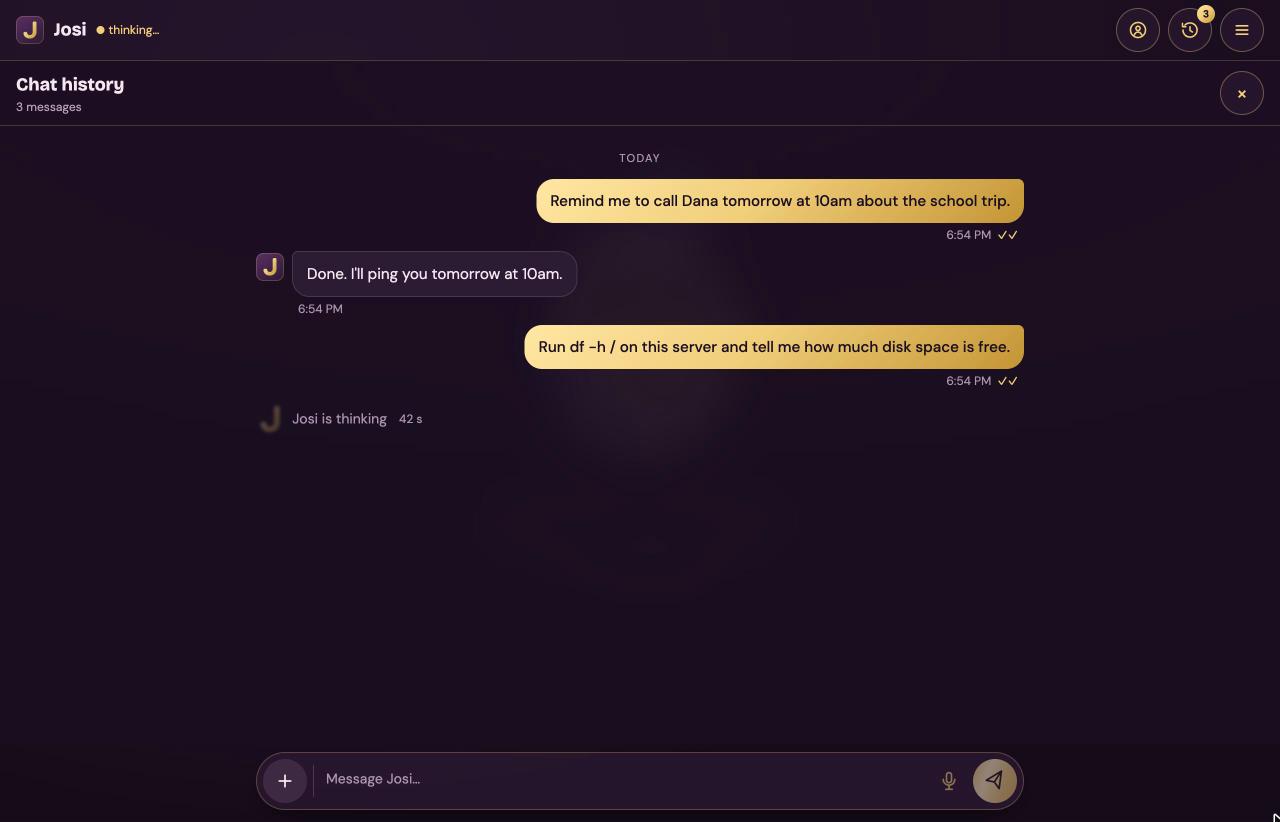
The clock button opens Chat history, with the number of messages under it. Close it with × or Esc.
- Days are divided by Today, Yesterday or the date.
- Your messages are on the right, with the time and ✓✓. Josi's are on the left.
- Pictures show in the message. Other files show as links you can open.
- While Josi works, Josi is thinking shows how long it's been.
- Requests waiting for your yes are listed under Waiting for your approval.
- The panel shows the most recent 200 messages.
When Josi asks first
Before Josi sends an email or does anything else that needs your yes, a card appears under her reply. It names the action and shows exactly what will happen.
- Approve does it.
- Not now only puts the card away. The request stays on Approvals.
- See the email first, on emails, opens Approvals with a preview.
- You can also type yes or no in the chat.
A request expires after 15 minutes. Ask Josi to send it now, and she prepares it again.
Install Josi as an app
Some browsers offer to add Josi to your home screen or desktop. Josi then asks Add Josi to your home screen? Select Install, or Not now, which Josi remembers. Browsers usually offer this only on an HTTPS address. When a new version of Josi is ready, a note says A new version of Josi is ready. Select Reload.
Workspace: every page in the menu
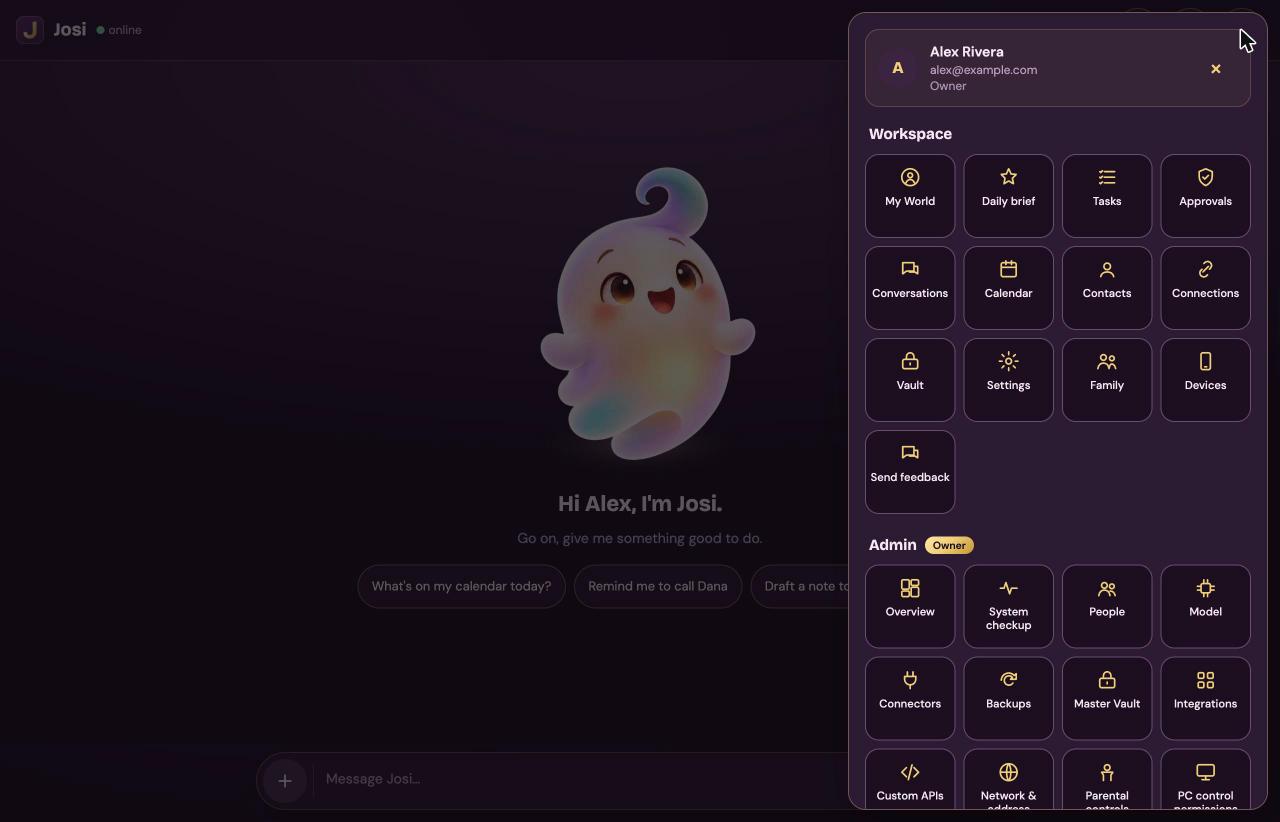
The menu button opens the menu on any page. At the top is your name, your email and your role, Owner or Member. Close it with × or Esc.
- Workspace holds your own pages. Everyone sees them, and what's in them is private to each person.
- Admin, marked Owner, appears only for the owner. See Admin.
- At the bottom: Help opens the help that comes with the server, Live Help chat opens the online help chat, and Sign out signs you out.
Every page has a back arrow in the top bar that returns to the chat.
My World
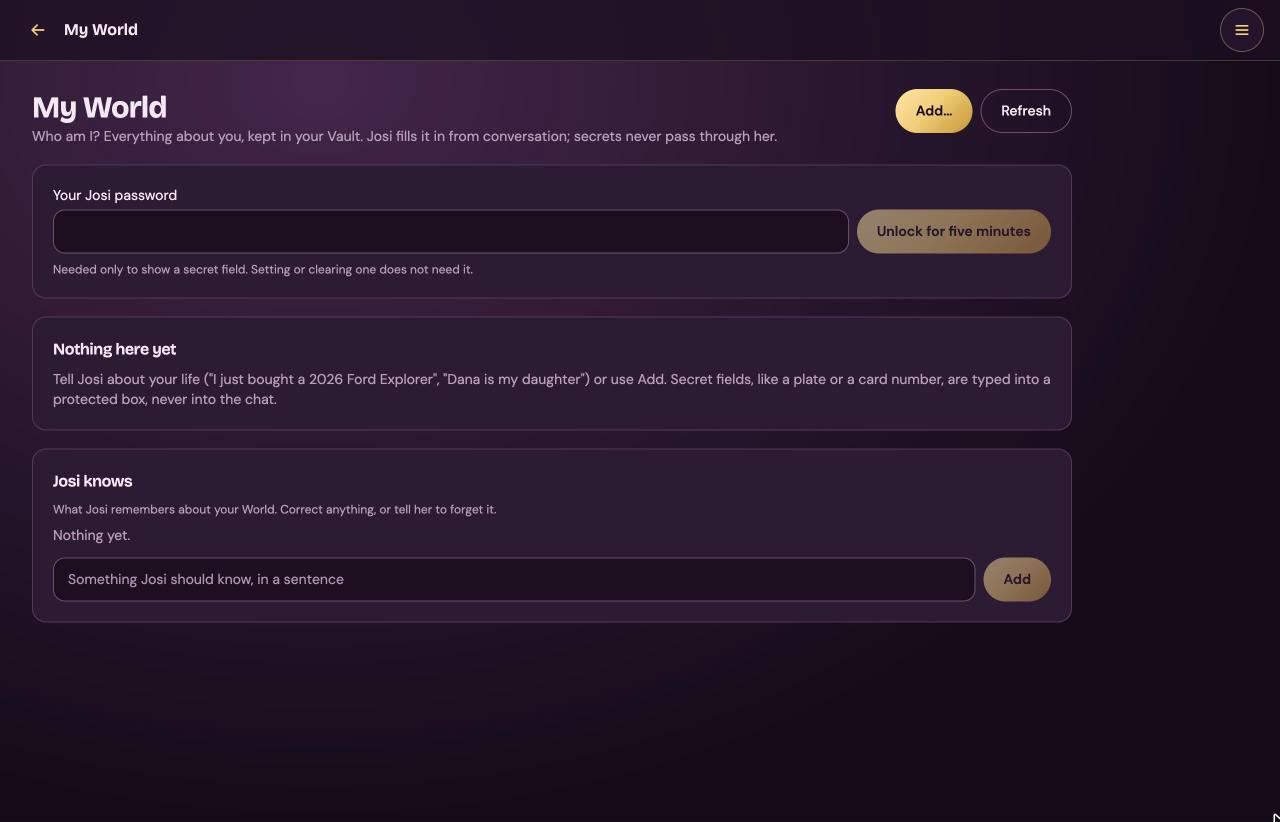
Everything about you and your life that Josi should know: people, addresses, cars, documents, cards and accounts. It's kept in your Vault. Josi fills it in from your conversations. Secret fields, such as a card number or a passport number, are typed into a protected box and never pass through the chat. The person button in the chat opens this page too.
| Field or button | What it does |
|---|---|
| Add… | Opens Add to your World. Choose What kind of thing (Person, Address, Vehicle, Home or property, Passport or ID, Card, Account, or Something else), then fill in Name and that kind's fields and dates. Select Add, or Cancel. |
| Refresh | Reloads the page. |
| Your Josi password, Unlock for five minutes | Needed only to show a secret field. Setting or clearing one doesn't need it. |
| Show | Shows only one kind of thing, or Everything. |
| Edit, Remove… | On each item. In edit mode, Which fields are secret lets you mark fields as secret; save with Save secret fields. |
| Set…, Replace…, Show, Clear | On each secret field. Show needs the unlock and shows the value for 60 seconds. Clear asks first. |
| Josi knows | What Josi remembers about your World. Edit or Forget any line. Add one in Something Josi should know, in a sentence and select Add. |
Daily brief
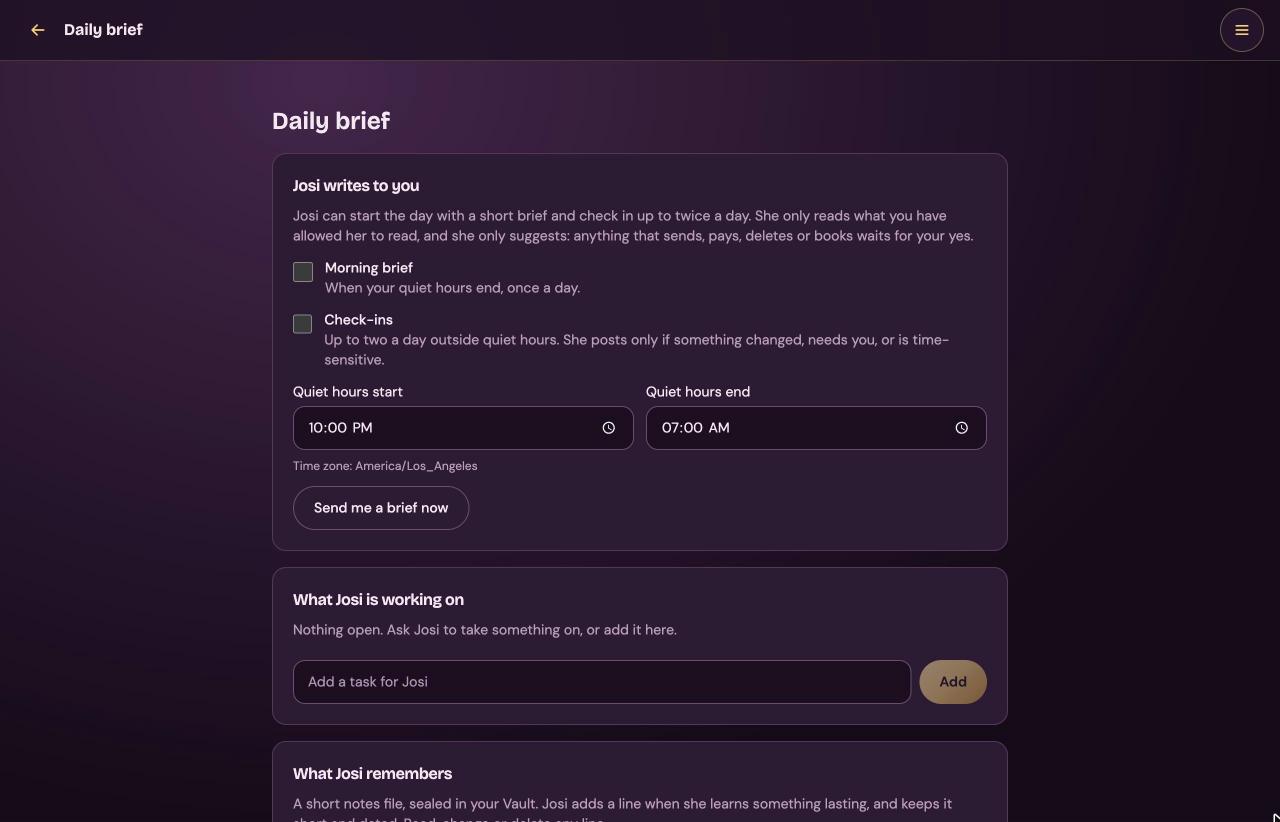
Josi can write to you on her own: a short brief in the morning, and check-ins during the day. She only reads what you allowed her to read, and anything that sends, pays, deletes or books still waits for your yes. Both switches start off.
| Field or button | What it does |
|---|---|
| Morning brief | Once a day, when your quiet hours end. |
| Check-ins | Up to two a day outside quiet hours, only when something changed, needs you, or is time-sensitive. |
| Quiet hours start, Quiet hours end | When Josi stays quiet. The time zone is shown under them. |
| Send me a brief now | Writes a brief straight away. It appears in the Daily brief conversation. |
| What Josi is working on | Things you've asked Josi to take on. Mark done or Remove each one. Add one in Add a task for Josi and select Add. |
| What Josi remembers | A short notes file sealed in your Vault, in sections such as Goals, Rules, People and Open loops. Edit or Delete any line. Add a line adds one, up to 240 characters. |
Tasks
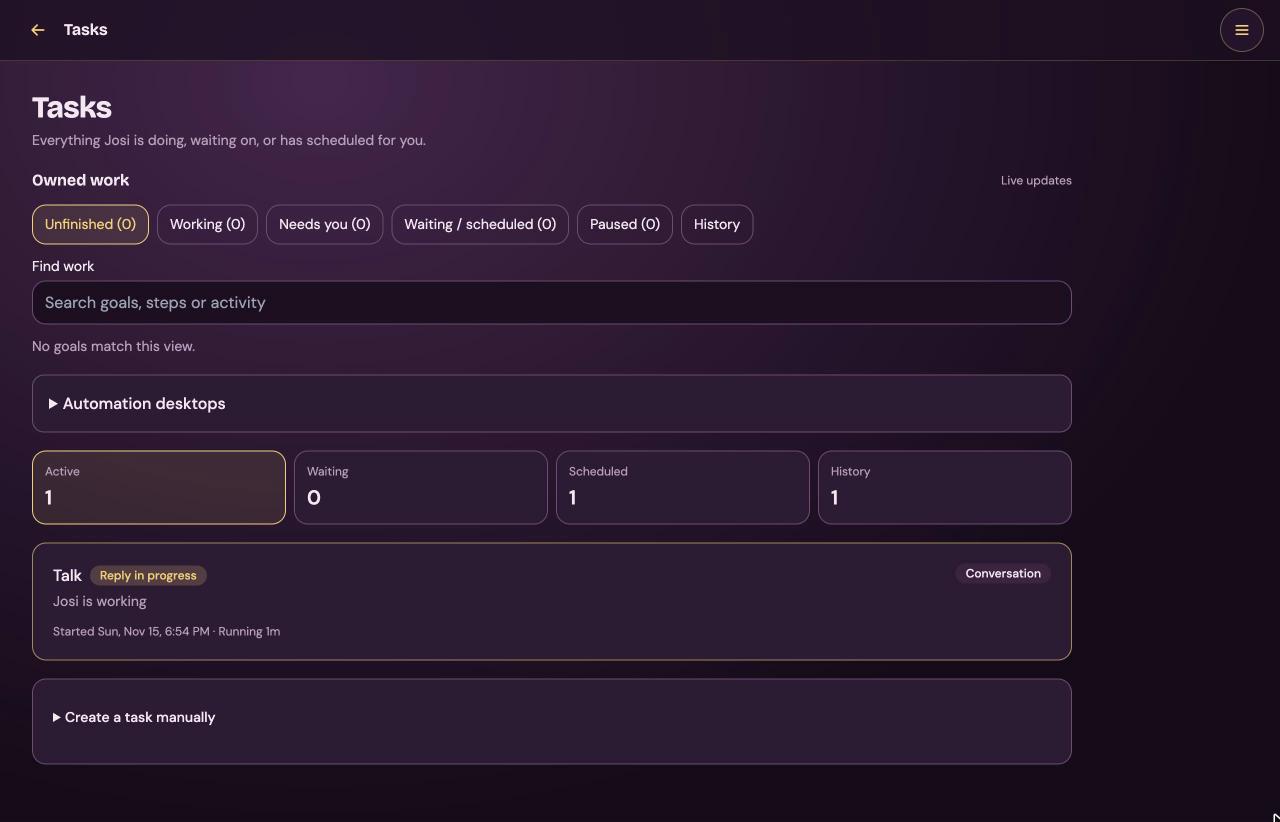
Everything Josi is doing, waiting on, or has scheduled for you. The page updates itself. The badge on the Tasks tile counts open tasks.
- Owned work lists bigger goals Josi works on in steps. Filter them with Unfinished, Working, Needs you, Waiting / scheduled, Paused and History, or search with Find work. Each goal shows its steps and has Pause goal, Add instructions, Continue in chat ↗ and Cancel goal.
- Automation desktops shows whether a computer or browser Josi can work in is connected, and its state.
- The four tiles, Active, Waiting, Scheduled and History, switch the list below them.
- Each card is a reply in a conversation, a background task or a reminder. Background tasks have Details and Cancel. A task that waits for you asks for your password under Approve and continue. Reminders have Cancel.
- Create a task manually starts a background task from a list of task types, with Create task.
Approvals
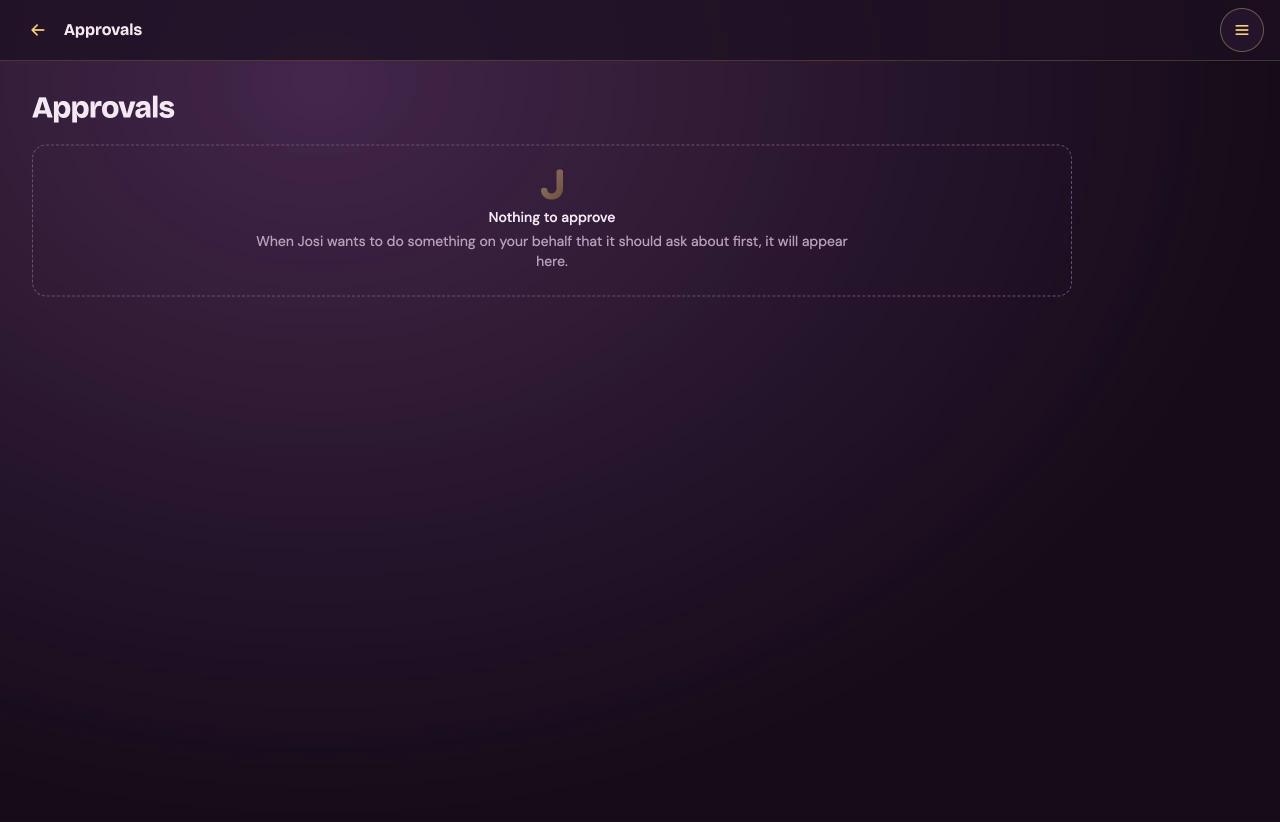
Everything Josi wants to do that she has to ask about first. The badge on the tile counts what's waiting. When nothing is waiting, the page says Nothing to approve.
| Section | Buttons |
|---|---|
| Work Josi has prepared: emails, events and other actions. Emails show their final layout. | Approve or Decline. |
| Requests to a connected API: calls to a Custom API that change something. Each expires after a while. | Approve and send or Decline. |
| Tools on your MCP servers: tools the server doesn't mark as read-only. | Approve and run or Decline. |
Declining here is final. Not now in the chat never declines.
Conversations
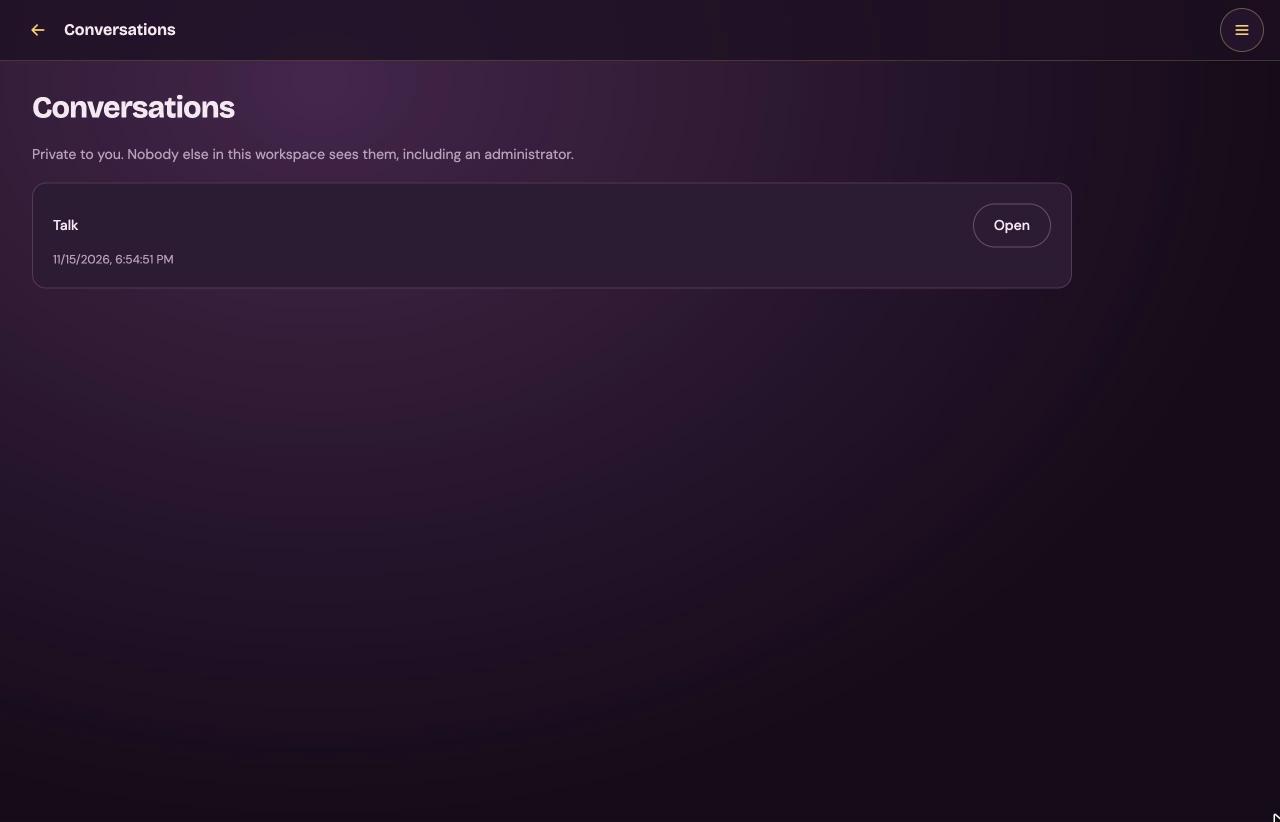
Your conversations with Josi. They're private: nobody else sees them, the owner included. Each one shows its title and its last activity. Open shows the transcript, and Hide folds it away. You can't rename or delete conversations here.
Calendar
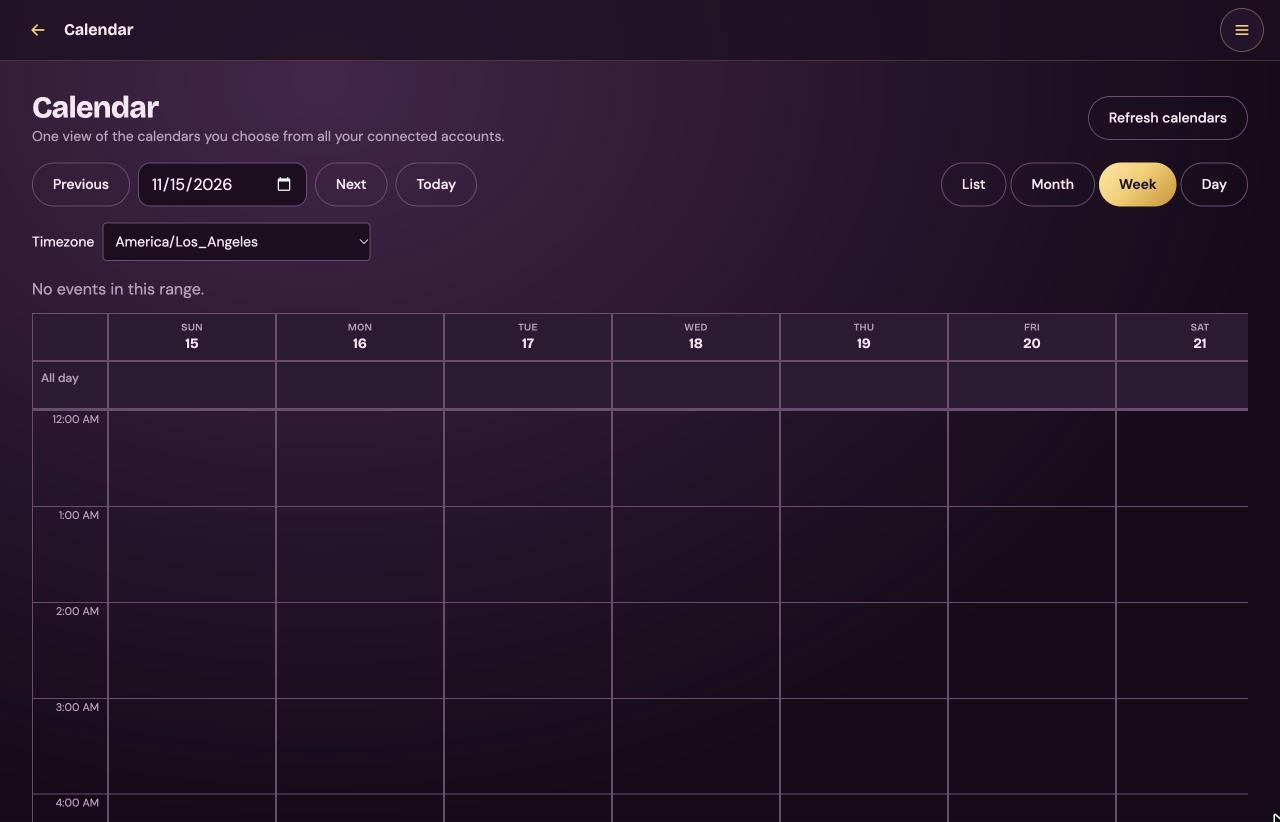
One view of the calendars you choose from your connected Google and Microsoft accounts. It stays empty until you connect one under Connections with calendar reading on.
| Field or button | What it does |
|---|---|
| Refresh calendars | Asks your accounts for their calendars again. |
| Previous, date, Next, Today | Move through time, or jump to a date. |
| List, Month, Week, Day | The view. Week is the default. In Month, select a day to open it. |
| Timezone | The time zone the calendar shows. It starts with your browser's. |
| An event | Opens Event details: calendar, time, location and details. Close closes it. |
| Calendars | One checkbox per calendar, to show or hide it. Make default picks the calendar Josi writes new events to. |
Contacts
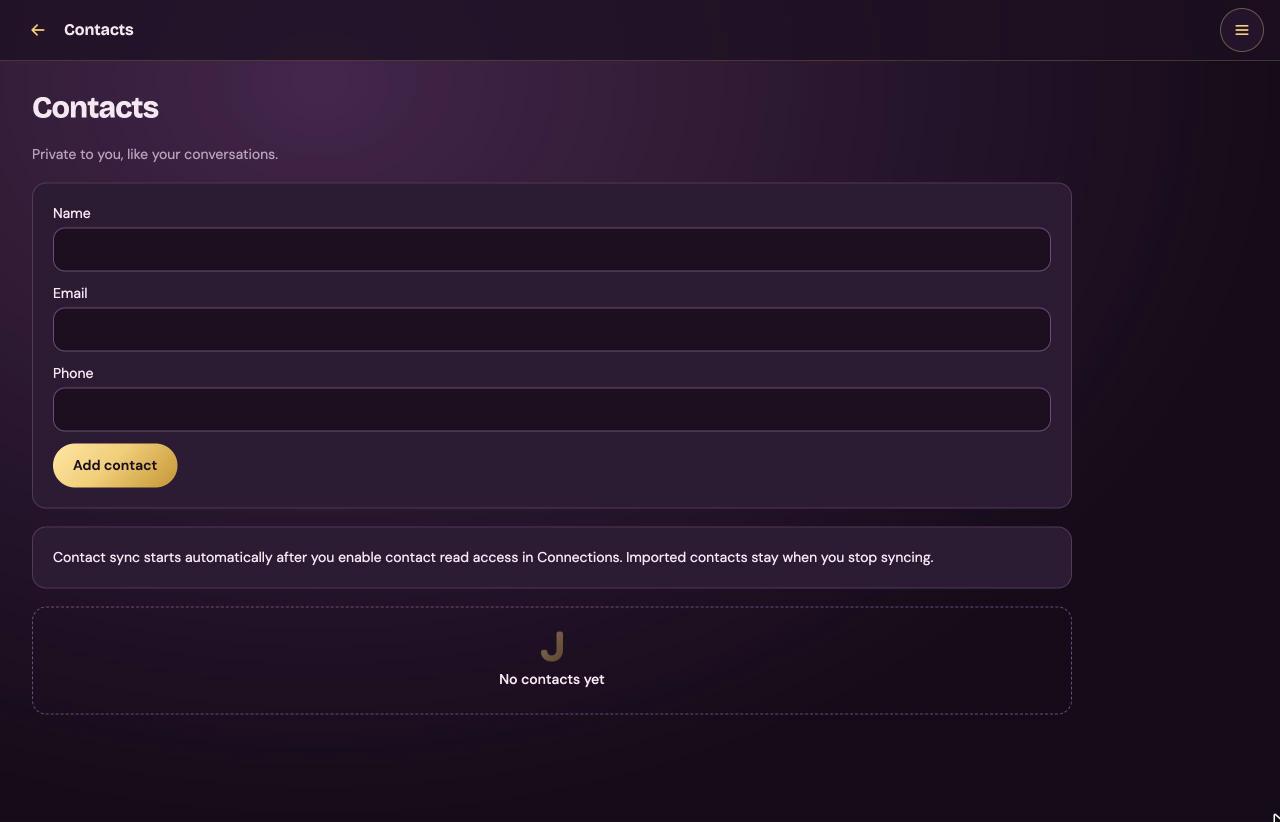
Your own contacts, private to you.
- Add one with Name (required), Email and Phone, then Add contact.
- Contacts from Google or Microsoft sync by themselves once you turn on contact reading under Connections. Each synced account then has Sync now, Stop syncing and how often it syncs, from every 5 minutes to once a day. Imported contacts stay when you stop.
- When a contact changed both here and at the provider, Josi overwrites neither and says so. Edit it here to settle it.
Connections
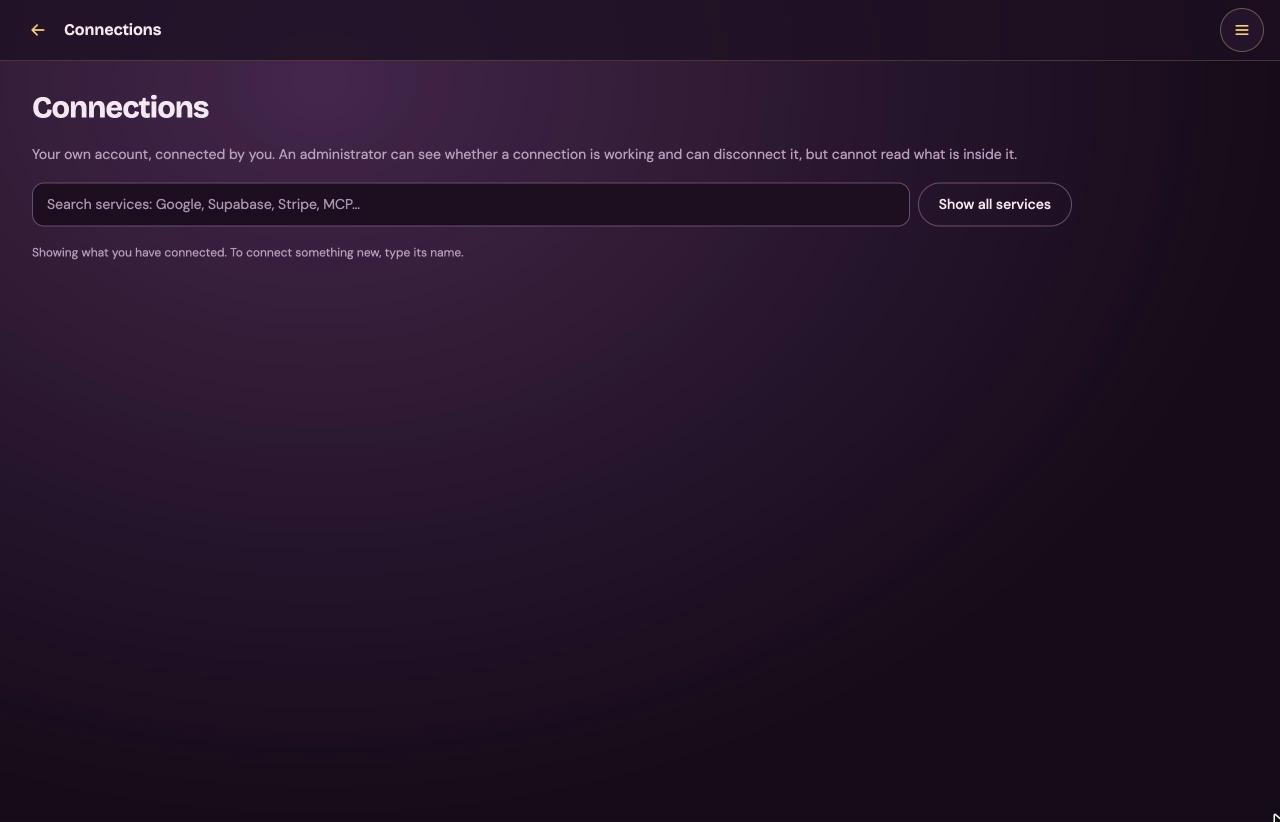
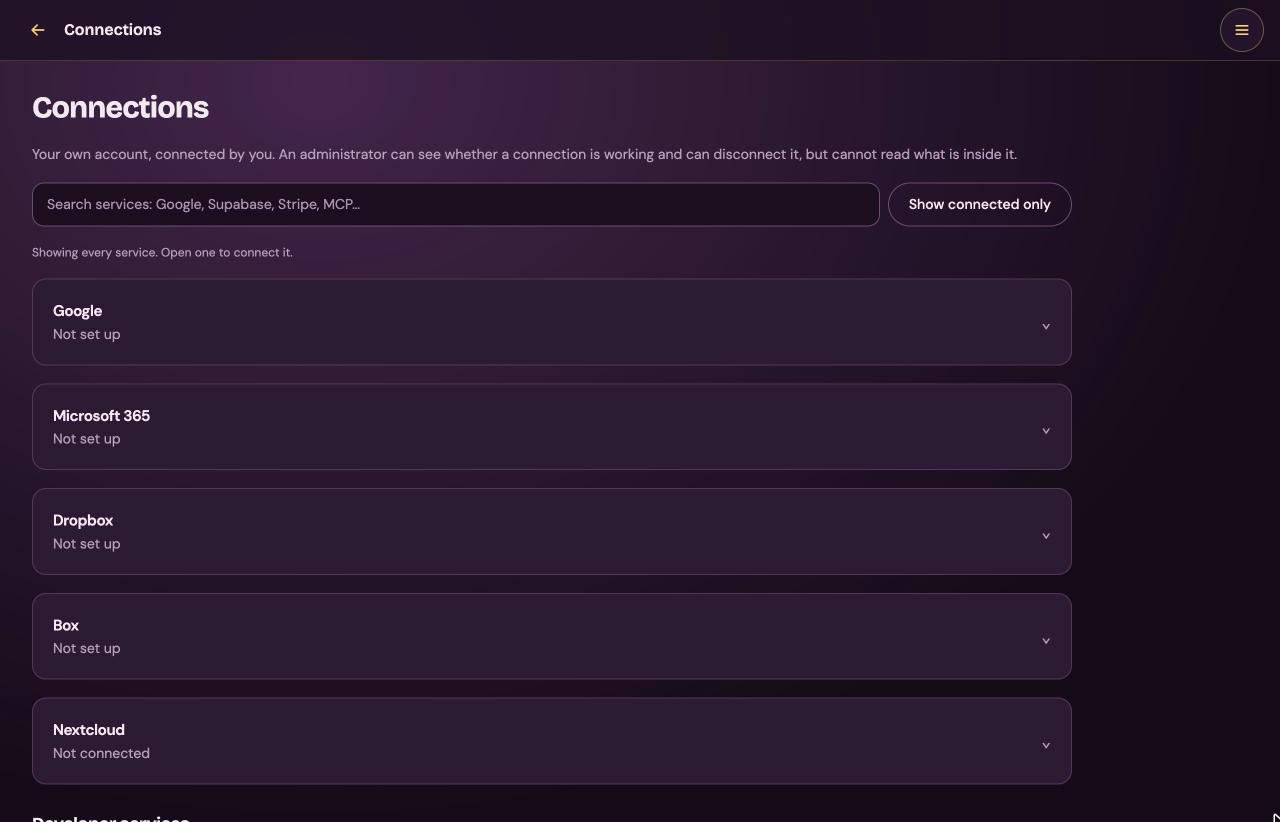
Your own accounts with other services, connected by you. The owner can see whether a connection works and can disconnect it, but can't see what's inside it.
At first the page shows only what you've connected. Type a name in the search box, or select Show all services, to see the rest. Open a service to connect it.
Accounts
| Service | What it's for | What you enter |
|---|---|---|
| Gmail, Google Calendar, Google contacts, and files in Google Drive folders you choose. | Nothing. Select Connect Google and sign in on Google's own page. | |
| Microsoft 365 | Outlook mail, calendar and contacts, and files in OneDrive folders you choose. | Nothing. Select Connect Microsoft 365 and sign in on Microsoft's page. |
| Dropbox | Reading files in Dropbox folders you choose. | Nothing. Select Connect Dropbox and sign in. |
| Box | Reading files in Box folders you choose. | Nothing. Select Connect Box and sign in. |
| Nextcloud | Reading files in Nextcloud folders you choose. Works on any install, also network-only. | Server address, Username and an App password. Make the app password in Nextcloud under Settings → Security → Devices & sessions. Don't use your normal Nextcloud password. Then Connect Nextcloud. |
Google, Microsoft 365, Dropbox and Box say Not set up until the owner registers Josi with them. That needs a public HTTPS address. See Connect Google, Microsoft, Dropbox and Box.
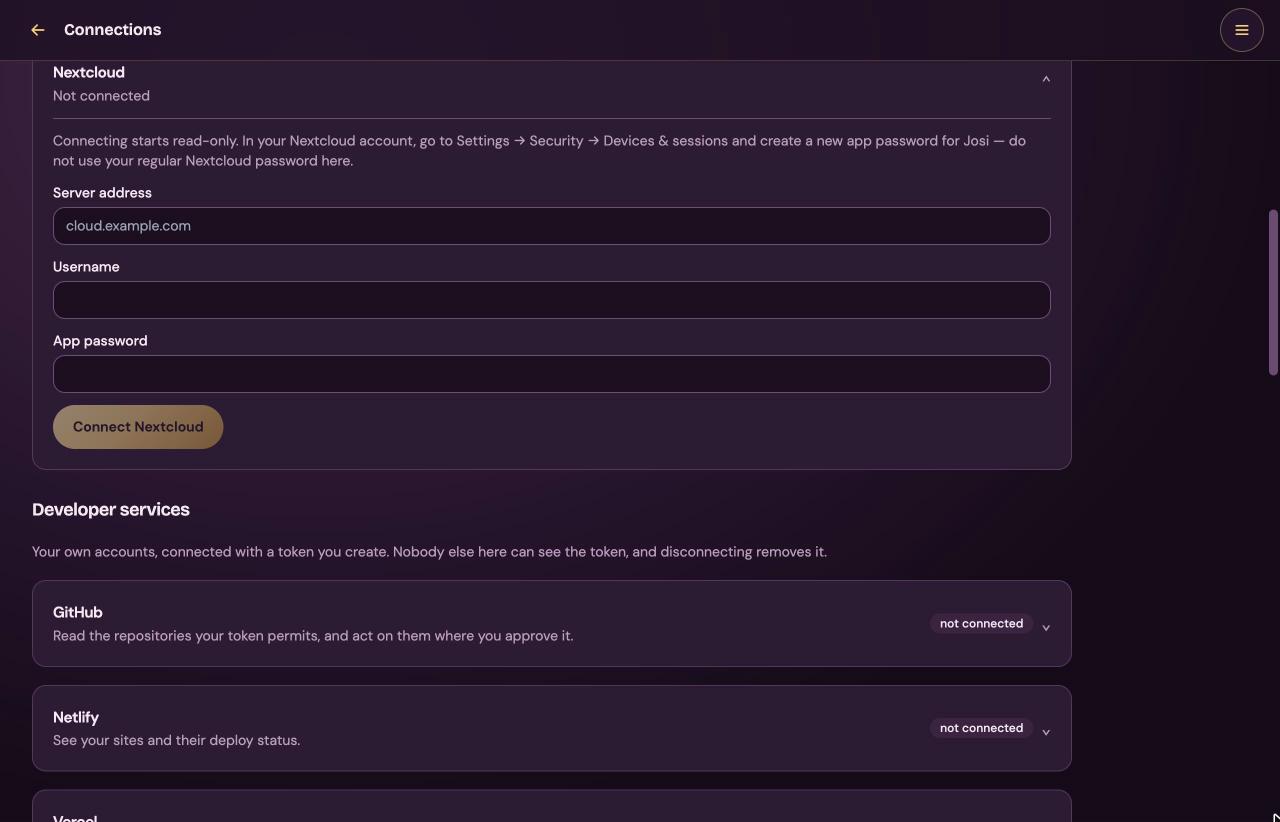
Folders from your cloud storage
Once an account is connected and its Read files switch is on, its card shows a folders block. Add a folder opens Choose a folder: pick one folder, optionally tick Include subfolders, including ones added later, and select Use. Josi reads it, indexes the text she can read and keeps it in sync, for you only. She can't change or delete anything there. Each folder has Sync now and Remove. Files Josi can see, at the bottom of the page, lists what she has read.
Developer services
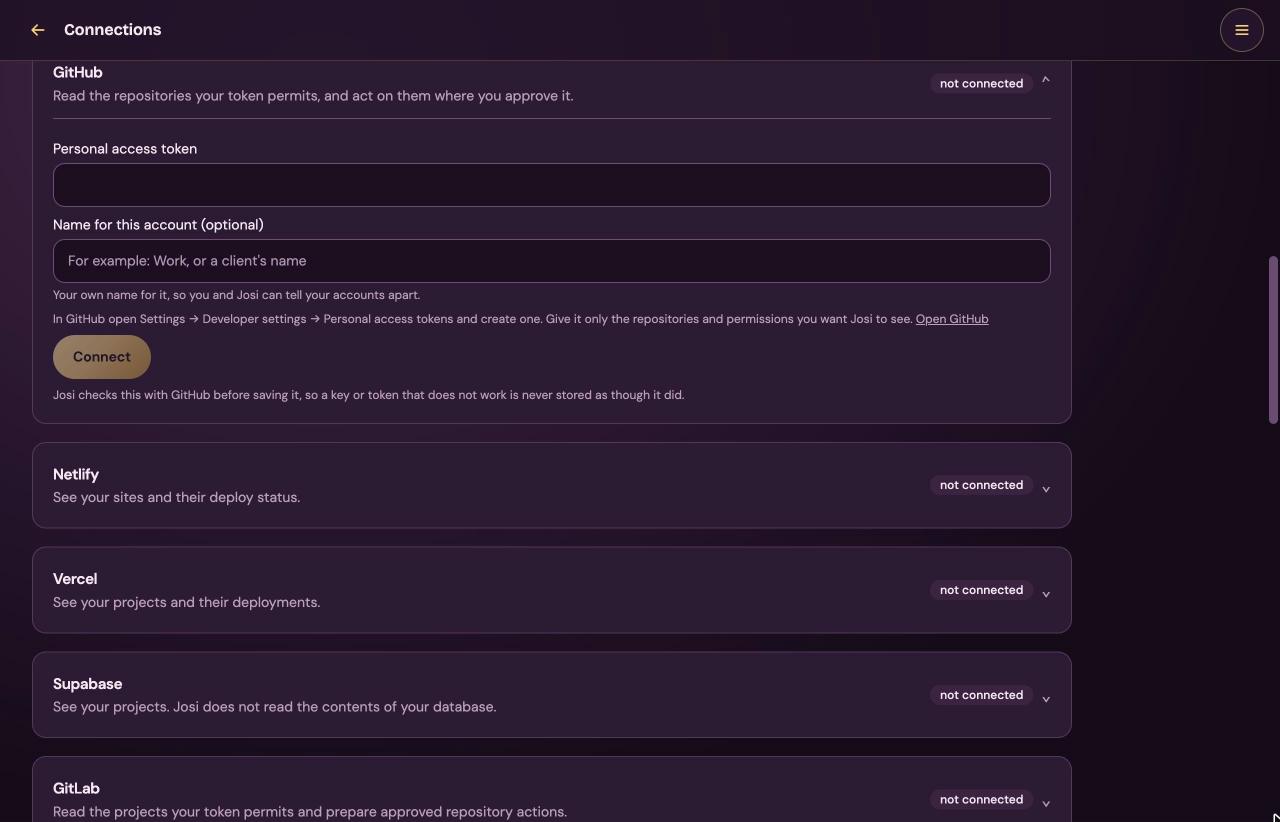
Your own accounts with developer services, connected with a token you create. Nobody else here can see the token, and disconnecting removes it. Josi checks each token with the service before she saves it.
The owner can always connect these. Other people can only once the owner allows the service under Admin → Integrations. Until then the card says An administrator has not made this available.
Each card has the fields below, plus Name for this account (optional), so you and Josi can tell several accounts apart. Select Connect. A connected account has Check it still works and Disconnect, and Add another … account adds a second one.
| Service | What Josi can do | What you paste, and where to create it |
|---|---|---|
| GitHub | Read the repositories your token permits, and act on them where you approve it. | Personal access token. In GitHub: Settings → Developer settings → Personal access tokens. Give it only the repositories and permissions Josi should see. |
| Netlify | See your sites and their deploy status. | Personal access token. In Netlify: User settings → Applications → Personal access tokens. |
| Vercel | See your projects and their deployments. | Access token. In Vercel: Account Settings → Tokens, scoped to the team you want. |
| Supabase | See your projects. Josi doesn't read the contents of your database. | Personal access token. In Supabase: Account → Access Tokens. |
| GitLab | Read the projects your token permits and prepare approved repository actions. | Personal access token. In GitLab: Preferences → Access Tokens, with only the API scopes Josi needs. gitlab.com only. |
| Cloudflare | Inspect the Cloudflare accounts and resources the token allows. | API token. In Cloudflare: My Profile → API Tokens. Keep it narrowly scoped. |
| Sentry | Inspect authorized organizations, projects, issues and events. | User authentication token. In Sentry: User settings → Auth Tokens, with the smallest scopes needed. |
| Render | Inspect authorized owners, services and deploy state. | API key. In Render: Account Settings → API Keys. |
| Railway | Inspect the workspaces, projects, services and deployments the token allows. | Account API token. In Railway: Account Settings → Tokens. Project tokens aren't accepted. |
| Linear | Read authorized workspaces, teams, projects and issues, and prepare approved changes. | Personal API key. In Linear: Settings → Security & access → Personal API keys. |
| Docker Hub | Inspect repositories, tags and image details for the account. | Docker Hub username and a Personal access token. In Docker Hub: Account settings → Personal access tokens. |
| GitHub Container Registry | Inspect container packages and versions the token allows. | GitHub token with package access, restricted to the organizations and packages Josi needs. |
| Jira Cloud | Read authorized sites, projects and issues, and prepare approved changes. | Atlassian account email, Jira Cloud URL (for example https://your-site.atlassian.net) and an Atlassian API token made by that account. |
| npm | Inspect package and organization details the token allows. | Granular access token. In npm: Access Tokens, restricted to the packages and organizations Josi needs. |
| Neon | Inspect the projects and branches the key allows. | API key. In Neon: Account settings → API keys. |
| Notion | Search and read only the pages you share with the integration. | Internal integration secret. Create an internal integration in Notion, then share only the pages Josi may read with it. |
| App Store Connect | See your apps and read their customer reviews. | Issuer ID, Key ID and the whole Private key (.p8), including its BEGIN and END lines. In App Store Connect: Users and Access → Integrations → App Store Connect API, as a team key with the narrowest role. The .p8 file downloads only once. |
| Google Play | See the Android apps the service account can reach and read their reviews. | The whole Service account JSON, and optionally Package names. Create the service account and its JSON key in Google Cloud and turn on the Google Play Android Developer API. Then invite the account's email in Google Play Console under Users and permissions. |
| Stripe | See which account a key belongs to and list its products. | Restricted API key. In the Stripe Dashboard: Developers → API keys, with read access only. A secret key also works but can move money. |
Custom MCP servers
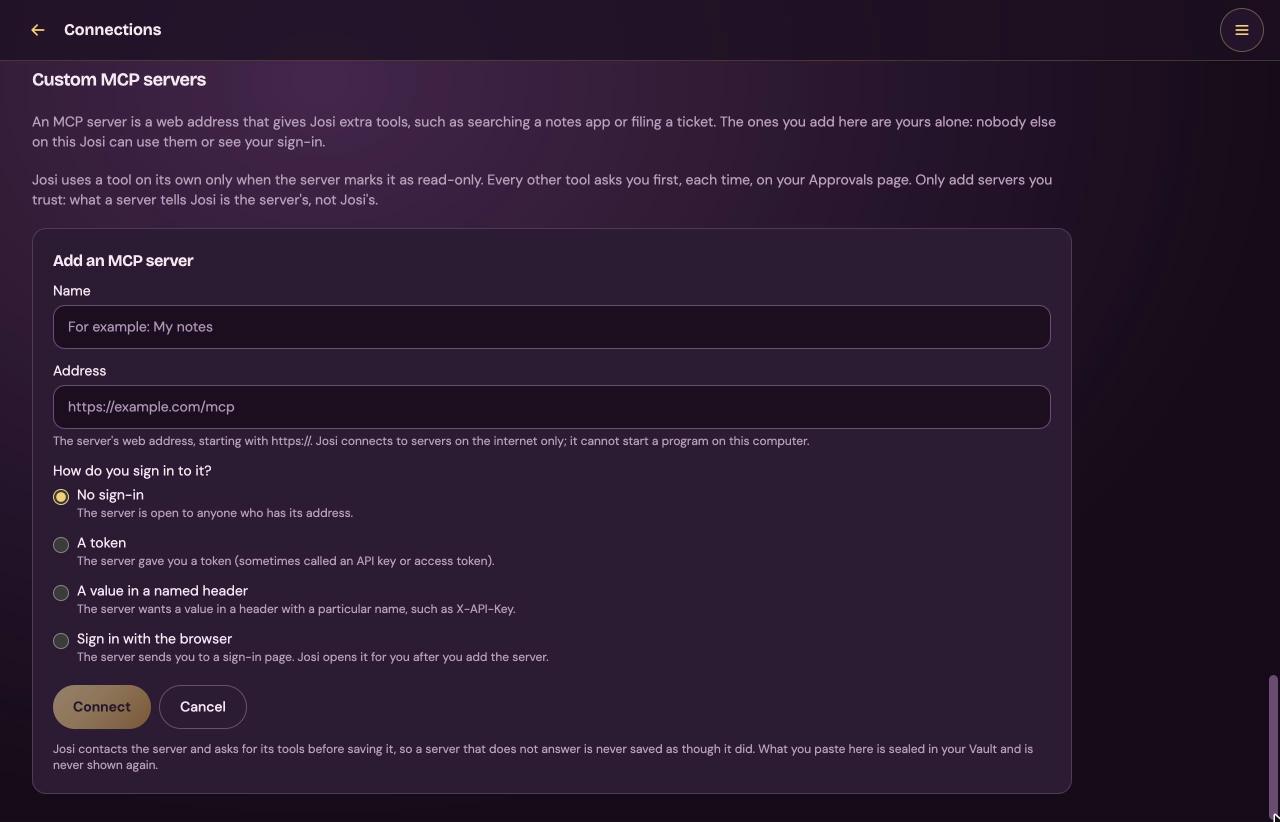
An MCP server is a web address that gives Josi extra tools, such as searching a notes app or filing a ticket. The ones you add are yours alone. The owner can always add them; other people only when the owner allows it under Admin → Integrations.
Select Add an MCP server:
| Field | What to enter |
|---|---|
| Name | Your name for it, up to 80 characters. |
| Address | The server's address, starting with https://. Josi only connects to servers on the internet. Addresses on your own network are refused, and she never starts a program on the server. |
| How do you sign in to it? | No sign-in; A token, then paste it in Token; A value in a named header, then Header name and Value; or Sign in with the browser, where Josi opens the server's sign-in page after you add it. |
Select Connect, or Cancel. Josi asks the server for its tools before saving it. She uses a tool on her own only when the server marks it as read-only. Every other tool asks you first, each time, on Approvals. Each server's card lists its tools, each with Switch off or Switch on, and has Check it still works and Remove. You can add up to 20 servers.
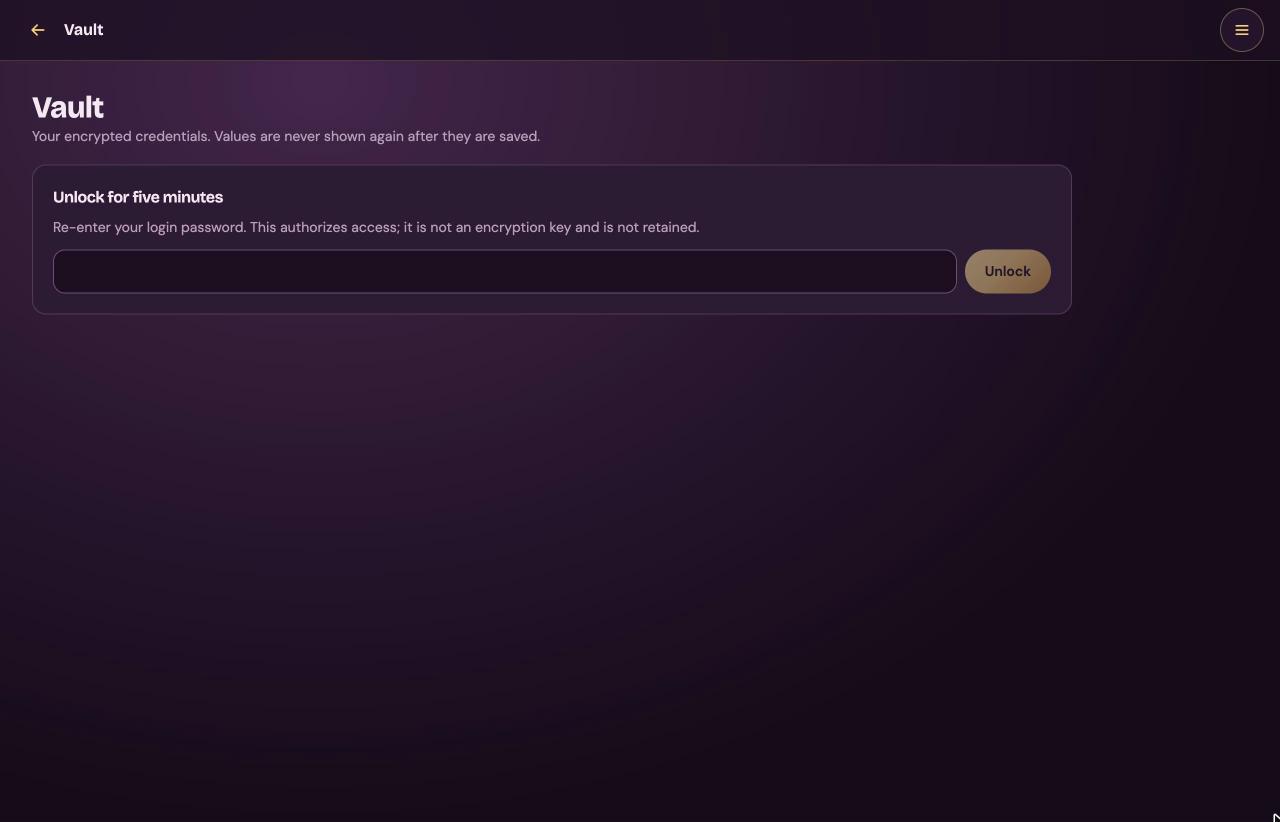
Vault
Your own encrypted passwords, keys and other secrets. A value is never shown again once it's saved.
- Unlock for five minutes: type your Josi password and select Unlock.
- Store a credential: choose the Type (password, API key, OAuth token, secure note, recovery code, certificate, private key or other), then fill in Service, Account or slot, Label and Secret, and select Save encrypted.
- Saved credentials: each shows its label, service and last four characters. Check confirms the stored value is intact; it doesn't test it with the service. Delete removes it at once, without asking.
If the owner has locked the Master Vault, the page says Master Vault locked and nothing that needs a credential works until it's unlocked.
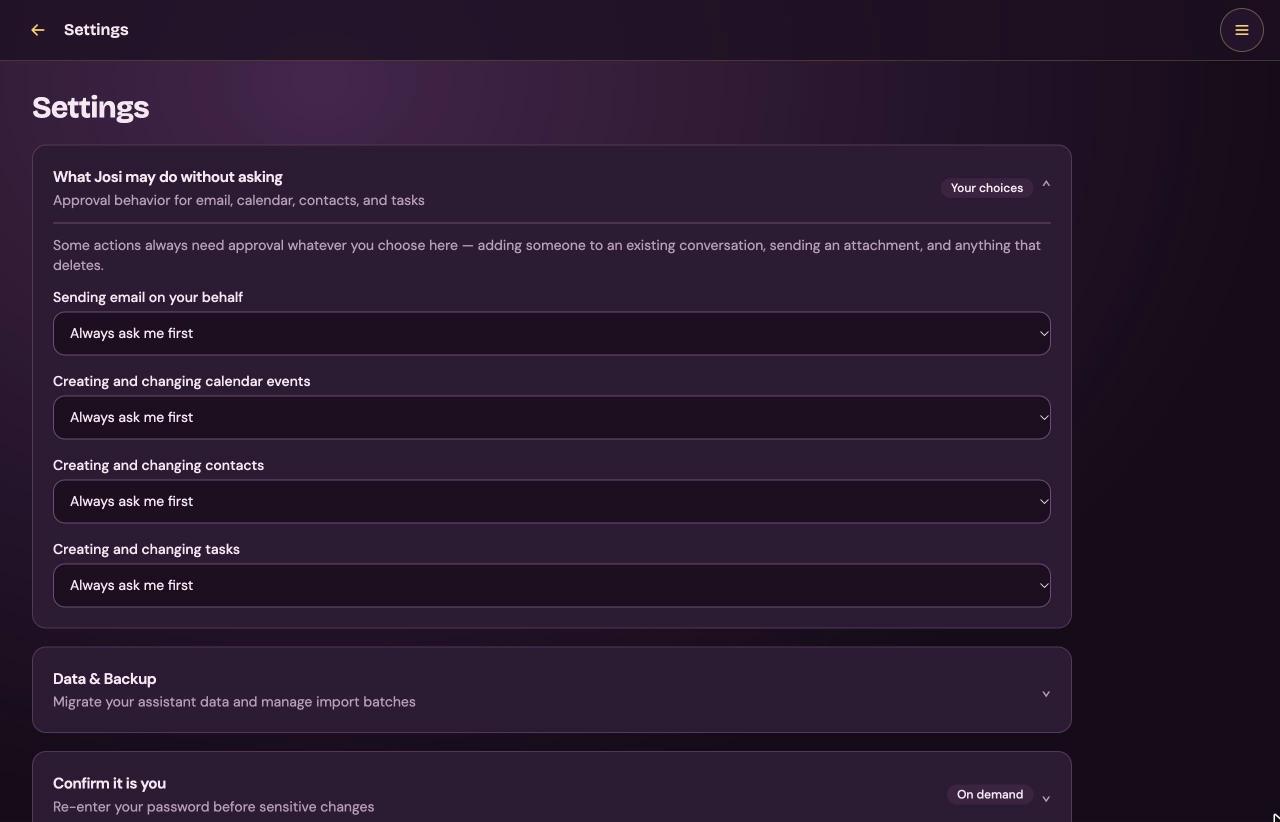
Settings
| Card | What it does |
|---|---|
| What Josi may do without asking | Four choices: Sending email on your behalf, Creating and changing calendar events, Creating and changing contacts and Creating and changing tasks. Each can be Always ask me first (the default), Ask only for risky or destructive actions or Allow routine actions automatically. Adding someone to a conversation, sending an attachment and anything that deletes always ask. |
| Data & Backup | Holds Migrate from another assistant. See Known issues. |
| Confirm it is you | Type your Password and select Confirm. For the next 15 minutes on this device you can cancel work, change settings and share without typing it again. After 5 wrong tries in 15 minutes you're locked out for a while. |
| Passkeys | Only on an HTTPS address with a host name. Name the passkey, type your password and select Add a passkey. Remove deletes one. |
| Multi-factor authentication | Set up MFA shows a QR code for your authenticator app. Type its 6-digit code and select Verify and enable, then save the recovery codes it shows. To turn it off, confirm your password and select Disable MFA. Family needs this before you can add a child. |
| Crash reports | Only for the owner of a beta-tester installation: send crash reports by themselves, or show each one first. |
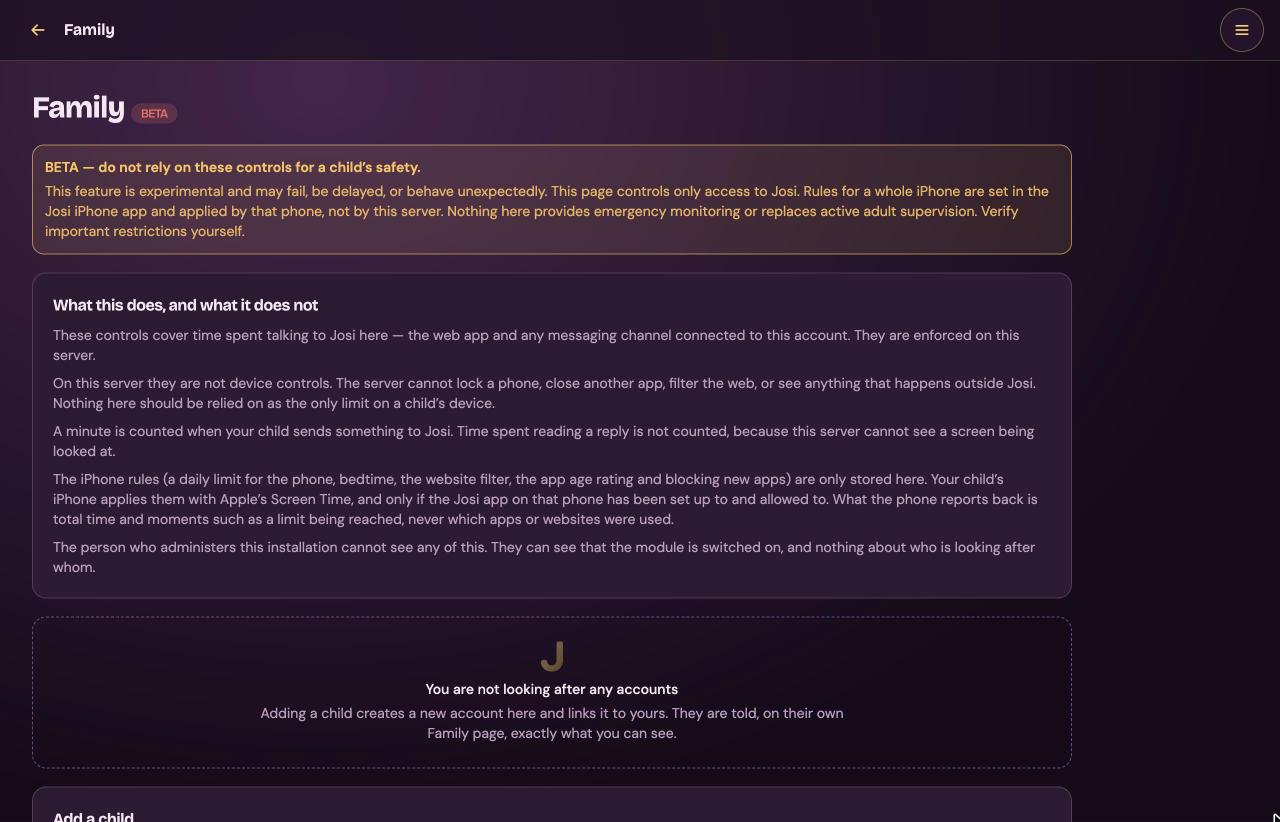
Family
Parental controls for Josi. A parent creates an account for a child and sets when and how long the child may talk to Josi. This is a beta: don't rely on it for a child's safety. It controls only Josi, not the device, other apps or websites.
What this does, and what it does not explains the limits in full. Read it before you use the page.
- Add a child needs two-factor authentication on your own account first (Settings → Multi-factor authentication). Then fill in Username, Email address and What to call them, confirm with Your password and a Six-digit code from your authenticator, and select Confirm and create the account. Josi shows a set-up link to open on the child's device.
- Each child's card shows whether Josi is available to them now and their minutes today.
Its tabs:
- Hours and limit: their time zone, Minutes a day (blank for no limit), and Only answer during set hours with a time window per weekday. Select Save. It applies to their next message.
- Conversations: read their conversations. Each time you open one, it's written down, and the child can see that.
- How much: their use over the last two weeks.
- Stop looking after: their account becomes an ordinary account.
- A child's own Family page shows who looks after them, what that person can and can't do, their hours, and a log of what the parent looked at.
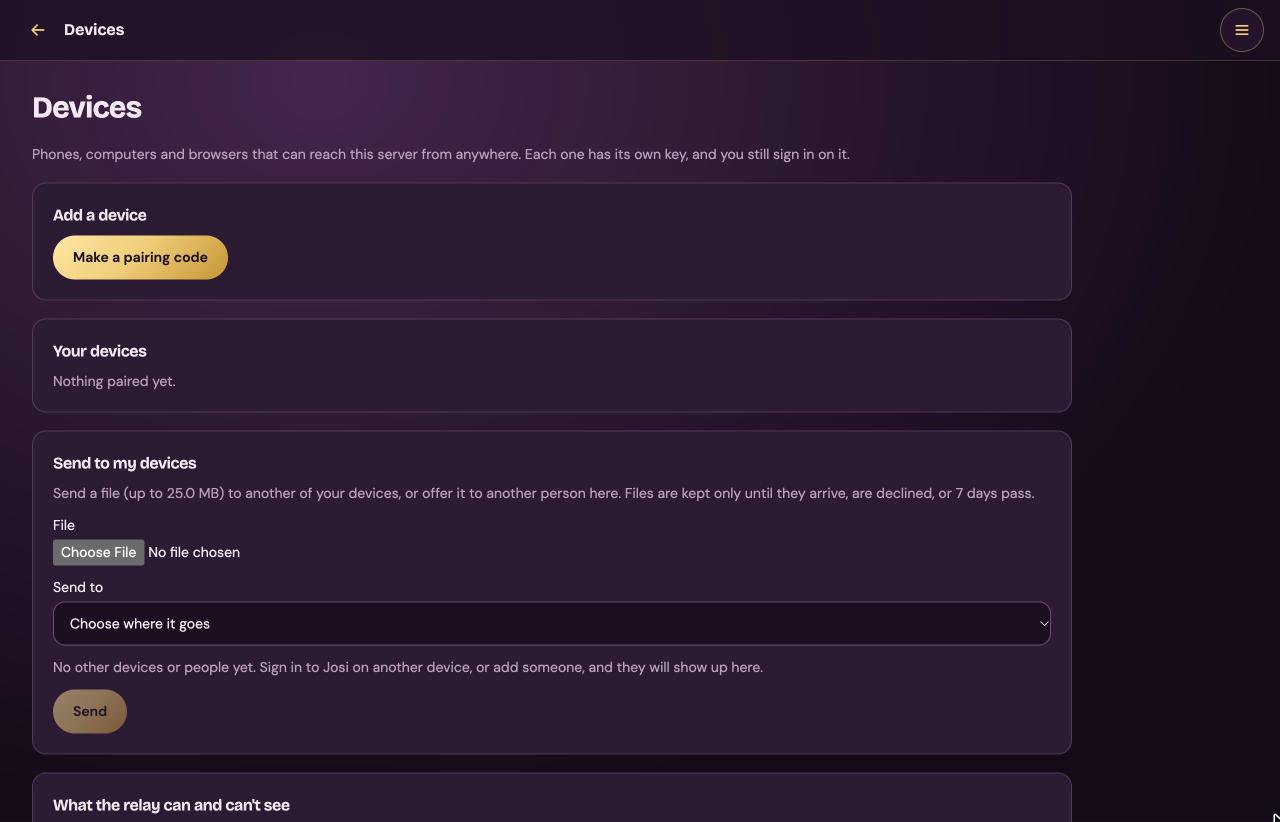
Devices
Send to my devices sends a file, up to 25 MB, to another device where you're signed in to Josi, or offers it to another person on this server.
- Choose the File, choose where it goes under Send to, and select Send.
- Files wait until they arrive, are declined, or 7 days pass.
- Files offered to this browser show Accept and Decline. Accepted files show Download.
- Until you sign in elsewhere, or someone else is added, the list says No other devices or people yet.
Add a device, Your devices and the last card on the page are about pairing, which isn't available in this beta. See Known issues.
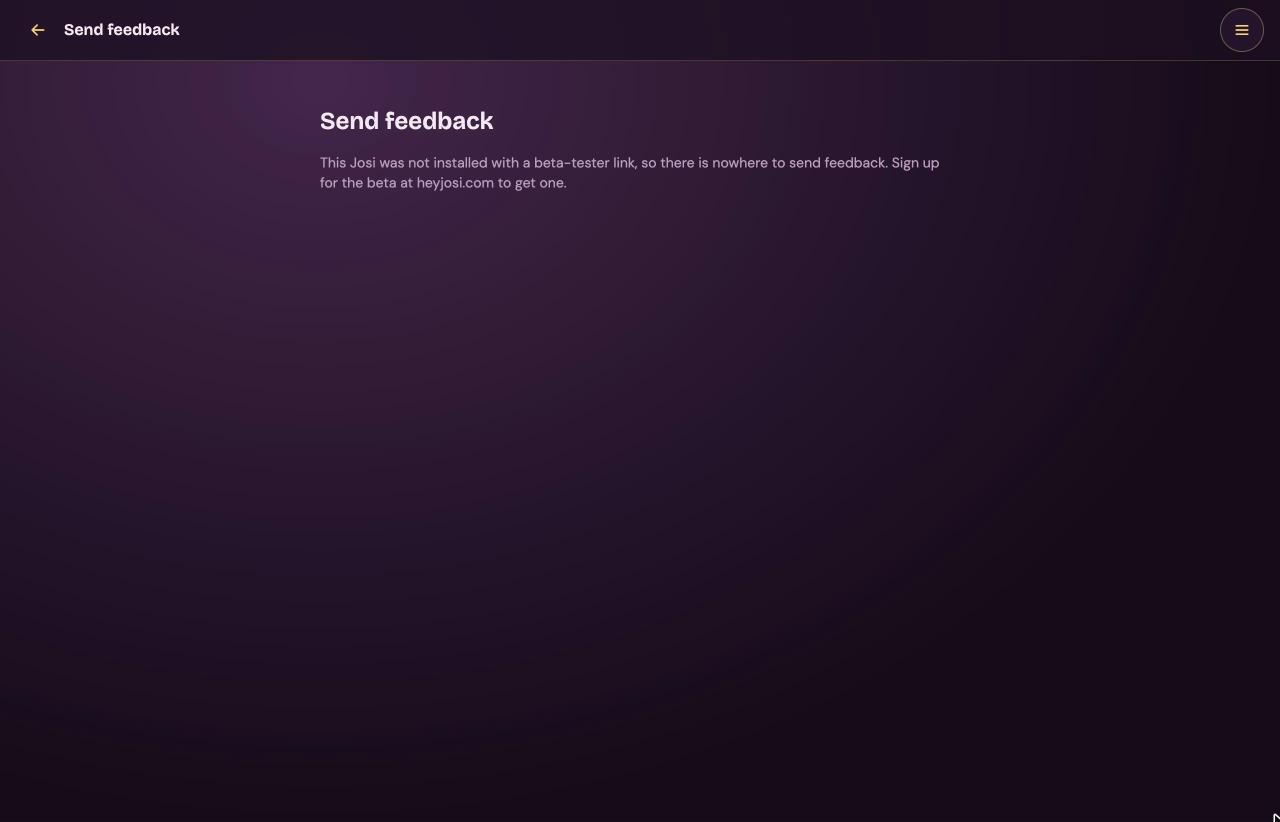
Send feedback
Only the owner can send feedback from here. Members see a note asking them to tell the owner instead. On this beta the page says the server wasn't installed with a beta-tester link. See Known issues for where to send feedback.
Admin: every page
Only the owner sees the Admin tiles, and only the owner can open these pages. The tiles, in order: Overview, System checkup, People, Model, Connectors, Backups, Master Vault, Integrations, Custom APIs, Network & address, Parental controls, PC control permissions, and Automation & Cardinal Rules. Integrations opens the same page as Connectors → Developer services.
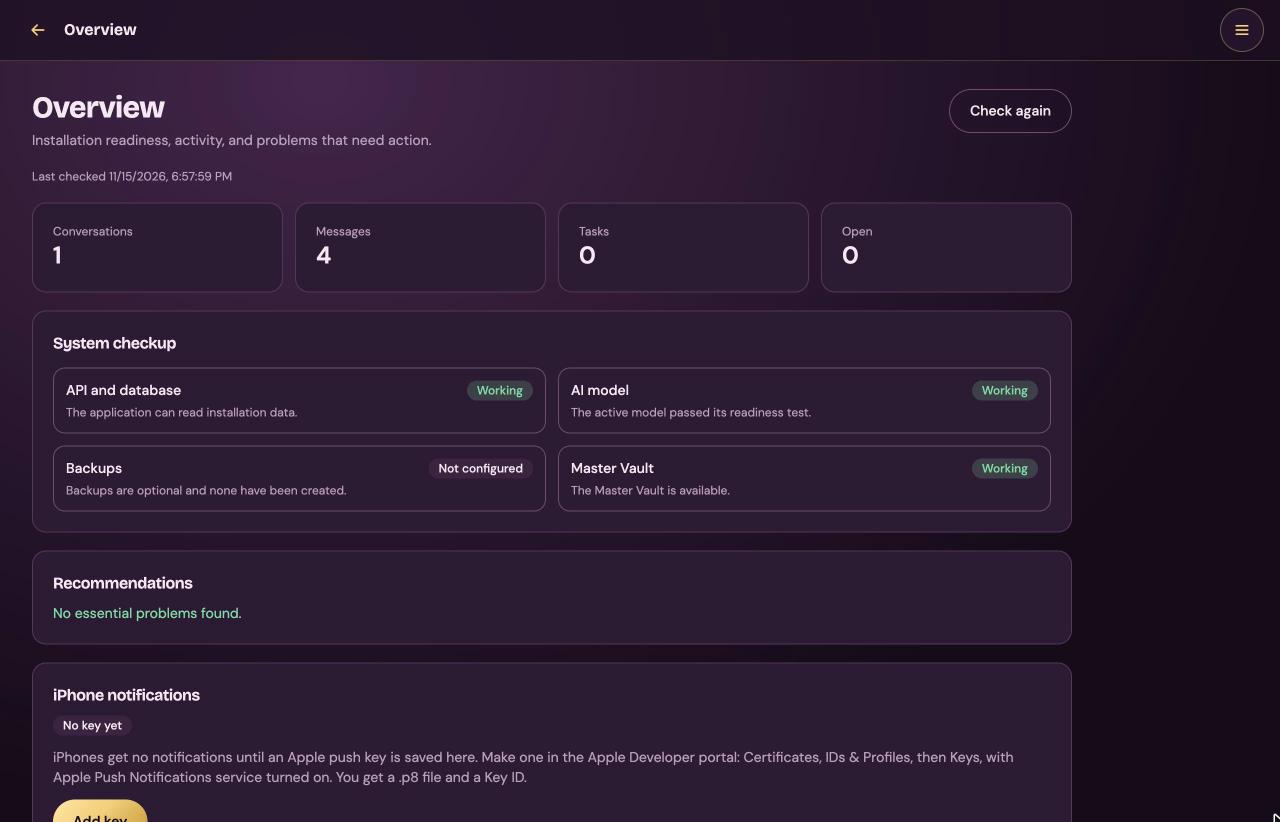
Overview
How the installation is doing, and what needs your attention. Check again runs every check once more. Last checked says when they last ran.
| Card | What it shows |
|---|---|
| Counts | Conversations, Messages, Tasks and Open tasks, for the whole server. |
| System checkup | API and database, AI model, Backups and Master Vault, each Working, Needs attention, Unavailable or Not configured. Select one to open its page. A Josi update check appears when a newer version is known. |
| Recommendations | What to fix, with Review to open the page. Otherwise No essential problems found. |
| iPhone notifications | Needed for notifications in the Josi iPhone app. Add key opens Key ID, Team ID and The .p8 file, pasted whole. Make the key in the Apple Developer portal, under Certificates, IDs & Profiles, then Keys, with Apple Push Notifications service on. Check and save checks it with Apple. Remove deletes it. |
| Josi's own email | Where sign-in codes, password resets and notices go out from: the SMTP server from setup, or a Google or Microsoft account you connected that may send mail. Pick the Account, set Name shown on the email, and select Send from this account. Stop using it goes back to the SMTP server. |
| How reliably work completes | How often work was interrupted or corrected. |
| Activity per person | Conversations and tasks per person. Not their content. |
System checkup
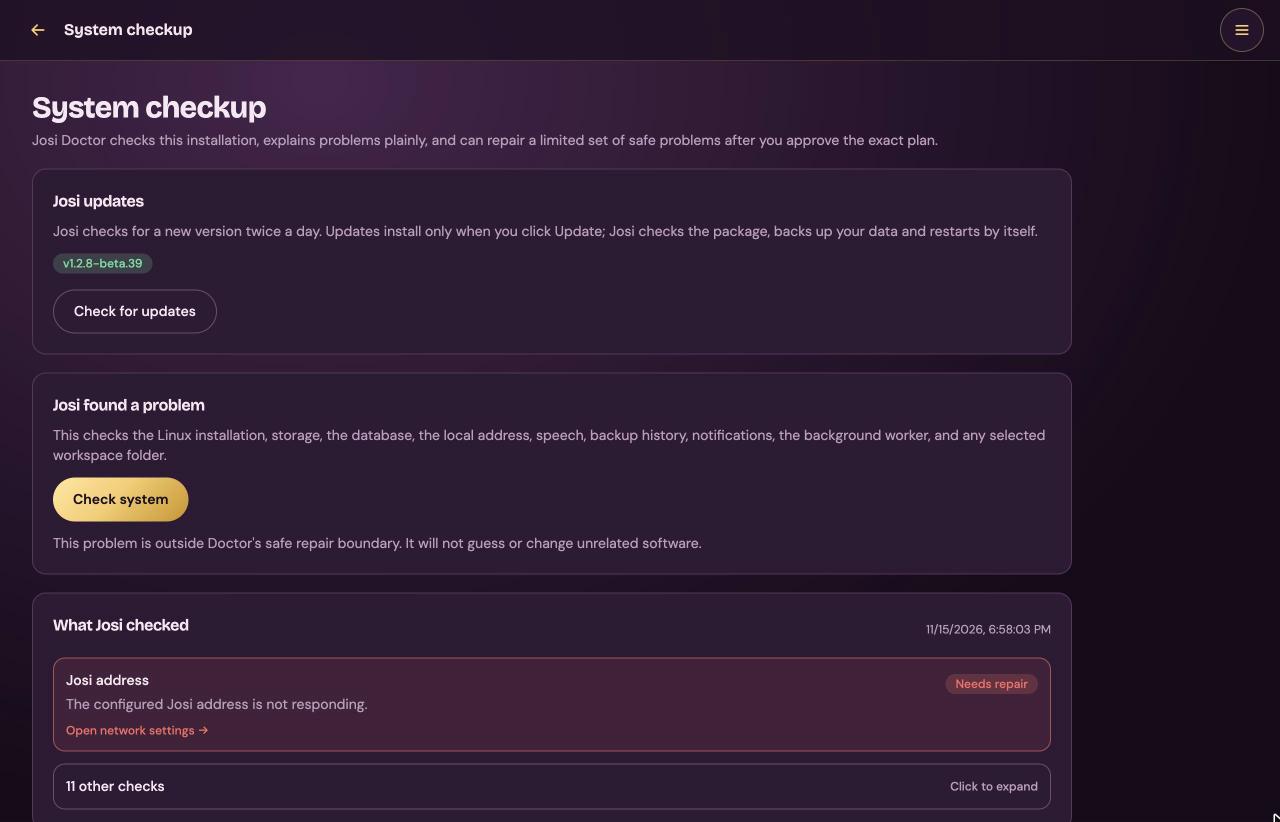
Josi updates shows the installed version. Check for updates asks for a newer one. When there is one, it shows the release notes and Update to the new version. Josi then checks the package, backs up your data and restarts. In this beta it finds nothing: see Update Josi.
Check system runs these checks and lists the failed ones first. The rest fold into other checks; select it to expand them.
| Check | What it tests |
|---|---|
| Computer architecture | The processor is supported. |
| Linux installation | The installed files, josi.service and the running version agree. |
| Josi data | Josi can write to its own data folders. |
| Free disk space | At least 1 GB is free. |
| Josi application | The application answers inside the server. |
| Database | The database and its update history are readable. |
| Josi address | The configured address answers. |
| Background worker | The worker reported in within the last 90 seconds. |
| Speech service | The speech helper answers. |
| Backup history | A full backup has been made. Only a warning until you make one. |
| Background work | The queue of background jobs is normal. |
| Notifications | No notifications are stuck. |
This page can't repair a Linux server. For a failure it says This problem is outside Doctor's safe repair boundary. The fix is almost always to run the install command again: it repairs Josi and keeps your data. Some Open … settings links point at pages this beta doesn't have, and they land on the chat.
People
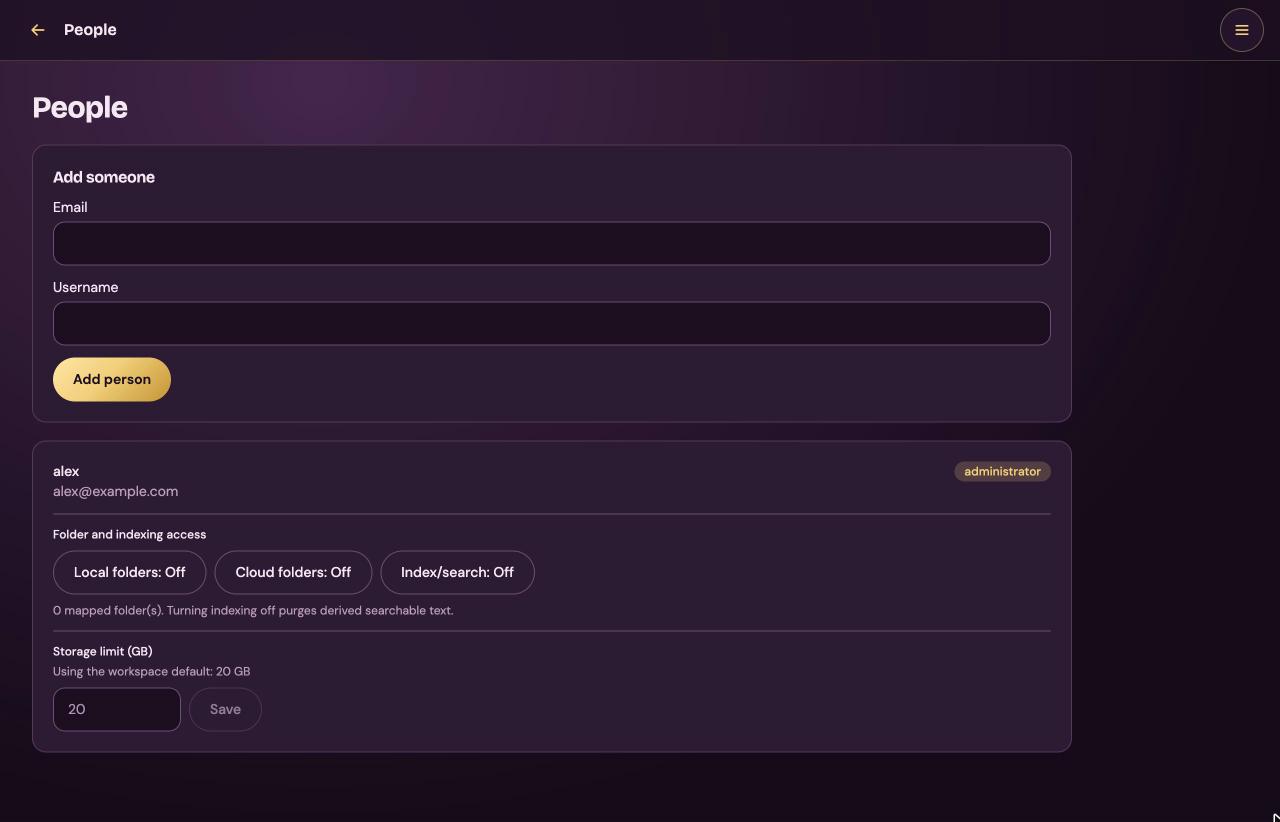
Add the people who use this Josi. Everyone you add is a member; there is only one owner.
- Add someone: type their Email and a Username, and select Add person.
- Josi doesn't email invitations. It shows a link under Give them this link. Send it to them yourself. It sets their password once and works for 7 days.
Each person's card shows their username, their email and administrator or member:
| Control | What it does |
|---|---|
| Local folders: On/Off | Whether this person may let Josi read folders on the server. |
| Cloud folders: On/Off | Whether this person may map folders from their cloud storage. |
| Index/search: On/Off | Whether their files are indexed for search. Turning it off deletes the searchable text Josi made. |
| Storage limit (GB) | Their storage limit. The default is 20 GB. Type a number and select Save. Reset to default removes a custom limit. |
There is no button to remove a person or change their role.
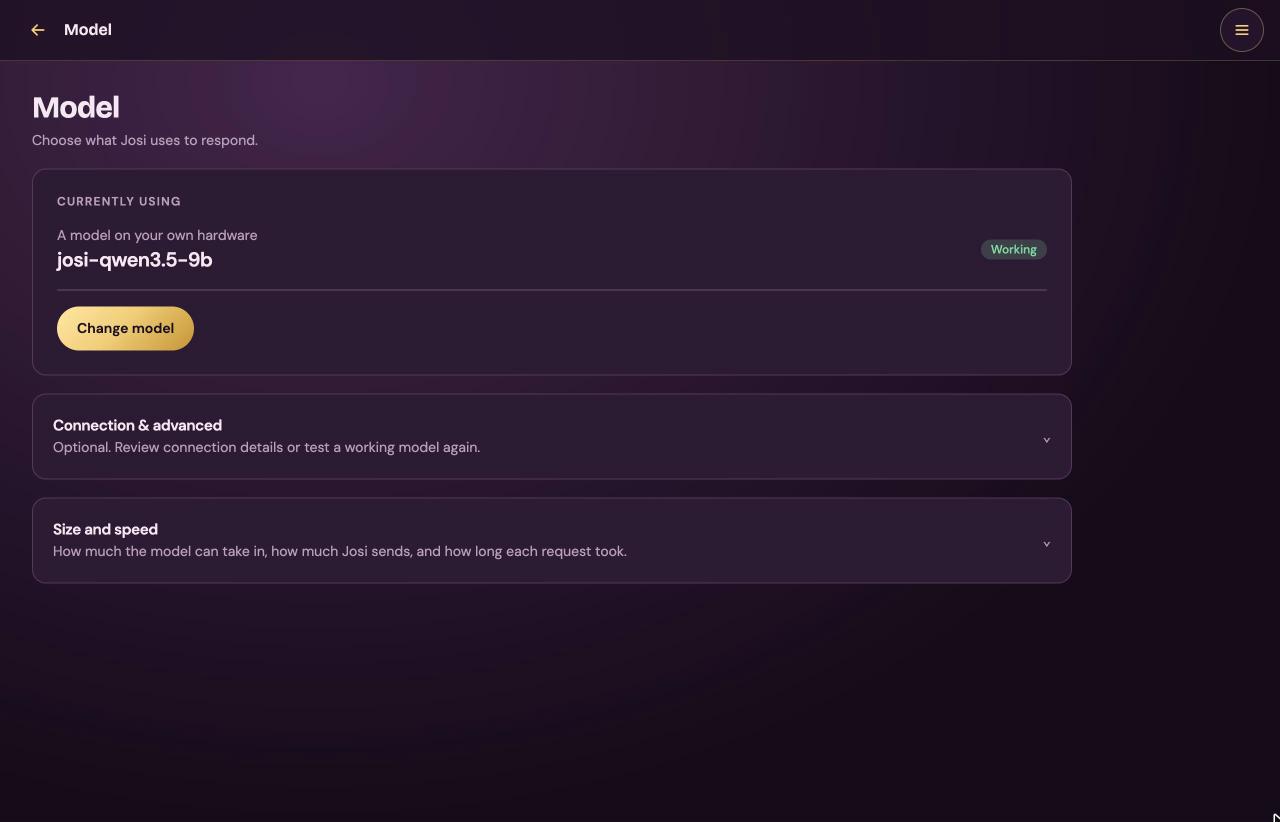
Model
The model Josi thinks with. Currently using shows the provider, the model, and Working once it passed its test, or Not tested. Josi doesn't use a model until it passes.
- Change model opens the same form as setup step 4. See Language model. Select Save & test to save and run the five-part test, or Cancel.
- Here the form isn't filled in for Josi's own model. To go back to it, choose A
model on your own hardware, type
http://127.0.0.1:11434/v1and pickjosi-qwen3.5-9b. - Test this model appears when the saved model hasn't passed yet.
Connection & advanced shows the model's exact identifier, the last test step by step, Test again, and any features switched off by the test. With a ChatGPT plan it also has Connect ChatGPT and Disconnect ChatGPT.
Size and speed shows:
- Context size: how much the model can take in at once.
- What Josi sends: compact or full prompts, and how big the last chat request was. If it didn't fit, it says so and suggests Prompt size Compact.
- Background requests: whether Josi makes extra requests to learn.
- Show recent requests: a table of recent requests, with why each was made, tokens in and out, and seconds. Refresh updates it.
- Exact requests and replies: whether the debug log is on. See Josi's own model.
Connectors and Integrations
What people may connect to Josi. Account providers and Developer services switch between the two halves. The Integrations tile opens Developer services.
Account providers
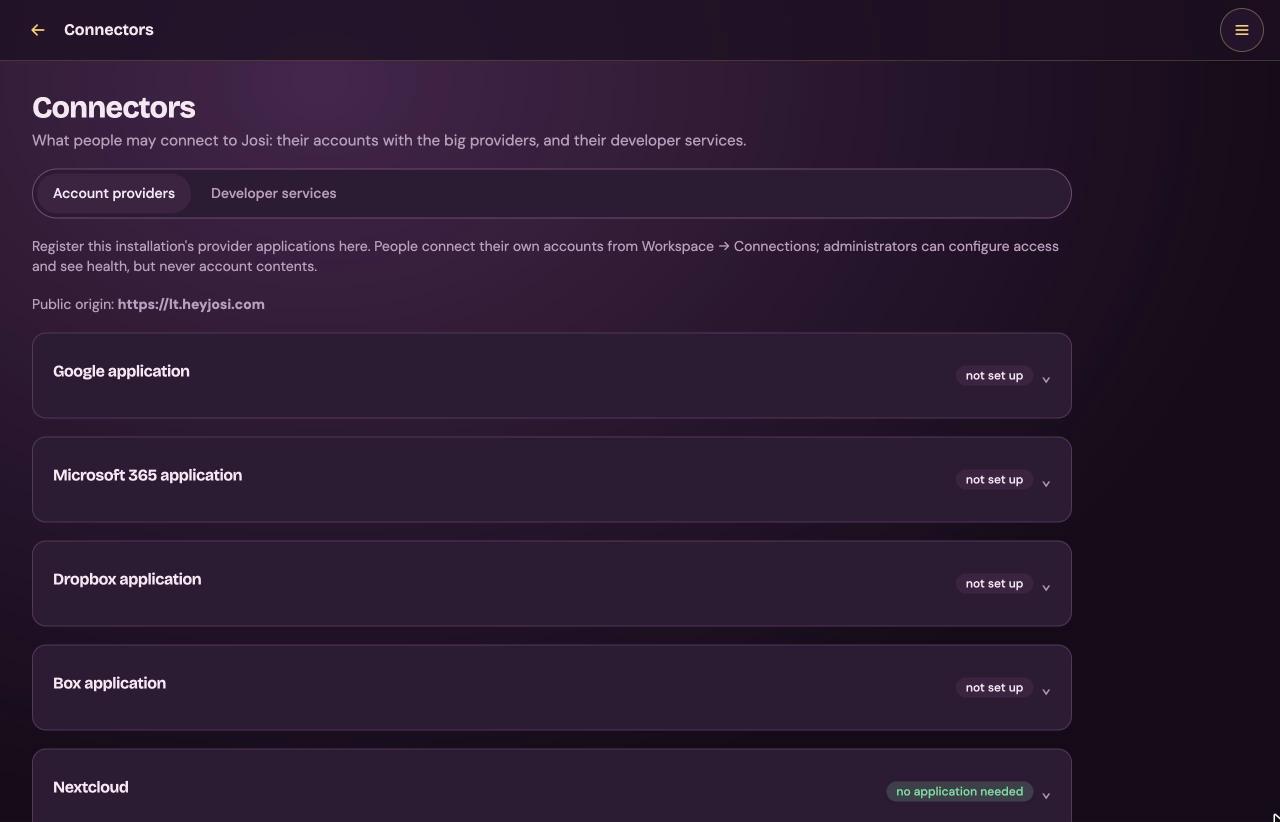
Here you register Josi with Google, Microsoft, Dropbox and Box. Each person then connects their own account from Workspace → Connections.
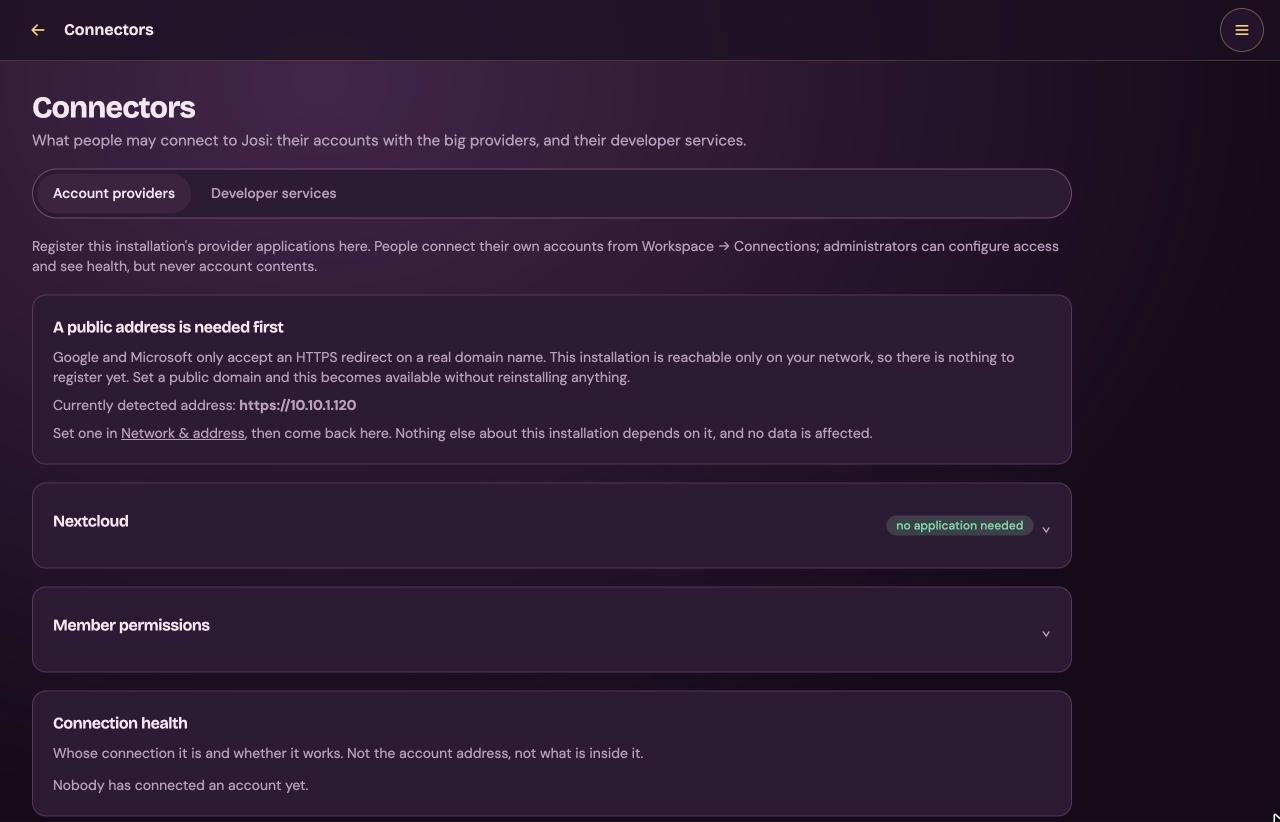
On a network-only install, the page shows A public address is needed first instead. Google and Microsoft only accept an HTTPS address with a real domain name. Change the address by running the install command again: see Change settings later.
With a public HTTPS address, the page shows Public origin and one card each: Google application, Microsoft 365 application, Dropbox application and Box application. Each says configured or not set up. How to fill them in is under Connect Google, Microsoft, Dropbox and Box.
On both kinds of install:
- Nextcloud, no application needed: each person sets it up from Connections.
- Member permissions: one row per permission, such as reading Gmail or sending email, each Allowed or Switched off. It can only take permissions away from members. Allowed doesn't switch anything on; it leaves the choice to each person. The owner is never limited by it.
- Connection health: whose connection it is, the provider, and whether it works. Not the account address, and not what's inside it. Disconnect cuts a connection off.
Developer services (Integrations)
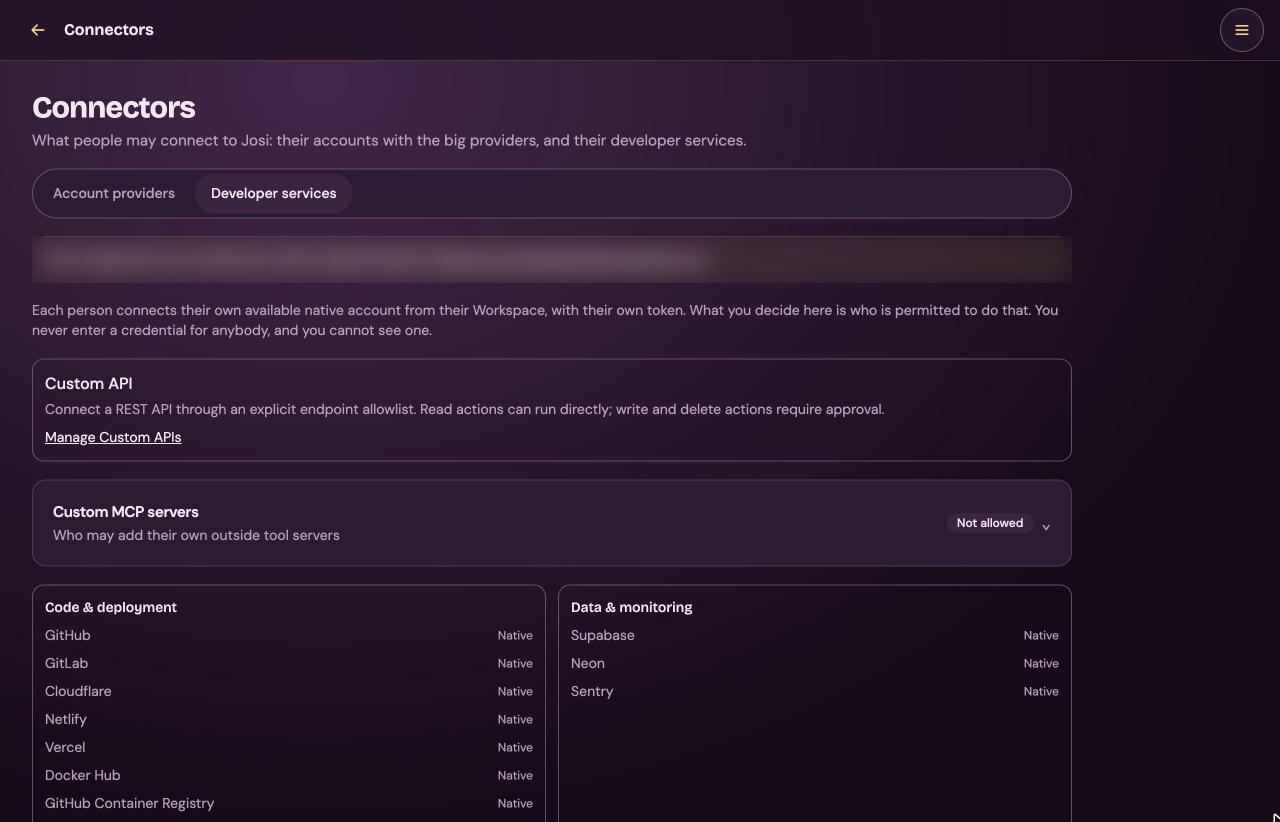
Who may connect developer services and outside tool servers. You never enter a token for anybody here, and you can't see anyone's token.
- Custom API: Manage Custom APIs opens Custom APIs.
- Custom MCP servers: under Who may add MCP servers, choose Not allowed (the default), Allowed for everyone or Allowed for specific people, and find them by name or email. Also let accounts that a parent manages add MCP servers is off by default. Add an optional reason for people who can't, and select Save who may add servers. Who has added one lists each server and whether it works. You can always add your own.
- A list of the services by group: Code & deployment, Data & monitoring, Knowledge and Project management.
- Obsidian workspace vaults: read-only access to Markdown notes for administrators, through Discover vaults and Read note.
- One card per developer service. Under Who may connect this, choose Not allowed, Allowed for everyone or Allowed for specific people. Add an optional reason and select Save who may connect. Who has actually connected lists each person, their account name, and when it was last checked and used. Every service starts as Not allowed for members.
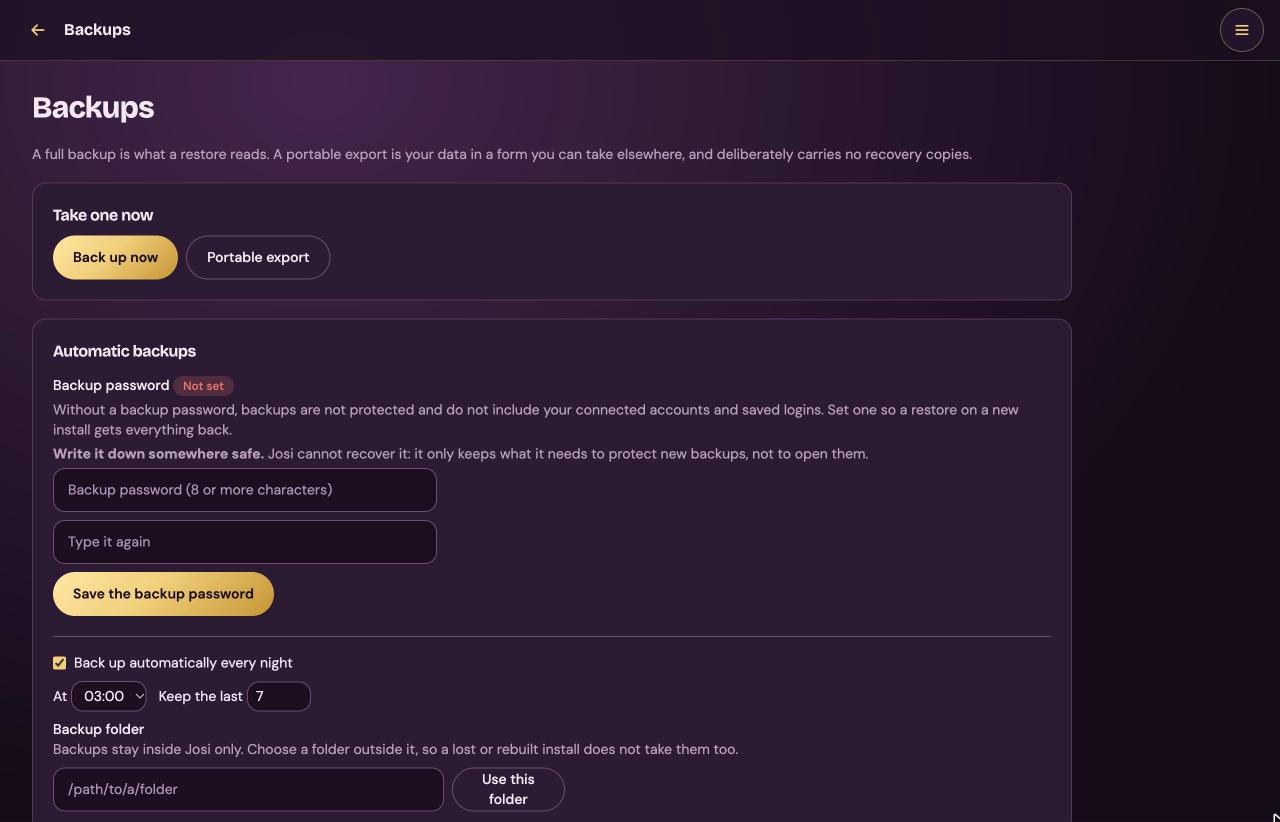
Backups
A full backup is what a restore reads. A portable export is your data in a form you can take elsewhere.
| Card | Fields and buttons |
|---|---|
| Take one now | Back up now makes a full backup. Portable export makes an export. A progress bar shows each step. |
| Automatic backups | Backup password: type it twice and select Save the backup password. At least 8 characters. Without it, backups aren't protected and don't include connected accounts and saved logins. Write it down: Josi can't recover it. Once set, Check it tests a password and Change it replaces it. Back up automatically every night, At (03:00 by default) and Keep the last (7 by default). Backup folder: a folder outside Josi, for example on another disk, and Use this folder. Josi's services must be able to write there. |
| The master key is not in these backups | Shown until you set a backup password. |
| Where backups are kept | A copy somewhere else: NAS / network share, Amazon S3, Cloudflare R2 or Backblaze B2, with that service's fields. The bucket must already exist. Encrypt off-site backups is recommended. After Save destination, save the backup recovery key it shows with Copy or Download. Test connection checks it. |
| Restore a backup | Replaces everything on this server with the backup. Pick one from the backup folder, or Choose a file from this computer (up to 8 GB). Type its Backup password if it has one, and select Restore this backup. Josi first copies what is here now, then restarts and signs everyone out. |
| History | Every backup and export, with Download for the finished ones. |
On Linux, a backup from a different server brings back your data, but connected accounts and saved logins stay locked. People connect them again.
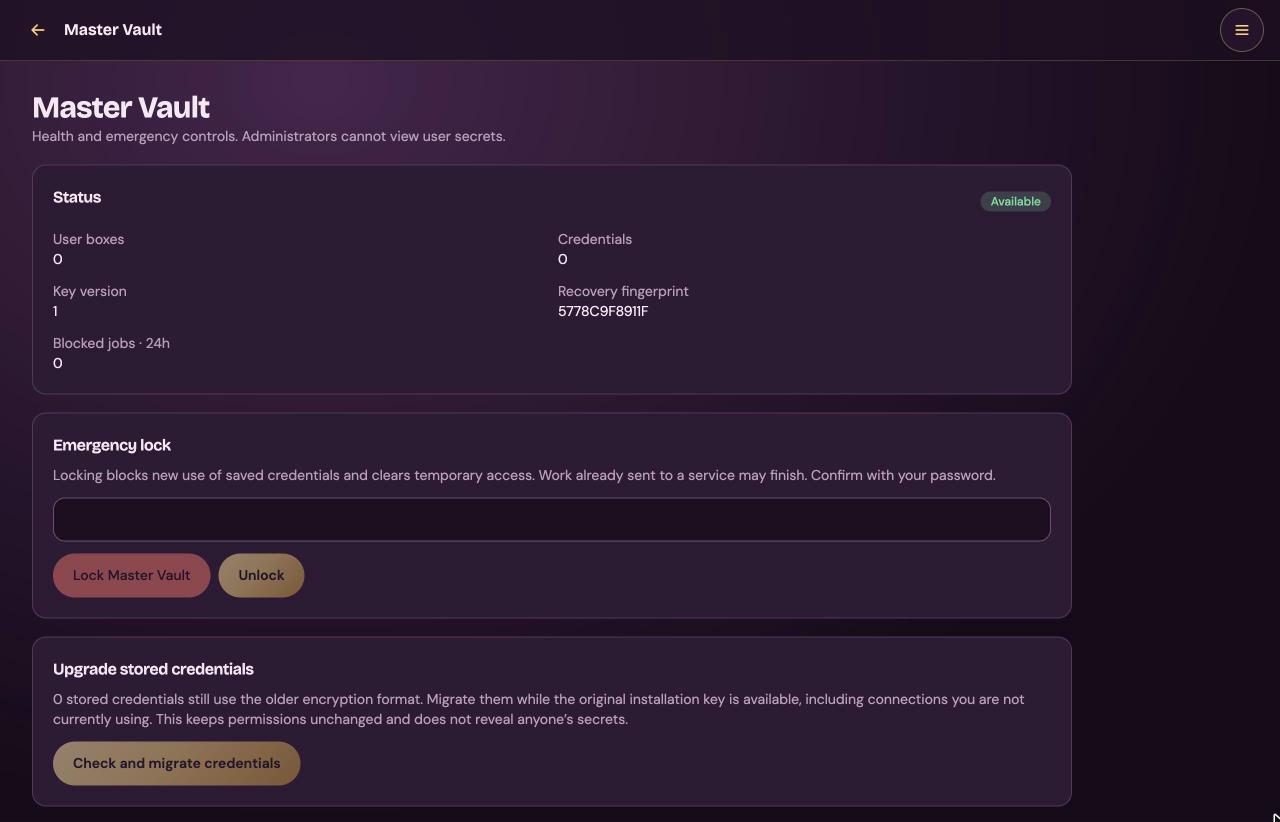
Master Vault
The Vault holds every password, token and key people give Josi. This page shows its health and holds its emergency controls. You can't see anyone's secrets here.
| Card | What it does |
|---|---|
| Status | Available or Locked, with the number of user boxes and credentials, the key version, the Recovery fingerprint, and jobs blocked in the last 24 hours. The fingerprint matches the recovery key you saved during setup. |
| Emergency lock | Type your password and select Lock Master Vault. No one can use a saved credential until you select Unlock. Work already sent to a service may still finish. |
| Upgrade stored credentials | Check and migrate credentials moves credentials in an older format to the current one. It uses the password typed above. |
| Offline recovery | Only after the server's own key was replaced or restored. Paste the Recovery key and select Recover Master Vault. |
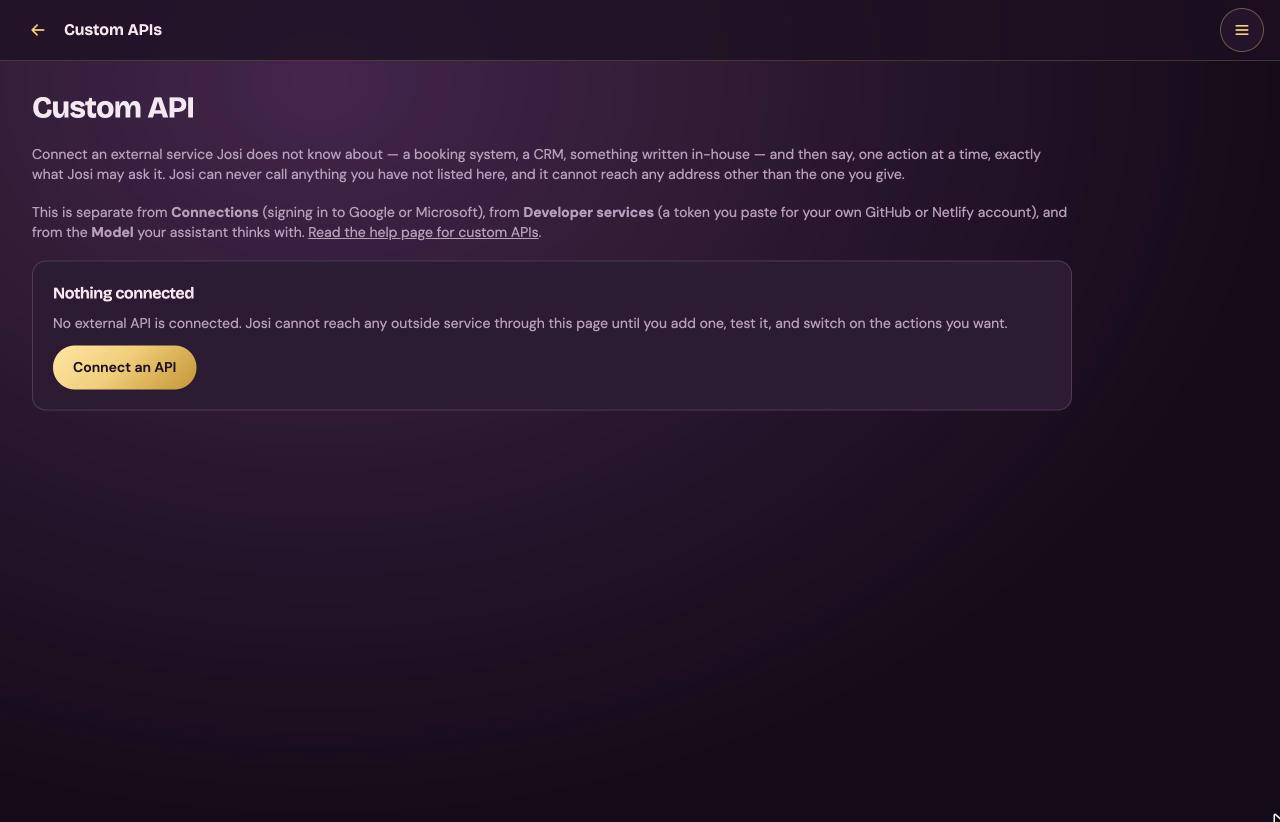
Custom APIs
Connect a service Josi doesn't know, such as a booking system or a CRM. Then list, one action at a time, exactly what Josi may ask it. Josi never calls anything you haven't listed, and never any other address.
Connect an API opens the form:
| Field | What to enter |
|---|---|
| Name | What people see, for example "Our booking system". |
| Short name for the assistant | Lowercase letters, digits and underscores. Leave it empty and Josi makes one. |
| Address | Starts with https://, for example https://api.example.com/v1. Addresses on your own network are refused. |
| How it authenticates | Bearer token, API key in a header (with its Header name) or Username and password. Then the token, key or password itself. It's encrypted and never shown again. |
| Test path | A path Josi can read to check the connection, often /health or /me. |
Select Add connection. Then:
- Select Test connection. Josi offers the API only after it has answered.
- Select Add an action: an Action id, What it does, the Method, the Path and any Query parameters. Select Add, switched off. Or select Import OpenAPI, paste an OpenAPI 3 document in JSON, select Read the document, and tick the actions you want.
- Select Switch on for each action Josi may use.
- Select Make available to Josi.
GET and HEAD actions run directly. Every other method waits for a yes on Approvals. Each connection also has Edit and Remove.
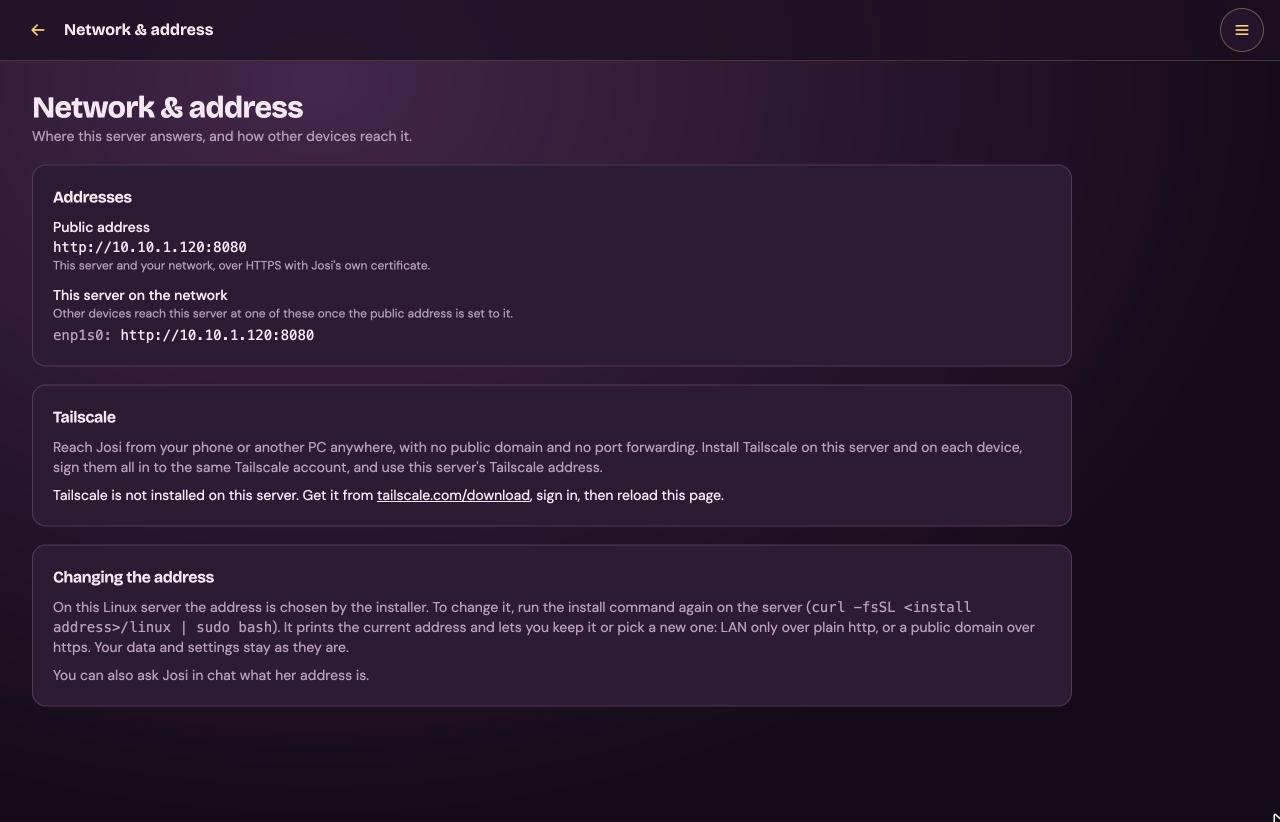
Network & address
Where this server answers, and how other devices reach it.
- Addresses shows the Public address and, under This server on the network, the server's address on each network card. On a network-only install the line under the public address still mentions HTTPS. The address shown is what counts.
- Tailscale says whether Tailscale is installed and connected on this server.
- Changing the address: on Linux the installer chooses the address. Run the install command again to change it. See Change settings later.
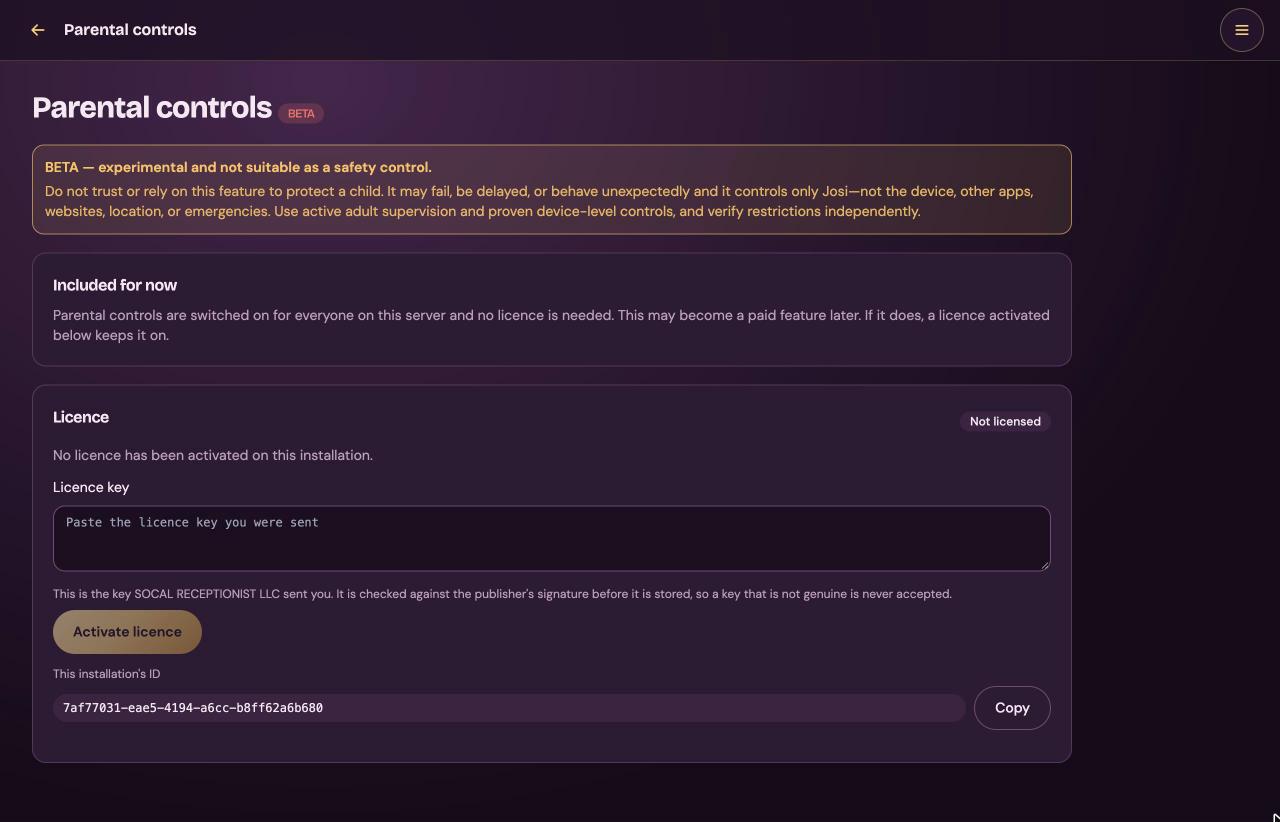
Parental controls
Parental controls are a beta. Don't rely on them to protect a child.
- Included for now: parental controls are on for everyone on this server, and no licence is needed.
- Licence: shows Not licensed. You don't need a licence in this beta. If you were sent one, paste it in Licence key and select Activate licence.
- This installation's ID, with Copy.
To manage children, open Family from the Workspace menu.
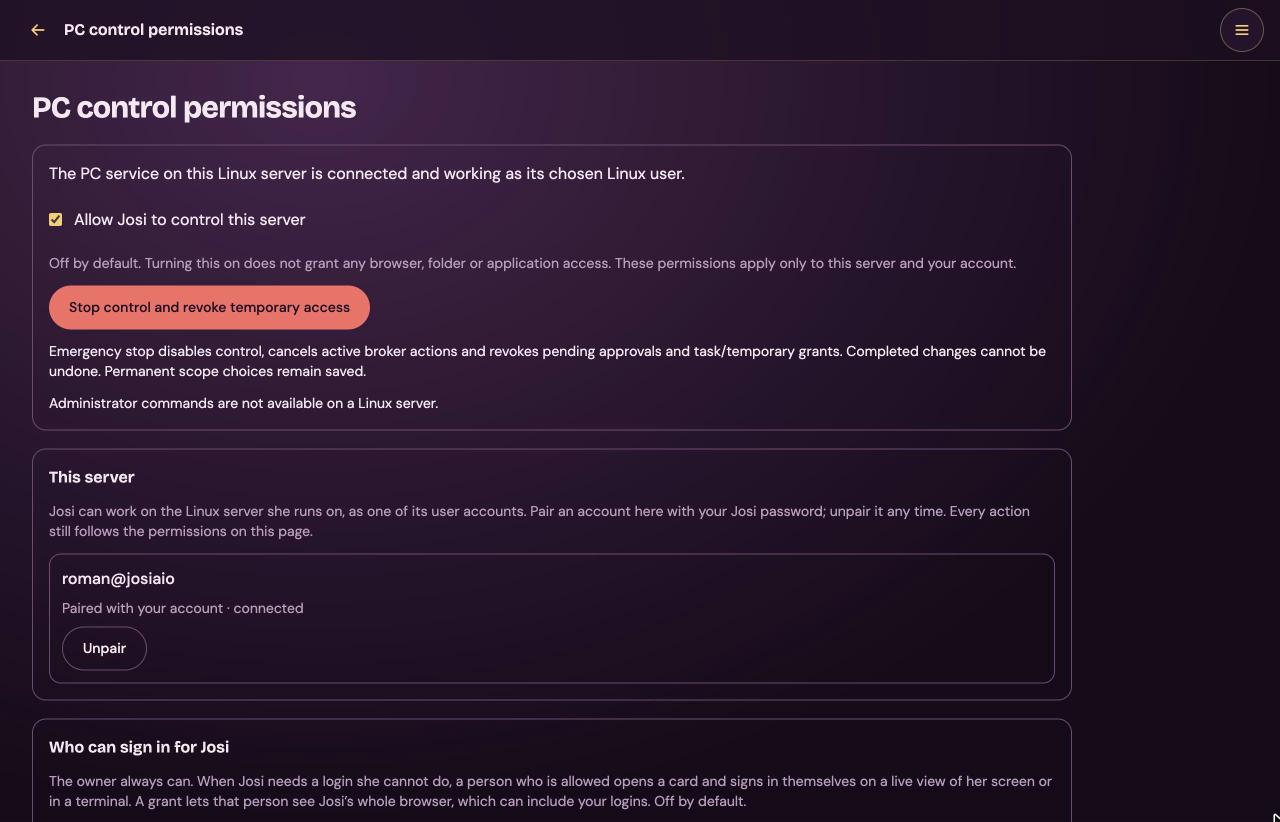
PC control permissions
What Josi may do on this server when she acts as the Linux user you chose during install. The first line says whether the PC service is connected.
| Part | What it does |
|---|---|
| Allow Josi to control this server | The master switch. Turning it on grants nothing by itself. Setup step 7 turns it on. |
| Stop control and revoke temporary access | The emergency stop. It switches control off, cancels running actions, and revokes waiting approvals and temporary permissions. Saved permanent permissions stay. |
| This server | The Linux user Josi acts as, with Paired with your account and connected. Unpair unpairs it. Pair asks for your Josi password. |
| Who can sign in for Josi | When Josi needs a login she can't do, a person signs in themselves on a live view of her screen or in a terminal. The owner always can. Tick other people to allow them too. They can then see Josi's whole browser. |
| Choose one exact scope | A permission for one exact thing. Choose the Action (for example Browser viewing and navigation, Folder read access or Commands, scripts, builds and tests), the exact target (a website, a program path or a folder), and the Approval mode: Never allow, Ask every time, Allow for this task, Allow temporarily or Always allow for this exact scope. Select Save exact-scope permission. |
| Saved scopes and temporary access | Every permission you saved, with Revoke. |
| Actions awaiting approval | Approve this exact action once or Deny. |
| Activity log | The latest 100 attempts and decisions. Form values, command output and credentials are left out. |
Deleting, sending, purchases, credentials, installing, security changes and elevation always ask separately. Administrator commands are not available on a Linux server.
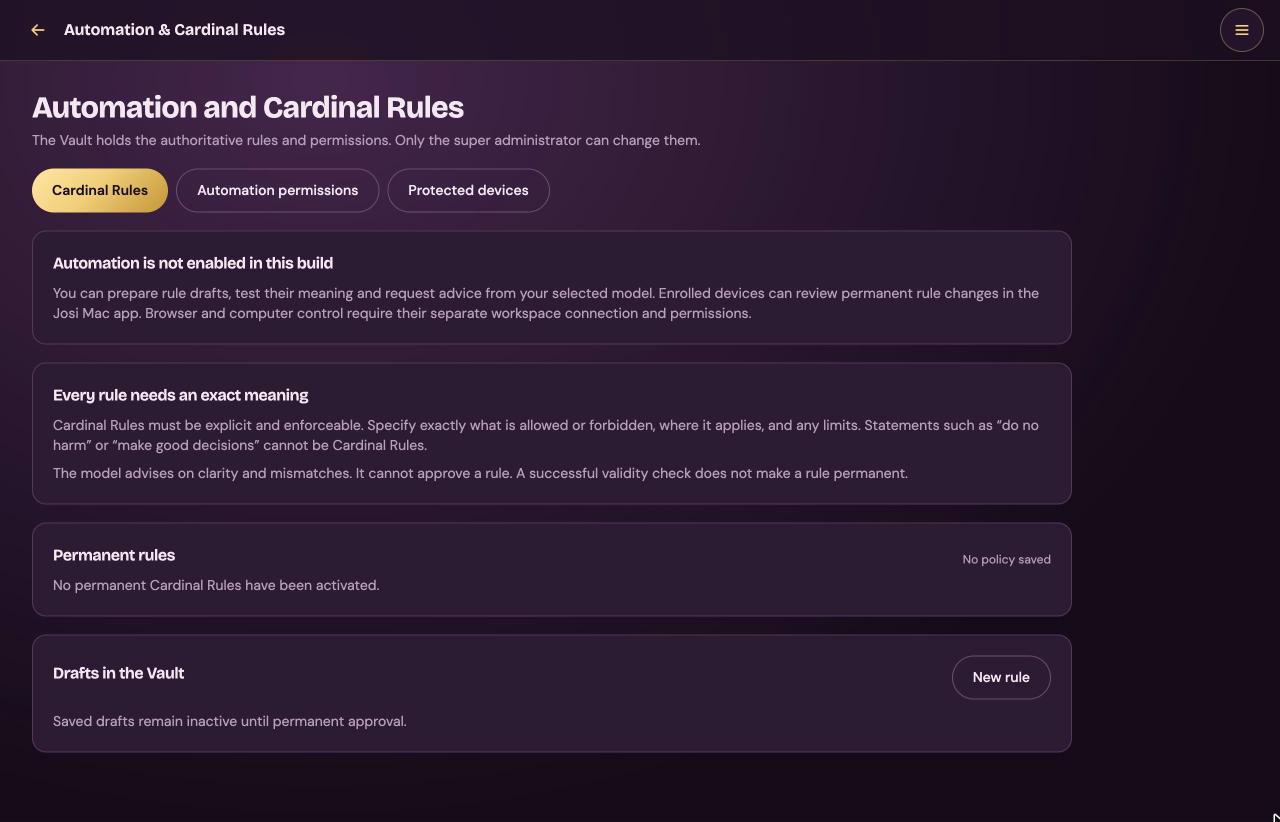
Automation & Cardinal Rules
Cardinal Rules are permanent rules Josi must follow, such as what she must never do and where. The page has three tabs: Cardinal Rules, Automation permissions and Protected devices.
As the card Automation is not enabled in this build says, you can write rule drafts, test their meaning and ask your model for advice. Making a rule permanent and enrolling a protected device need the Josi Mac app, so on a Linux server you can only draft and test.
- New rule opens the editor: Rule name, Your wording, the actions it covers, where it applies, the restriction, and what happens when facts can't be checked.
- Test validity checks the rule. Preview model review shows what would be sent to the model, without sending it.
- Save draft needs your administrator password. Drafts stay inactive.
Connect Google, Microsoft, Dropbox and Box
Josi comes with no app of its own at these providers. You register your own Josi with each provider once. Then each person connects their own account.
First: a public HTTPS address
Google and Microsoft only send people back to an https:// address with a real
domain name. Not an IP address, and not http://. Dropbox and Box are handled the
same way in Josi.
- Install choice 2 (a public domain) or 3 (behind your own reverse proxy, or a tunnel) gives Josi such an address.
- Install choice 1 (this network only) doesn't. Admin → Connectors then shows A public address is needed first. Run the install command again and change the address: see Change settings later.
- Nextcloud, developer services, Custom APIs and MCP servers work without it.
The Master Vault must be available too. It is, after setup.
Where you enter the keys
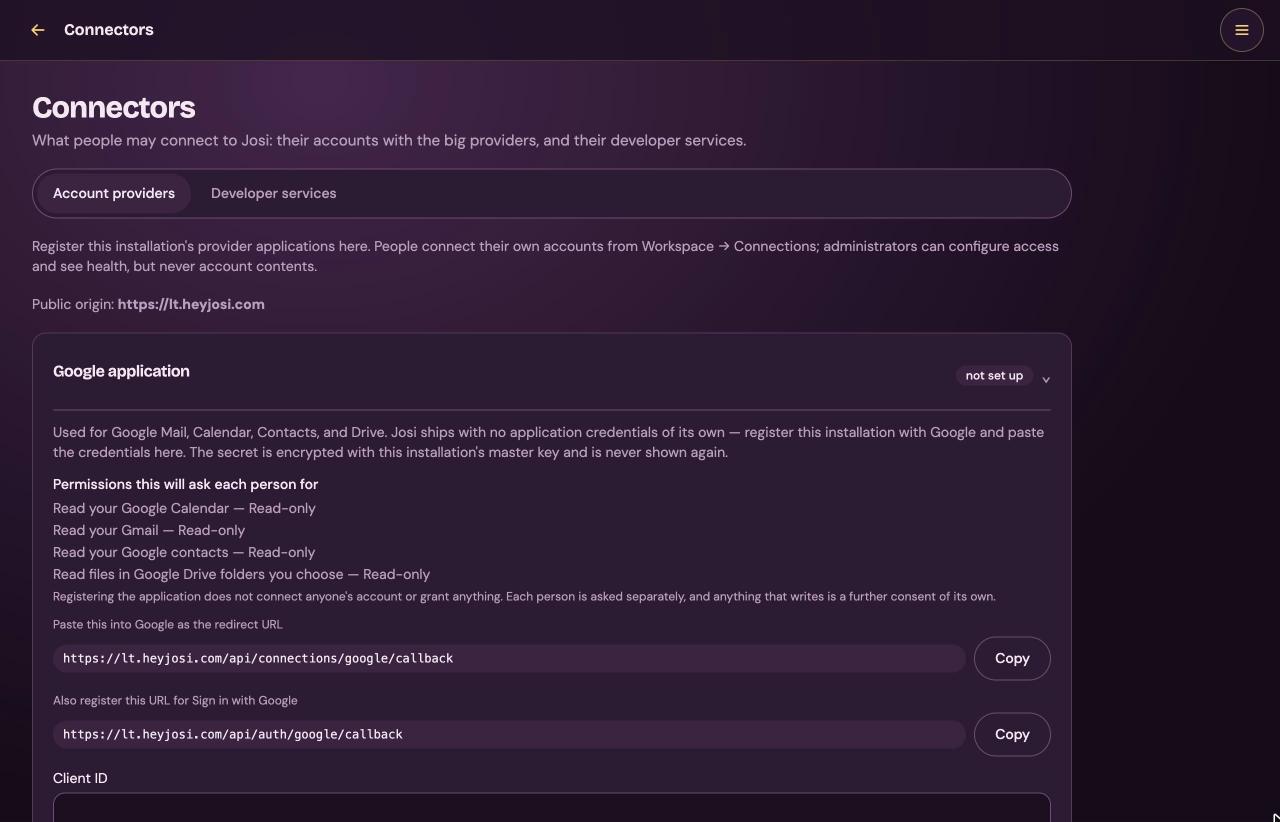
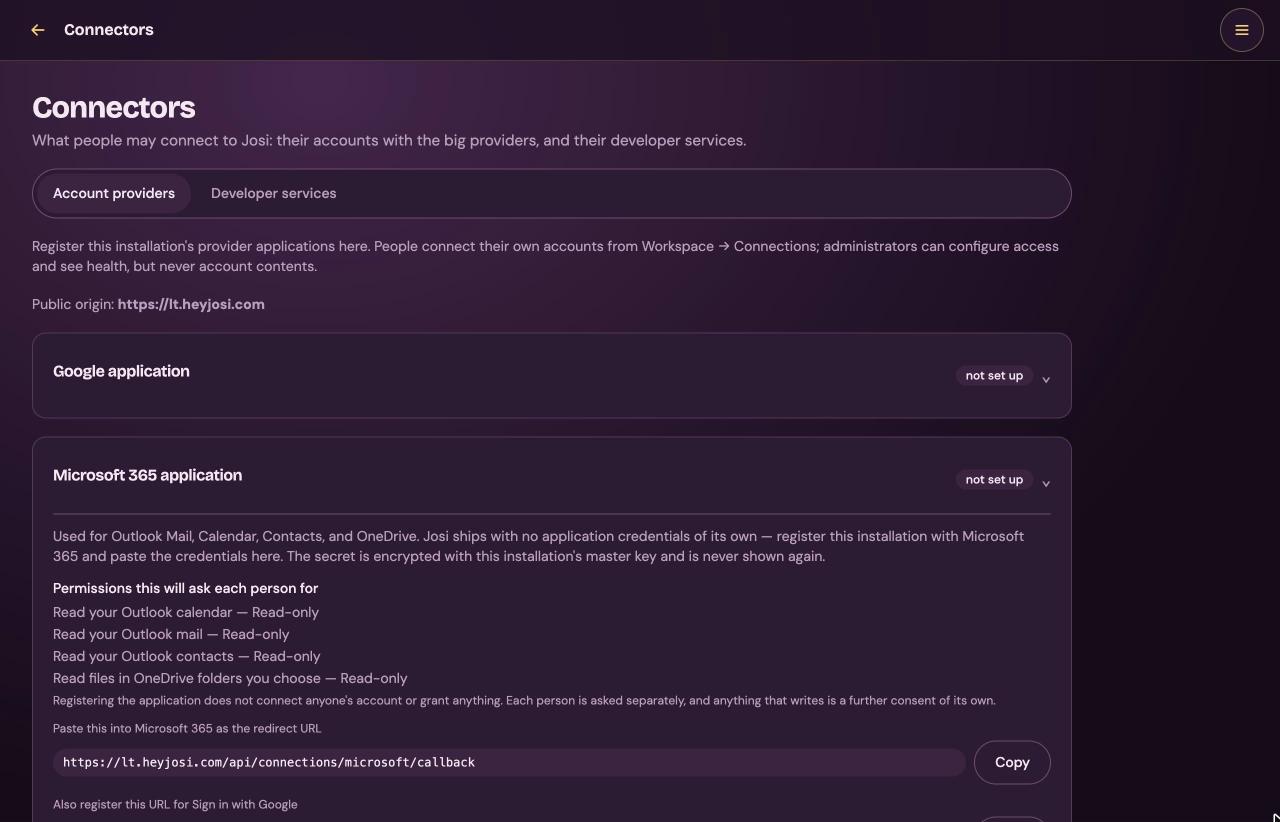
Open Admin → Connectors → Account providers, and open the provider's card. Each card shows:
- what the provider is used for;
- Permissions this will ask each person for;
- Paste this into … as the redirect URL, with Copy;
- for Google and Microsoft, a second address for the Continue with button on the sign-in page, also with Copy;
- Client ID and Client secret, and Save.
The two addresses look like this, with your own address in front:
https://josi.example.com/api/connections/google/callback
https://josi.example.com/api/auth/google/callback
For the other providers, google becomes microsoft,
dropbox or box. Dropbox and Box only have the first one. Always copy
them from the card, so they match exactly.
- In Google Cloud Console, create a project, or choose one.
- Turn on the APIs Josi uses: the Gmail API, the Google Calendar API, the People API and the Google Drive API.
- Create an OAuth client of type Web application.
- Add both addresses from the card as authorized redirect URIs.
- Copy the client ID and the client secret into the Google card in Josi, and select Save. The card then says configured.
When a person connects, Google asks them for: their email address, reading and changing their calendar, reading and sending Gmail, reading and changing contacts, and reading Google Drive.
While your Google app is in testing, Google only lets in the people you add as test users in its console. Google also ends test sign-ins after about a week, so people have to connect again.
Microsoft 365
- In Microsoft Entra, register an app. Josi signs in through Microsoft's common sign-in, so choose the option that allows both work or school accounts and personal Microsoft accounts.
- Add both addresses from the card as Web redirect URIs.
- Create a client secret. Copy its value, not its ID.
- Copy the application (client) ID and the secret into the Microsoft 365 card in Josi, and select Save.
Josi asks each person for these Microsoft Graph permissions: openid,
email, offline_access, User.Read,
Calendars.Read, Calendars.ReadWrite, Mail.Read,
Mail.Send, Contacts.Read, Contacts.ReadWrite and
Files.Read.
Dropbox and Box
- Dropbox: in Dropbox's App Console, create an app with scoped access.
Turn on
files.metadata.readandfiles.content.read, and add the redirect address from the card. Paste the app key and secret into the Dropbox card as Client ID and Client secret, and select Save. - Box: in Box's developer console, create a custom app with user authentication (OAuth 2.0) and read-only file access. Add the redirect address from the card. Paste its client ID and secret into the Box card, and select Save.
Both are used only to read folders people choose.
Good to know
- A new secret has to be typed each time you save a card. A saved secret is never shown again.
- This page has no test button. The first real test is a person selecting Connect. Setup's email step does test the keys, with Save keys.
- If a proxy in front of Josi changes the path, open Advanced — override the redirect URL on the card. Otherwise leave it alone.
- If you change Josi's address later, register the new addresses with the provider, then open the card and save again with the secret.
Each person connects their own account
- Open Workspace → Connections, and select Show all services.
- Open Google, Microsoft 365, Dropbox or Box, and select Connect.
- Sign in on the provider's own page and allow what it asks. Josi never sees the password.
- Back in Josi, the card shows connected and the account's email.
- Everything the provider granted starts on. Each permission has its own On/Off button on the card, such as sending email or changing calendar events.
- Sending email still asks you first, every time.
- Connect your own Google or Microsoft account here before you use Continue with Google or Continue with Microsoft on the sign-in page.
- Disconnect removes Josi's copy of the access. For Microsoft and Dropbox, also remove Josi from your account's app permissions at the provider.
- To check it works, ask Josi "What's on my calendar tomorrow?" In Admin → Connectors → Connection health, the person's row says Working.
Commands on the server
Run these in a terminal on the server, or over SSH.
Install, repair or reconfigure
The installer also adds josi-ce-server-install to the server. Run it as
root.
sudo josi-ce-server-installWith no flags, it reinstalls nothing. It applies the saved answers and prints the address. Before setup is finished, that's a new one-use setup link. It never asks questions.
sudo josi-ce-server-install --recoverRolls back an update that was interrupted, and starts Josi again.
Flags change the saved answers. The same flags work with the one-line command after
sudo bash -s --.
| Flag | What it does |
|---|---|
--address-mode lan|domain|proxy | This network only, a public domain, or behind your own proxy. |
--lan-address HOST | The server's address on your network. |
--domain NAME | The domain, for domain mode. It needs ports 80 and 443. |
--email ADDRESS | Where certificate notices go, for domain mode. |
--public-url https://HOST | The address your proxy serves, for proxy mode. No path. |
--port N | The browser port, from 1024 to 65535. |
--pc-control-user USER | Turns PC control on, as this Linux user. |
--no-pc-control | Turns PC control off. |
--browser, --no-browser | Josi's own browser, with PC control. |
--local-model, --no-local-model | Josi's own model on this server. |
--open-setup, --no-open-setup | Network-only installs: lets the first visitor start setup without the link. Off by default. |
--yes | Asks nothing. On josi-ce-server-install it changes nothing, because that command never asks. |
--upgrade | Used by Josi's own updater. Don't run it by hand. |
--interactive-uid N | Used by older setup tools. You don't need it. |
The one-line command also takes --from FOLDER, to install from a downloaded
release folder, and --help.
Check the services
josi-ce-native-statusPrints one line of JSON with the version and whether each of Josi's six services is running. It doesn't check PC control, the browser or the model.
curl -s http://127.0.0.1:8080/readyAnswers when Josi is really ready. Use your own port if it isn't 8080.
Start, stop and logs
systemctl status josi 'josi-ce-*'Shows whether Josi and its services are up, for example after a reboot.
sudo systemctl start josi
sudo systemctl stop josi
Starts or stops Josi with all its services.
sudo systemctl restart josiRestarts the six services. Josi's own model keeps running.
journalctl -u 'josi-ce-*'Josi's logs. Add -n 200 for the last 200 lines.
journalctl -u josi-ce-web -f
journalctl -u josi-ce-worker -f
Follows the web or worker log live. Ctrl+C stops.
sudo systemctl status josi-pc
sudo systemctl status josi-browser
PC control, and Josi's own browser.
sudo systemctl status josi-ollama
journalctl -u josi-ollama -f
Josi's own model, and its download.
systemctl list-timers josi-update.timer
journalctl -u josi-update -u josi-update-check
The automatic update check. It runs every 12 hours. In this beta it finds nothing.
Josi's own model
sudo cat /var/lib/josi-ollama/state.jsonWhere the model stands: downloading (with how much is done),
checking, creating, loading, ready or
failed (with the error).
nvidia-smiShows whether the model is on the graphics card. Once it's loaded, it uses about 6 GB of the card's memory.
sudo touch /etc/josi/llm-debugTurns on the debug log, with no restart. Every request to the model and its raw reply is
written to /var/lib/josi/data/logs/web/llm-debug/model-calls.jsonl, or
…/logs/worker/…. It contains conversations.
sudo rm /etc/josi/llm-debugTurns the debug log off again. Do this when you're done.
PC control from the command line
Run these as the Linux user Josi acts as. ls /var/lib/josi/versions shows the
version folder to use for VERSION.
sudo -u USER /var/lib/josi/versions/VERSION/node/bin/node /var/lib/josi/versions/VERSION/app/packaging/linux/pc-executor/josi-pc.mjs statusShows whether PC control is paired, paused and connected.
sudo -u USER …/josi-pc.mjs pauseJosi stops taking PC work. It prints Josi PC service paused.
sudo -u USER …/josi-pc.mjs resumeJosi takes PC work again.
sudo -u USER …/josi-pc.mjs unpair
sudo systemctl restart josi-pc
Forgets the pairing, then makes a new key. Pair again under Admin → PC control permissions.
Where Josi keeps its files
| Path | What's there |
|---|---|
/etc/josi/install.json | Your installer answers. They're the defaults next time. |
/etc/josi/update.json | Where the updater looks for new versions. |
/etc/josi/runtime.json | Ports and version. The installer owns it. |
/etc/josi/README | A short help text with the main commands. |
/etc/josi/llm-debug | The switch for the model debug log, when it exists. |
/etc/josi/tester.json | The beta-tester token and crash-report address, when there is one. |
/usr/lib/josi | The program, its runtime and Ollama. |
/var/lib/josi/data | All of Josi's data: database, secrets, settings and uploads. |
/var/lib/josi/data/config/Caddyfile | The web server's settings, written by the installer. |
/var/lib/josi/data/logs/ | Log folders for each service. |
/var/lib/josi/data/backups/ | Backups, including the nightly ones. |
/var/lib/josi/data/secrets/ | The master key and other secrets. Never delete them. |
/var/lib/josi/versions/ | The current version and the one before it. |
/var/lib/josi/transactions/ | Records and snapshots from installs and updates. |
/var/lib/josi-pc/ | PC control's key, its pairing, and Josi's own Chrome. |
/var/lib/josi-ollama/ | The model and state.json. Kept apart, so updates and backups never copy it. |
/var/log/josi-install.log | The installer's log. Send it with /var/lib/josi/transactions when you report a failed install. |
Change settings later
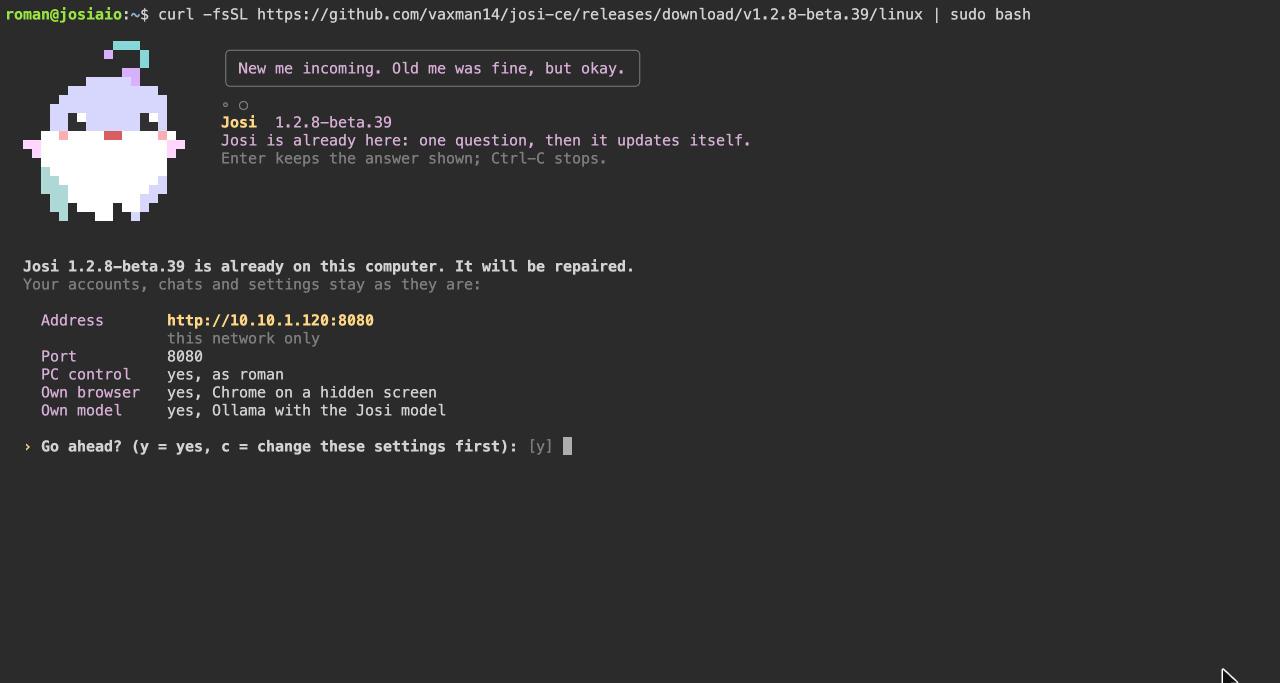
Run the install command again. On a server where Josi is already installed, it asks one question. It shows your current settings and asks:
Go ahead? (y = yes, c = change these settings first): [y]- Enter or y keeps everything and repairs or updates Josi.
- c goes through every question again, with your saved answers filled in.
Your accounts, chats and settings stay as they are. Only the services affected by a change restart.
You can also give the change as a flag. Nothing is asked then:
sudo josi-ce-server-install --port 8090Moves Josi to port 8090.
sudo josi-ce-server-install --no-local-modelStops and removes Josi's own model service. The downloaded model stays on disk.
sudo josi-ce-server-install --no-pc-controlTurns PC control off.
sudo josi-ce-server-install --address-mode proxy --public-url https://josi.example.comPuts Josi behind your own reverse proxy or tunnel at that address.
Behind a tunnel, such as Cloudflare Tunnel, always use proxy mode with
--public-url, never domain. In domain mode, Josi's own
web server keeps trying for a certificate it can't get. Point the proxy or tunnel at
http://server-address:port.
Changing the address doesn't change the address registered with Google or Microsoft. See Good to know.
Update Josi
Run the one-line command for the new version. Replace the version number in the address with the new one:
curl -fsSL https://github.com/vaxman14/josi-ce/releases/download/vNEW-VERSION/linux | sudo bash- It asks only Go ahead?, then updates. It takes a minute or two.
- It keeps your answers, your accounts, your chats and all your data.
- It copies your data before it changes anything. If the update is interrupted, the next run rolls it back.
- If you were in the middle of setup, the old setup link stops working. Run
sudo josi-ce-server-installfor a new one.
To update without any question, add --yes:
curl -fsSL https://github.com/vaxman14/josi-ce/releases/download/vNEW-VERSION/linux | sudo bash -s -- --yesCheck for updates in Admin → System checkup doesn't find updates for this beta. Use the command.
Remove Josi
sudo josi-uninstallStops Josi and removes the program and its services. It keeps your data in
/var/lib/josi, the settings in /etc/josi, and the downloaded model.
Run the install command again to bring Josi back with everything as it was.
sudo josi-uninstall --purgeAlso deletes all of Josi's data, its settings, PC control's files, the model and Josi's system accounts. This can't be undone. Make a backup first, and download it, if you might want it later.
Removing the package with sudo apt remove josi stops Josi's services too, but
josi-uninstall is the full removal.
Troubleshooting
When the installer fails, it shows the message in red, the last lines of
/var/log/josi-install.log, and Run the same command again to try
again. It never deletes what was already installed.
Port 80 and 443 is taken by another program; Josi's Caddy needs 80 and 443. Choose 3 to use your own proxy.
You chose a public domain, but another web server, such as nginx, Apache or a Docker container, already uses port 80 or 443. Stop that program, or choose 3 and let that program forward to Josi.
not enough free disk space: Josi needs about N GB free on /var/lib and only M GB is free.
Josi needs about 6 GB free on /var/lib, and about 12 GB more for its own
model. Nothing was changed. Free some space and run the command again, or add
--no-local-model to use a cloud model instead.
the downloaded package did not match this installer; nothing was installed
The download was broken or cut short, or something on your network changed it. Run the command again. If you install from a downloaded folder, make sure the installer and the package come from the same release.
Josi did not become ready; see: journalctl -u "josi-ce-*"
Josi's services started but didn't answer within four minutes. Look at the log with
journalctl -u 'josi-ce-*' -n 200. It usually names the service that failed.
Then run the install command again: it recovers first and keeps your data.
This setup link expired or was already used. Reopen Josi, or on a Linux server run the install command again, for a fresh link.
A setup link works once, for 10 minutes. It also stops working when Josi restarts, for
example after an update. Run sudo josi-ce-server-install and open the new link
within 10 minutes. Your answers so far are kept.
The Josi model did not download: … Josi tries again by itself in a minute. You can also choose another model below.
The server couldn't fetch or check the model. Check the server's internet connection and
its free disk space under /var/lib/josi-ollama. Watch it with
journalctl -u josi-ollama -f. Josi tries again every minute. In the meantime you
can pick a cloud model.
The provider could not be reached from this server. Check outbound network access and DNS.
The model's first test failed because Josi couldn't reach the model. For Josi's own model,
check sudo systemctl status josi-ollama and that the address is
http://127.0.0.1:11434/v1. Wait until state.json says
ready, then test again. For a cloud model, check the server's internet
connection.
The model returned an empty reply.
Common with local models that think before they answer. Set Thinking to Off: answers directly (recommended) and test again.
<host> rejected the username or password. Many providers require an app password…
The mail server refused the sign-in. Most providers, Gmail among them, want an app password made in your account's security settings, not your normal password. Also check that the security matches the port: STARTTLS on 587, TLS on 465.
Google App Passwords must contain exactly 16 letters. Paste all four groups; spaces are removed automatically.
You used Gmail's SMTP server with your Google password, or only part of an app password. Make an app password in your Google account and paste all of it.
wrong username or password
The account doesn't exist, or the password is wrong. Josi doesn't say which, on purpose. Check the username or email. Forgot password? only works when Josi can send email. There's no command on the server to reset a password.
too many attempts, try again later
After 8 failed tries for one account, or 25 from one address, within 15 minutes, Josi waits. Wait 15 minutes. Behind a tunnel, everyone may share one address, so they share the 25 tries too.
If that account exists and system email is configured, a reset link is on its way.
Josi says this every time, also when nothing is sent. If no email arrives, Josi probably can't send email yet. The owner sets up SMTP, or Josi's own email under Admin → Overview, and checks that its test message arrives.
The model provider could not complete this reply. Check its connection and run the model capability check.
The model failed in the middle of a reply. For Josi's own model, Ollama isn't running or
the model isn't loaded. Check sudo systemctl status josi-ollama, then select
Test this model or Test again under Admin → Model.
This message was too large for the model. The sizes and what to do are in the note Josi left in this conversation and under Models, Size and speed.
The message, with its attachment and the conversation so far, didn't fit the model. Josi's own model takes about 24,000 tokens at once. Shorten or split the message or the attachment. Under Admin → Model → Change model, set Prompt size to Compact.
Microphone access requires HTTPS or localhost.
Browsers only allow the microphone on an HTTPS address. On a network-only install, voice doesn't work from other computers. Give Josi a public domain or put her behind your own HTTPS proxy: see Change settings later.
A public address is needed first
Admin → Connectors shows this on a network-only install. Google, Microsoft, Dropbox and Box can't be set up until Josi has an HTTPS address with a domain name. Run the install command again with choice 2 or 3. Nextcloud, developer services and MCP servers work without it.
Error 400: redirect_uri_mismatch
Google shows this on its own page. Microsoft shows a message starting with
AADSTS50011. The address Josi sent isn't registered with the provider. Register
both addresses exactly as the card in Admin → Connectors shows them. If Josi's address
changed after you registered, register the new ones and save the card again with the
secret.
That sign-in link had already been used or had expired. Start again.
Connecting an account took longer than 10 minutes, or the page was reused. Select Connect again. If it fails again straight away, the client secret saved in Admin → Connectors is probably wrong: copy it again from the provider and save the card.
That Google account is not linked to a Josi account. Sign in with your password, then connect Google first.
Continue with Google only works for an account you already connected. Sign in with your password, connect the same Google account under Connections, then use the button next time. The same goes for Microsoft.
Known issues in this beta
- Asking Josi to run a command on the server can take minutes. She then says she needs "your yes or no on a PC control card", but no card appears anywhere, Approvals included.
- Admin → System checkup says Josi address — The configured Josi address is not
responding on a network-only install, although the address works. Admin →
Connectors shows the detected address as
https://and your server's IP address, without the port. - Admin → System checkup → Check for updates finds nothing for this beta. Update by running the install command again. See Update Josi.
- Hey Josi AI is listed as a model provider, but it isn't available.
- The Devices page offers Make a pairing code and describes a relay, but pairing isn't available in this beta. Settings may offer Migrate from another assistant.
- The sign-in page still says Hey Josi and Josi CE 0.1 — Community Preview.
- On the Microsoft 365 card, the second redirect URL is labelled Also register this URL for Sign in with Google. It's for Sign in with Microsoft.
- Send feedback says the server "was not installed with a beta-tester link". Send your feedback to the address in your beta invitation.
- Running the installer again says Josi's own model is downloading now (5.8 GB), even when the model is already there.